
Single-Property Homepage serves your property page as your site’s homepage, giving a one-property booking site a single front door for guests and search engines.
What it does #
If your site markets one property, a separate homepage and property page split the site in two. Guests land on one page but book on the other, and search engines see two competing pages for the same property.
With this module on, the property page is the homepage. Someone who visits yoursite.com lands directly on the property, with the photos, calendar, and booking component right there.
- Your homepage shows the full property page, booking component included.
- Menu links, sitemap entries, and search engine listings all point to your site root instead of a longer property web address.
- Anyone who opens the old property web address is forwarded to the homepage automatically, so existing links and bookmarks keep working.
How to turn it on #
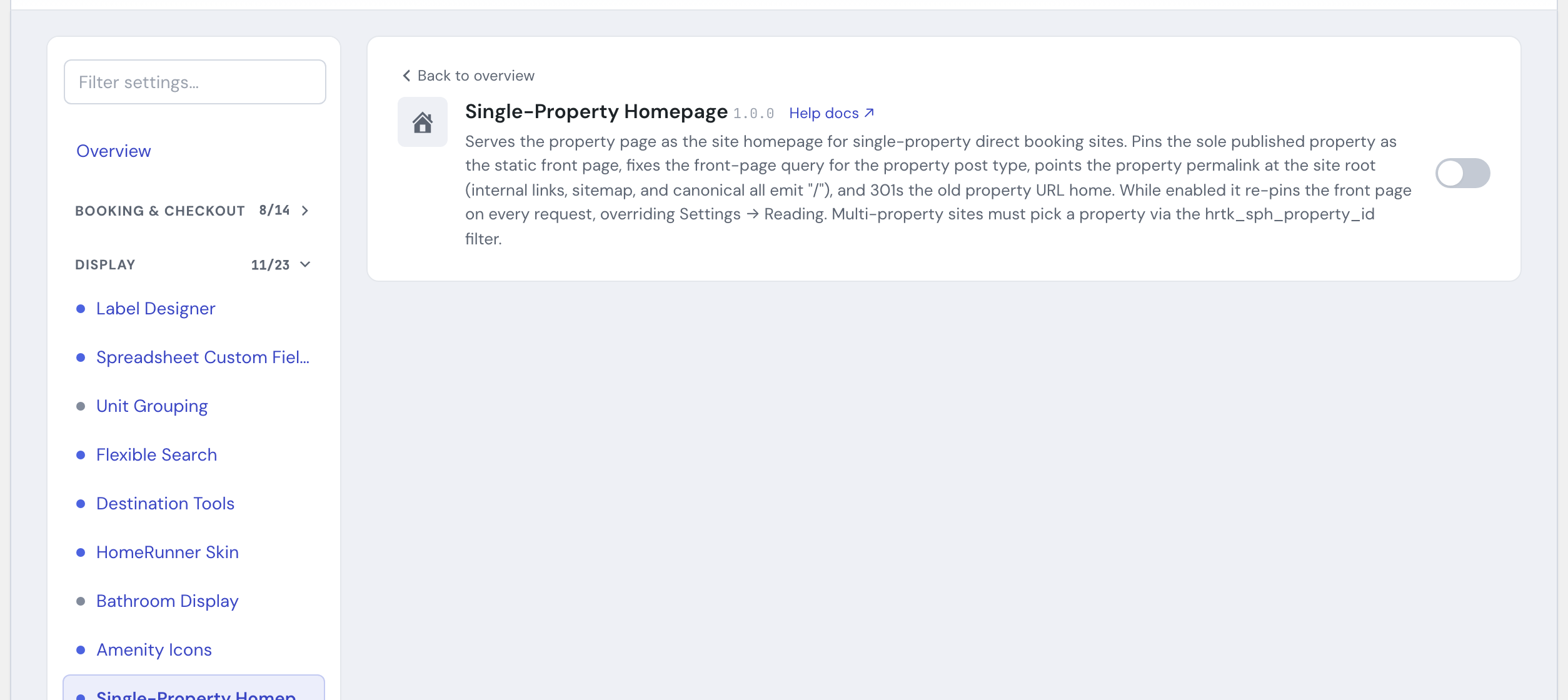
1. Switch on the module #
In the HomeRunner Toolkit Hub, switch on Single-Property Homepage.
2. Let it pick your property #
There is nothing else to configure. The module finds your site’s one published property and pins it as the homepage. If your PMS connection ever removes and recreates that property, the module picks it up again on its own.
If your site has more than one published property (or none), the module does not guess. It leaves your homepage alone and shows a notice in your WordPress dashboard instead. In that case, contact HomeRunner support to point the module at the right property.
Settings #
| Setting | What it controls |
|---|---|
| Module switch (Toolkit Hub) | Turns the property-page homepage on or off. Off is the default. Switching it off restores the homepage your site used before. |
Tips #
- While the module is on, it keeps the homepage pinned to your property. A homepage change under Settings → Reading will not stick; switch the module off first if you want a different homepage.
- Seeing a “no property could be pinned” notice in your dashboard? The site needs exactly one published property. Unpublish extras, or ask HomeRunner support to set the right one.
- Since your property page is now your homepage, it is worth making it fully on-brand. The Toolkit Skin Designer styles the property page to match your site.
- New to the Toolkit? Start with the Toolkit overview.