
Greys out calendar dates that fall inside your advance-booking window and shows a clear tooltip, so guests never pick a date that fails at checkout with a confusing “internal error” message.
What it does #
Many properties require a minimum amount of advance notice (for example “book at least 7 days ahead”). Without help, a guest can pick a too-soon date, sail through the booking component, and only hit a generic error at the very end. That is a frustrating dead end.
Advance Notice fixes this in three places, and can optionally enforce it too:
- The booking component calendar greys out dates inside the advance-notice window so they cannot be selected.
- The Explorer range calendar marks those dates unavailable and shows a tooltip when a guest hovers or taps them.
- The checkout error message is rewritten, so if anyone still slips through, the unhelpful “requires 168 hours” style message becomes a clear human-readable note in days.
- Optional server-side enforcement rejects a booking attempt whose check-in falls inside the window outright, for setups where the availability feed itself would otherwise let it through.
The result is that guests understand the rule up front instead of running into a wall at checkout.
By default this is a guest-experience layer, not the enforcer: your property management system and HomeRunner still decide which bookings are allowed, and turning the module off only removes the friendlier greying and message. If your availability feed can release advance-notice dates as bookable and you need the site itself to hold the line, the opt-in Enforce at booking setting below rejects those attempts directly.
How to turn it on #
1. Enable the module #
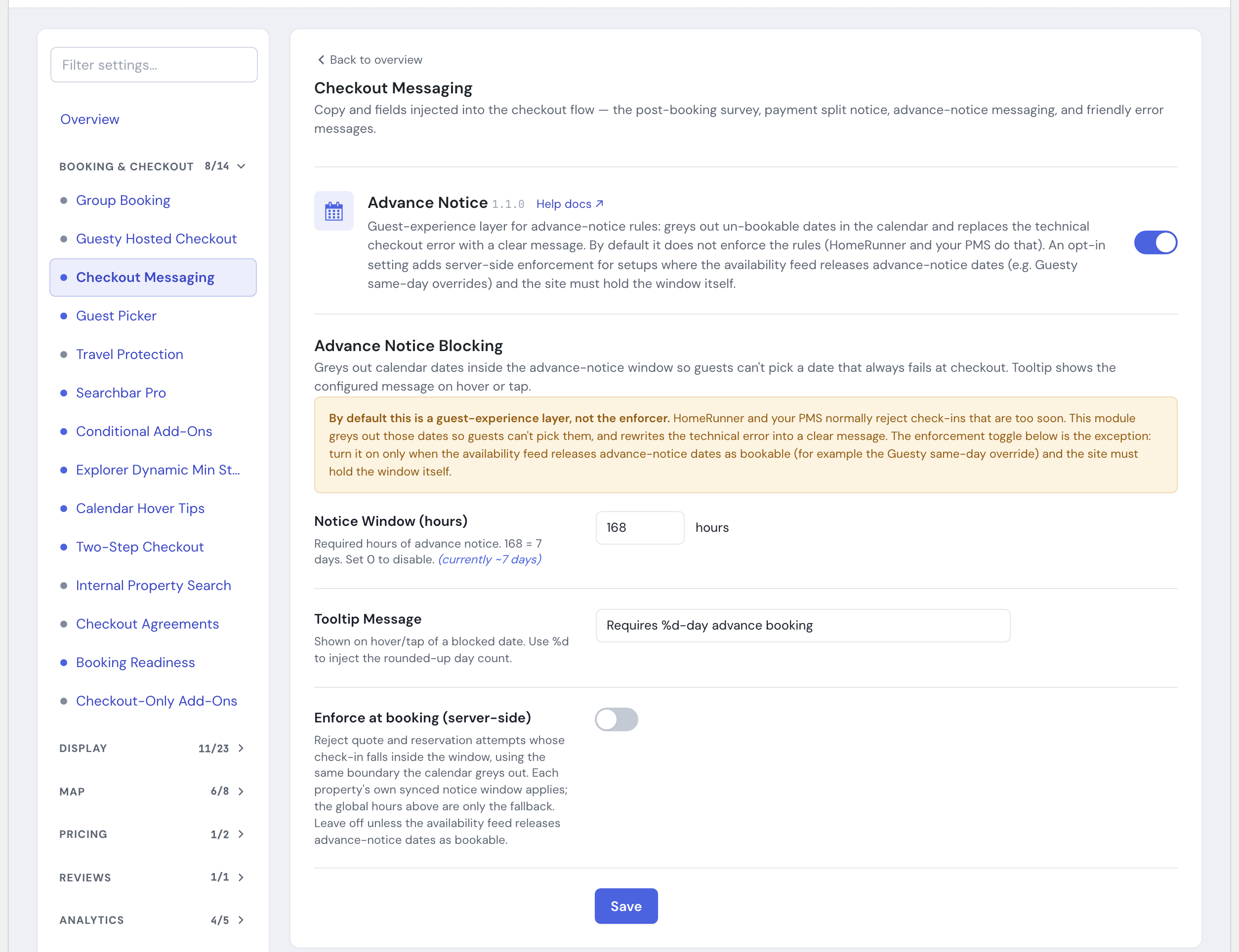
Go to HomeRunner Toolkit in your WordPress admin and switch on Advance Notice.
2. Set your notice window #
Open the Advance Notice settings panel and enter how many hours of advance notice you require (see Settings below).
3. Save #
Click Save. Blocked dates are greyed out on the calendars right away.
Settings #
| Setting | What it controls |
|---|---|
| Notice Window (hours) | The required hours of advance notice, from 0 up to 8760 (one year). The panel shows the rounded day equivalent next to it (for example 168 hours displays as ~7 days). The default is 0, which leaves blocking off until you enter a window, so a common setting is 168 hours (7 days). Set it back to 0 to disable blocking. |
| Tooltip Message | The text shown when a guest hovers or taps a blocked date. Use %d anywhere in the message and it will be replaced with the rounded-up day count. The default is “Requires %d-day advance booking”. |
| Enforce at booking (server-side) | Off by default. Turn on to reject quote and reservation attempts whose check-in falls inside the notice window, using the same boundary the calendars grey out. Each property’s own synced notice window applies when it has one; the global Notice Window above is only the fallback. Leave this off unless your availability feed can release advance-notice dates as bookable and you need the site to hold the window itself. |
Tips #
- Enter the window in hours, but think in days: 24 = 1 day, 168 = 7 days. The panel confirms the day count for you as you type.
- Keep the tooltip friendly and specific, for example “This home needs %d days’ notice to book.” The
%dkeeps it accurate even if you change the window later. - A property can carry its own notice window from your property management system. When a property has its own value, that window applies to it, for both the calendar greying and (if you turn it on) server-side enforcement. Every other property uses the global Notice Window you set here.
- If you also use HomeRunner’s own “Validate advance booking hour” option, turn it off before relying on Enforce at booking here. That check measures from each listing’s own check-in time and can reject bookings earlier in the day than this module’s boundary, for example closing a 4-hour window at noon instead of 8pm.
- See the full module list in the Toolkit overview.