
Property Video shows a walkthrough video on a property’s page from a YouTube or Vimeo link your team keeps in a custom field in your PMS. Homes without a link show nothing, so you can roll it out one listing at a time.
What it does #
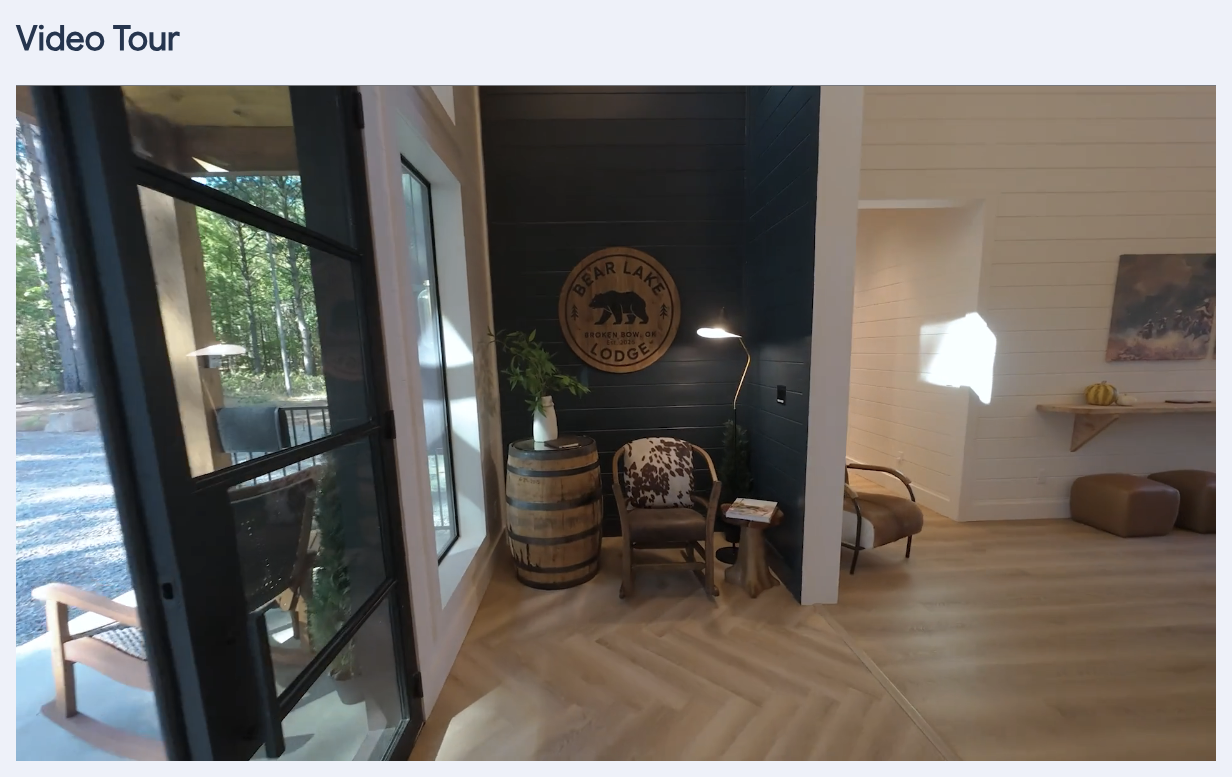
A walkthrough video answers the questions photos leave open: how the rooms connect, how big the deck really is, what the view does at sunset. Property Video puts that video on the property page as a responsive player, sized to the page, with autoplay, loop, mute and controls under your control.
The link lives in your PMS, next to the rest of the listing. Your team pastes a YouTube or Vimeo link (or just the video id) into one custom field, and the site picks it up on the next sync. No media uploads, no page edits, no developer.
How to turn it on #
1. Create the custom field in your PMS #
Add a custom field to your properties named Property Video. Any PMS that syncs custom fields to HomeRunner works. If your PMS already has a field for this under another name, you can point the module at it in Settings.
2. Paste a link #
On each property that has a video, paste one of these into the field:
- a YouTube link, such as
https://www.youtube.com/watch?v=VIDEO_IDorhttps://youtu.be/VIDEO_ID - a Vimeo link, such as
https://vimeo.com/123456789 - just the video id
Unlisted Vimeo links work too. Paste the full private link (the one with the extra code after the id, or with ?h= in it) so the player can unlock it.
Leave the field empty on properties without a video. The page simply shows nothing there.
3. Switch on the module #
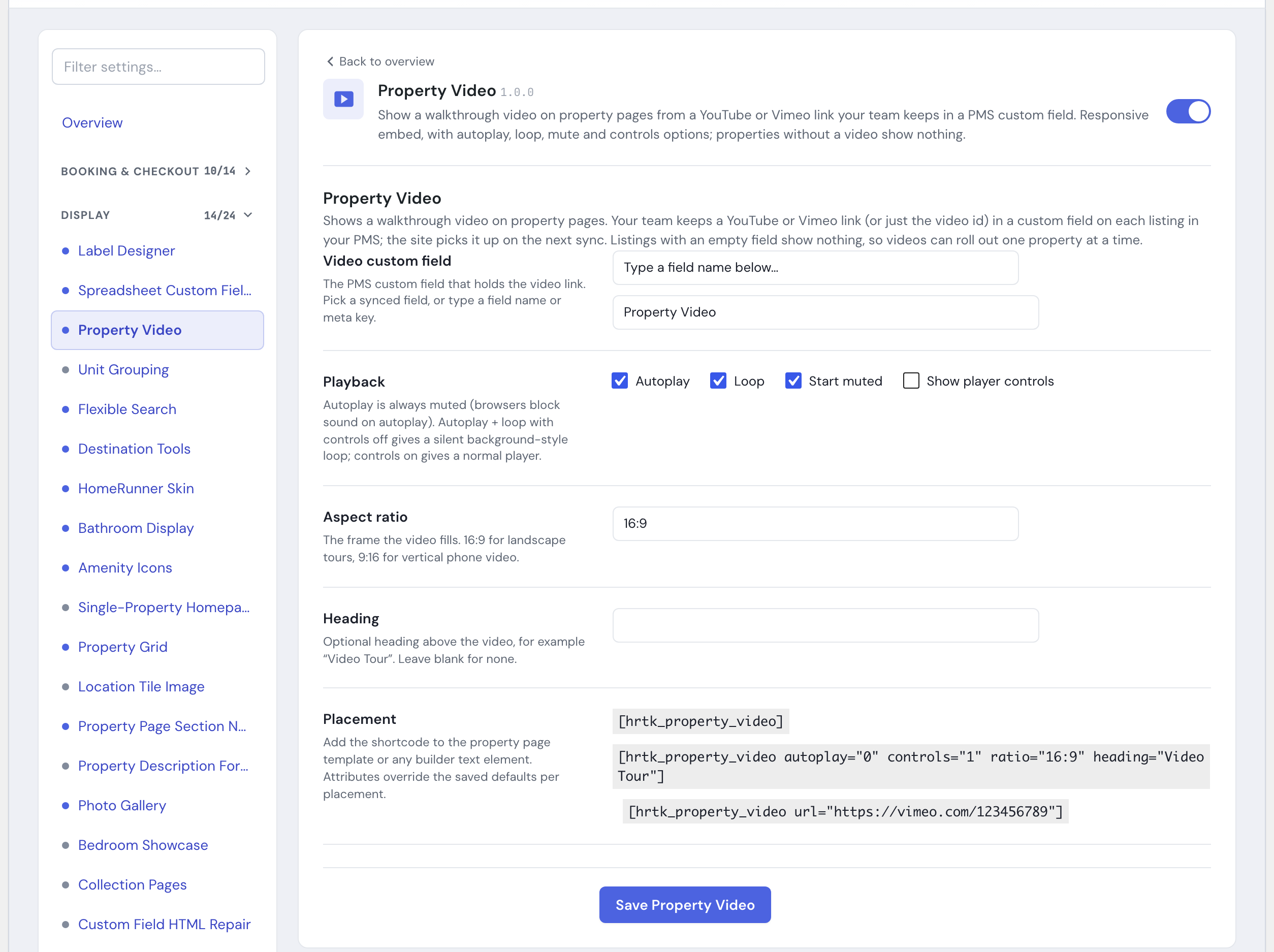
In WordPress open the Toolkit page under the HomeRunner menu and switch on Property Video. The module is available from toolkit version 3.310.0.
4. Let it sync #
Custom fields come across on the regular sync, so a new link appears on the property page after the next sync. Changing or clearing the link works the same way.
Settings #
Open the module’s settings panel in the Toolkit hub.
| Setting | What it does | Default |
|---|---|---|
| Video custom field | Which PMS field holds the link. Pick from the fields HomeRunner already syncs, or type a field name. | Property Video |
| Autoplay | Starts the video as soon as the page loads. Browsers only allow silent autoplay, so autoplay always plays muted. | On |
| Loop | Plays the video again when it ends. | On |
| Start muted | Starts the player silent. | On |
| Show player controls | Shows the play, pause, volume and scrub controls. Off gives a clean, chromeless loop. | Off |
| Aspect ratio | The player’s shape: 16:9, 4:3, 1:1, 21:9, or 9:16 for vertical video. | 16:9 |
| Heading | An optional title above the player, for example “Video Tour”. Leave blank for none. | blank |
With autoplay, loop and mute on and controls off, Vimeo plays in its background mode: a silent, chromeless loop that reads as part of the page. Turn controls on when guests should be able to unmute and scrub.
Where it appears #
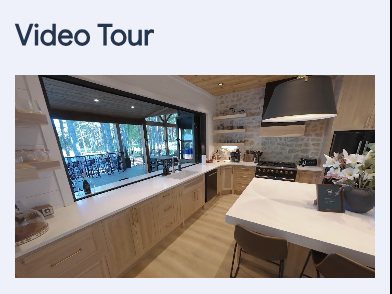
The player renders wherever the [hrtk_property_video] shortcode sits in your property page template. On most HomeRunner sites we place it under the photo gallery or just above the rooms section when we switch the module on for you; tell us where you want it and we will move it. If you build your own property page in YOOtheme, add an HTML element with the shortcode where the video should go.
The shortcode works on its own too, for a landing page or a single property:
| Attribute | Example | Notes |
|---|---|---|
url | [hrtk_property_video url="https://vimeo.com/123456789"] | Show one specific video instead of reading the field. |
id | [hrtk_property_video id="4521"] | Read the field from a specific property instead of the current page. |
field | [hrtk_property_video field="Walkthrough"] | Read a different custom field for this placement only. |
autoplay, loop, mute, controls | [hrtk_property_video controls="1"] | Override a setting for this placement. 1 or 0. |
ratio | [hrtk_property_video ratio="9:16"] | Override the aspect ratio. |
heading | [hrtk_property_video heading="Take the tour"] | Override the heading. |
Tips #
- Listed videos reach more people than unlisted ones. If the video is already public on your YouTube channel or Vimeo page, keep it listed; the player works either way.
- Keep walkthroughs short. A silent loop under the gallery works best at thirty to ninety seconds; a longer narrated tour is better with controls on so guests can scrub.
- Vertical phone footage looks right with the 9:16 ratio. Landscape footage stays at 16:9.
- Autoplay on a phone uses data. The player loads lazily, so it loads only as the guest scrolls near it.