
Calendar Hover Tips explains why a calendar day can’t be booked the moment a guest hovers over it, with a one-tap button to jump straight to the nearest stay that works.
What it does #
By default, HomeRunner’s calendars only explain a blocked date after a guest clicks it. A guest sees a green day, clicks it, and only then learns “minimum 3 nights” or “no check-in on this date.” They try the next day, and the next, working it out by trial and error.
Calendar Hover Tips shows that same explanation on mouse or pen hover, before a guest clicks anything at all. It works on both calendar surfaces: the property page’s availability calendar, and the Explorer / booking-widget range calendar guests use while browsing search results. The tip is resolved through the calendar’s own rule logic, so whatever it says on hover always matches what a click would say. Minimum stay, maximum stay, check-in/check-out restrictions, booked dates, and advance-notice windows are all covered.
When there’s an easy fix nearby, the tip goes further and adds a button:
- Hover a day that’s too soon to check out because of a minimum-stay rule, too far out because of a maximum-stay rule, or blocked as a checkout day, and the tip offers the nearest valid checkout, e.g. “Select Aug 30 – Sep 2 · 3 nights.”
- Hover a day that’s rejected as a check-in (a minimum-stay window runs into an existing booking, that weekday doesn’t allow check-in, or it falls inside the advance-notice window), and the tip offers the nearest day either side that can check in, paired with its own first valid checkout.
- On the Explorer’s range calendar, the same logic applies when a chosen check-in plus the hovered day makes too short or too long a stay.
Tapping the button applies both dates at once, the same as if the guest had clicked each day themselves. Guests on touch devices get the identical button on the tap-triggered tip instead of hover, so the shortcut isn’t limited to mouse and trackpad users. A day that’s already booked, or a day before the guest’s chosen check-in, shows no suggestion since there’s nothing nearby to offer.
The tip with a button stays put while the guest reaches for it. The tip sits just above or below the day, so the pointer often crosses the neighboring row of days on the way to the button. Those days do not replace the tip. If the pointer rests on one of them, the tip switches to that day after a brief pause.
How to turn it on #
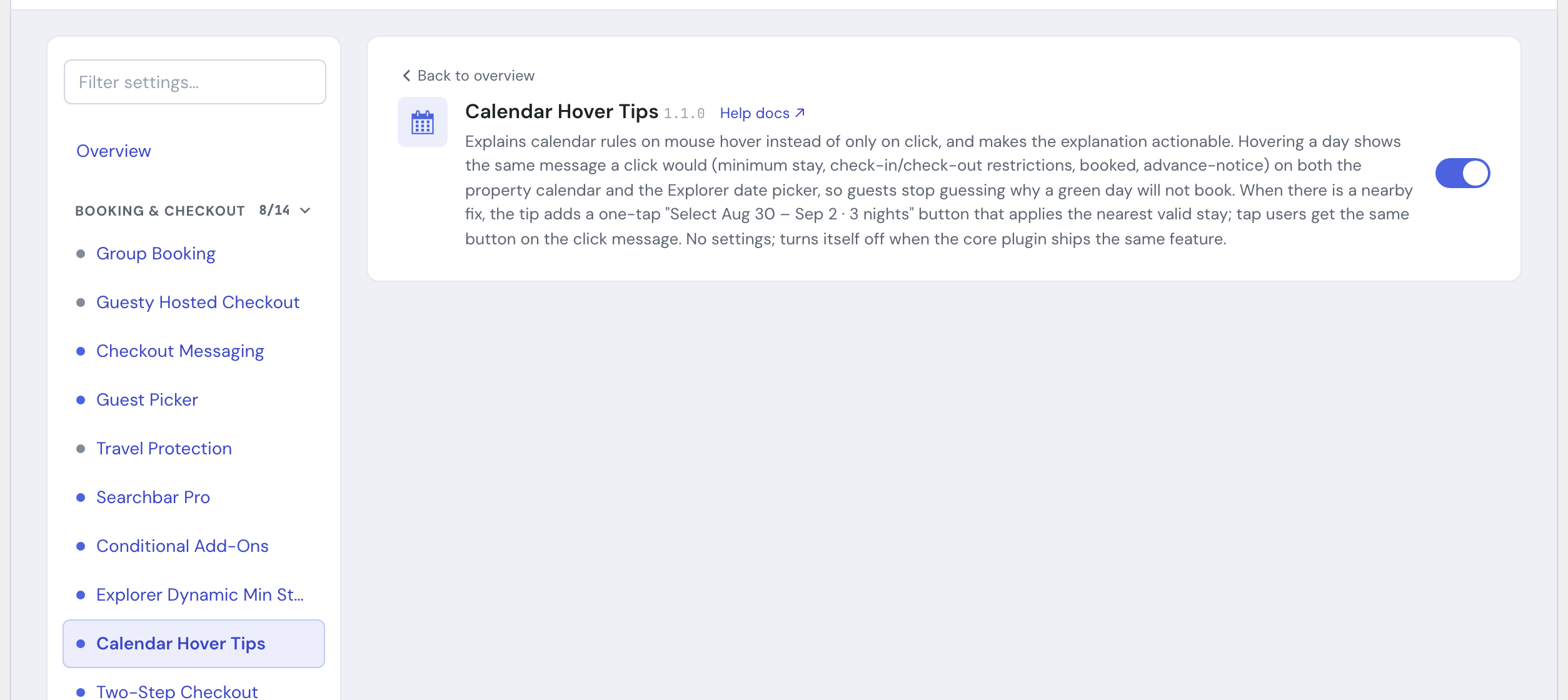
1. Switch on Calendar Hover Tips #
In the HomeRunner Toolkit Hub, under Booking & Checkout, switch on Calendar Hover Tips. It applies automatically to every calendar on the site, no per-property setup needed.
Settings #
This module has no settings to configure. It works the same everywhere it’s enabled, and stands down automatically, showing nothing, if your HomeRunner core plugin already ships this same hover explanation natively, or if your site runs the Rentus module (which provides its own hover tips), so guests never see two tips competing over the same day.
Tips #
- If hover tips don’t appear on a site, check whether a recent core plugin update already covers this natively. When it does, this module intentionally steps aside rather than duplicate it, which is expected and not a bug.
- Pairs naturally with Advance Notice Blocking, since an advance-notice rejection is one of the messages this module explains on hover.
- New to the Toolkit? See the Toolkit Overview for the full module list.