
The Feature Ledger keeps a record of every Toolkit feature turned on or off on your site, with the date and where each change came from, so you always know what changed and when.
What it does #
The Toolkit has dozens of features, and more than one path can switch them on. You can turn a feature on in the Toolkit hub, the HomeRunner team can turn one on during a rollout, and a plugin update can add a new default. When something on your booking site looks different, the first question is usually “did a feature change, and who changed it?” The Feature Ledger answers that from your own site, without a support ticket.
The page has two parts:
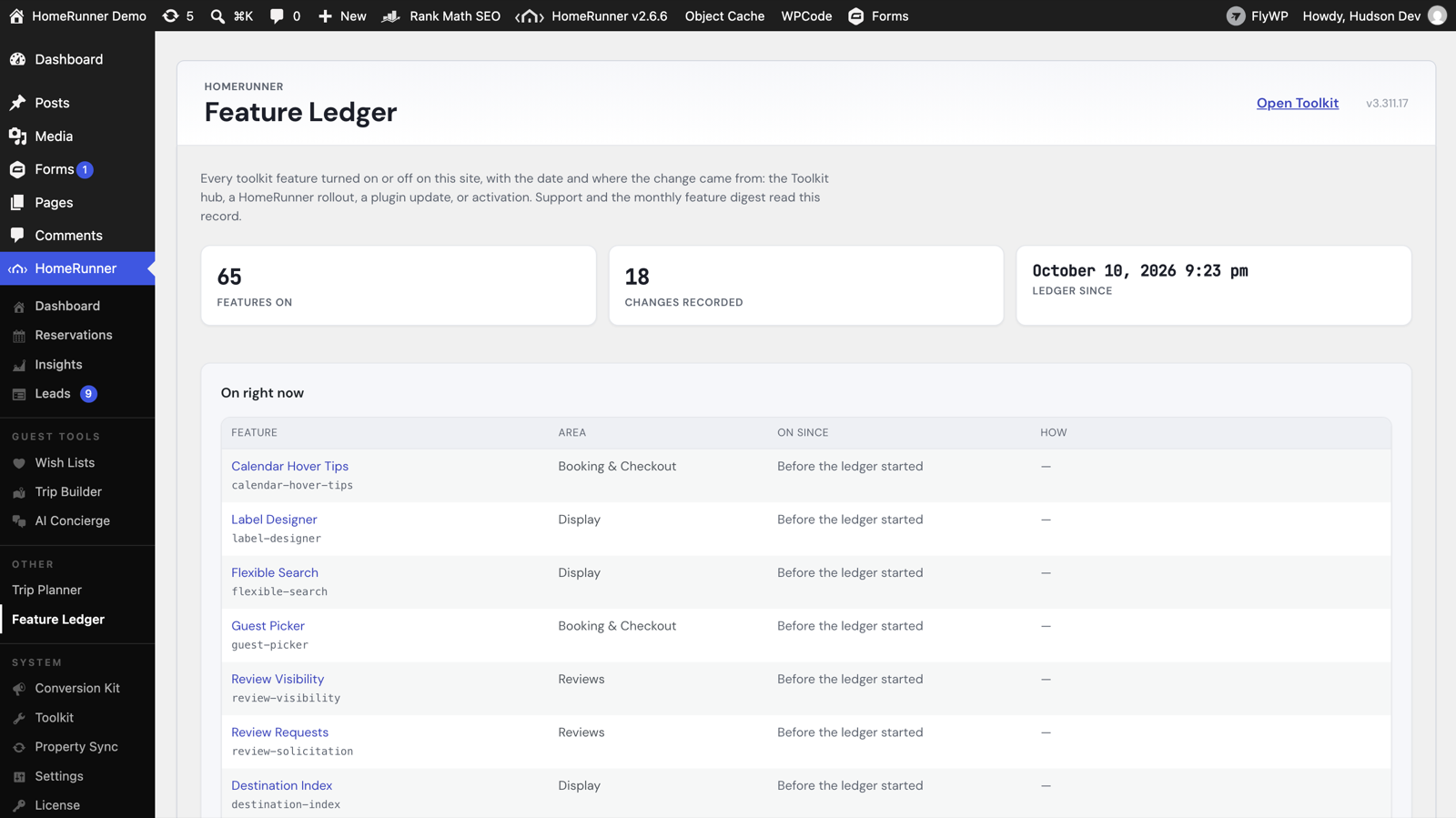
- On right now lists every feature that is currently on, the area of your site it belongs to (Booking & Checkout, Reviews, Display, and so on), the date it turned on, and how. For example: Bookable Starting Prices, Pricing, on since October 9, 2026, Fleet rollout, lane A.
- History lists every recorded change, newest first: when it happened, which feature, whether it went on or off, how, and which Toolkit version was installed at the time. Filter it to a single feature, or click a feature name in the top table to jump to its history.
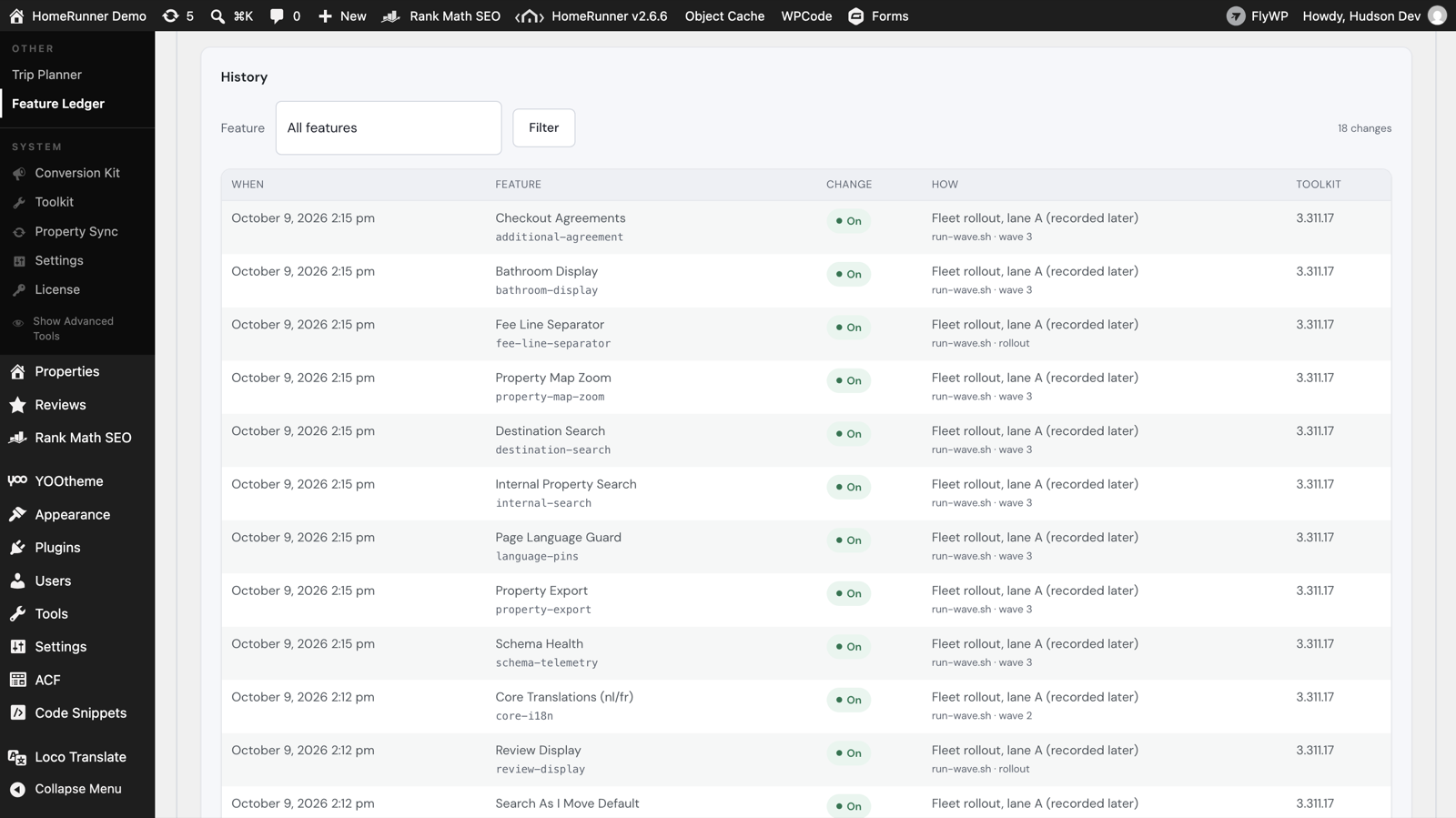
The How column tells you where a change came from:
- Toolkit hub: someone with access to your wp-admin switched the feature in the HomeRunner Toolkit hub.
- Fleet rollout, lane A: the HomeRunner team turned the feature on as part of a rollout. The lane letter tells support which rollout it was.
- Plugin update (new default): a Toolkit update turned the feature on because it became a default.
- Plugin activation: the feature came on when the Toolkit was activated on the site.
- Scheduled task, REST API, WP-CLI, or Recorded later: the change was made by an automated job or a connected tool rather than from the hub. Unknown appears when the source was not recorded.
Features that were already on before the ledger began show Before the ledger started instead of a date (or Before the kept history once older changes have been dropped). That is normal for a site that ran the Toolkit before this page existed.
How to open it #
1. Go to HomeRunner, then Feature Ledger #
In wp-admin, open the HomeRunner menu and choose Feature Ledger. Only administrators can see the page.
2. Nothing to turn on #
The ledger is always on. It starts recording with the first feature turned on or off after the Toolkit version that includes it is installed, and nothing you do on the page changes a feature. To turn features on or off, use the Open Toolkit button in the page header, which takes you to the Toolkit hub.
What the page shows #
| Column | What it shows |
|---|---|
| Features on | How many Toolkit features are on right now. |
| Changes recorded | How many on/off changes the ledger has recorded, including any older ones it has since dropped. |
| Ledger since | The date the ledger began recording on this site. |
| Area | The part of your site the feature belongs to, matching the Toolkit hub categories. |
| On since / When | The date and time of the change, in your site’s timezone. |
| How | Where the change came from (see the list above). When a change was made for you, the name of the person or rollout script and a short note appear underneath. |
| Toolkit | The Toolkit version that was installed when the change happened. |
The History table shows 100 changes per page, with Newer and Older buttons. The ledger keeps the most recent 1,000 changes and tells you at the bottom of the page if older ones were dropped.
Tips #
- If a feature shows No record under On since, the ledger has no recorded change for it. The next time it is switched off or on, the ledger records it.
- When you contact HomeRunner support about something that changed on your site, the date and the How value from the ledger are exactly what support needs to trace it.
- To see every Toolkit feature and what each one does, start at the Toolkit Overview.
- For how your site is performing rather than what is switched on, see Toolkit Insights.