
Auto Tags keeps a property tag in step with your calendar, so a “last-minute openings” chip, an “open this weekend” collection, or a holiday-week landing page stays current without anyone editing tags by hand.
What it does #
The tags that sell best on a booking site are the ones tied to time: which homes a guest can still book this week, which are open this weekend, which are free for Thanksgiving, which listings are new. Those tags go stale the moment a booking lands or a calendar changes, and no page filter can answer them, because availability is not a property attribute. Filters that are attributes, such as bedrooms or a group, already exist in the property explorer and in Collection Pages, so Auto Tags does not try to replace them.
Auto Tags does the time-based work for you. Each rule owns one property tag. Every hour, and right after each property sync, a pass checks every published home against the rule: a home that matches gets the tag, and a home that stops matching loses it. Build a page for the tag with the property explorer or Collection Pages and it keeps itself current.
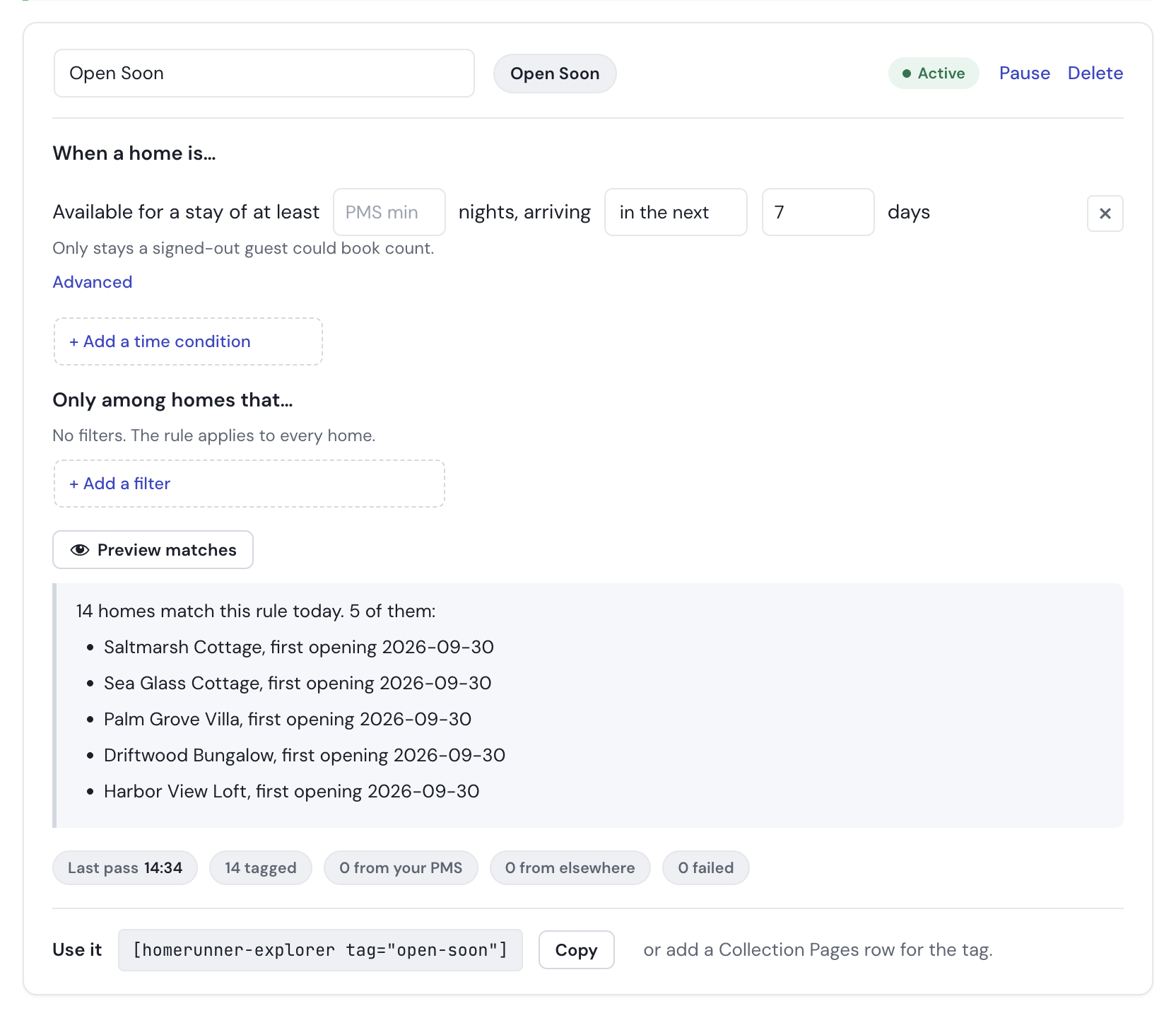
For example, a rule named Open Soon set to “arriving in the next 7 days” tags every home a guest could book this week. When a home fills up, the next pass takes the tag off. When a booking cancels and the week opens again, the tag comes back.
What you and your guests experience:
- Guests see the tag name wherever your site shows property tags, such as search chips and tag pages, so choose a name you are happy to show them. The panel shows a preview of the chip as you type.
- Each rule shows a status strip after every pass: when it ran, how many homes it tagged, how many of those also carry the tag from your PMS, how many carry it from another source, and whether any writes failed.
- Tags your PMS assigns are never touched. If your PMS already publishes a tag with the same name, the rule shows a warning, and the module leaves the PMS’s homes alone.
- Turning the module off removes only the tags it wrote. If it cannot confirm that safely, it refuses to turn off rather than guess.
How to turn it on #
1. Switch on Auto Tags #
In the HomeRunner Toolkit Hub, open the Display group and switch on Auto Tags.
2. Pick a starting point #
With no rules yet, the panel offers six starting points. Each one creates a rule you can then adjust.
- Last-minute openings. Homes open for a stay arriving in the next 7 days. Suggested tag name: Open Soon.
- Open this weekend. Homes open for a stay arriving this Friday or Saturday.
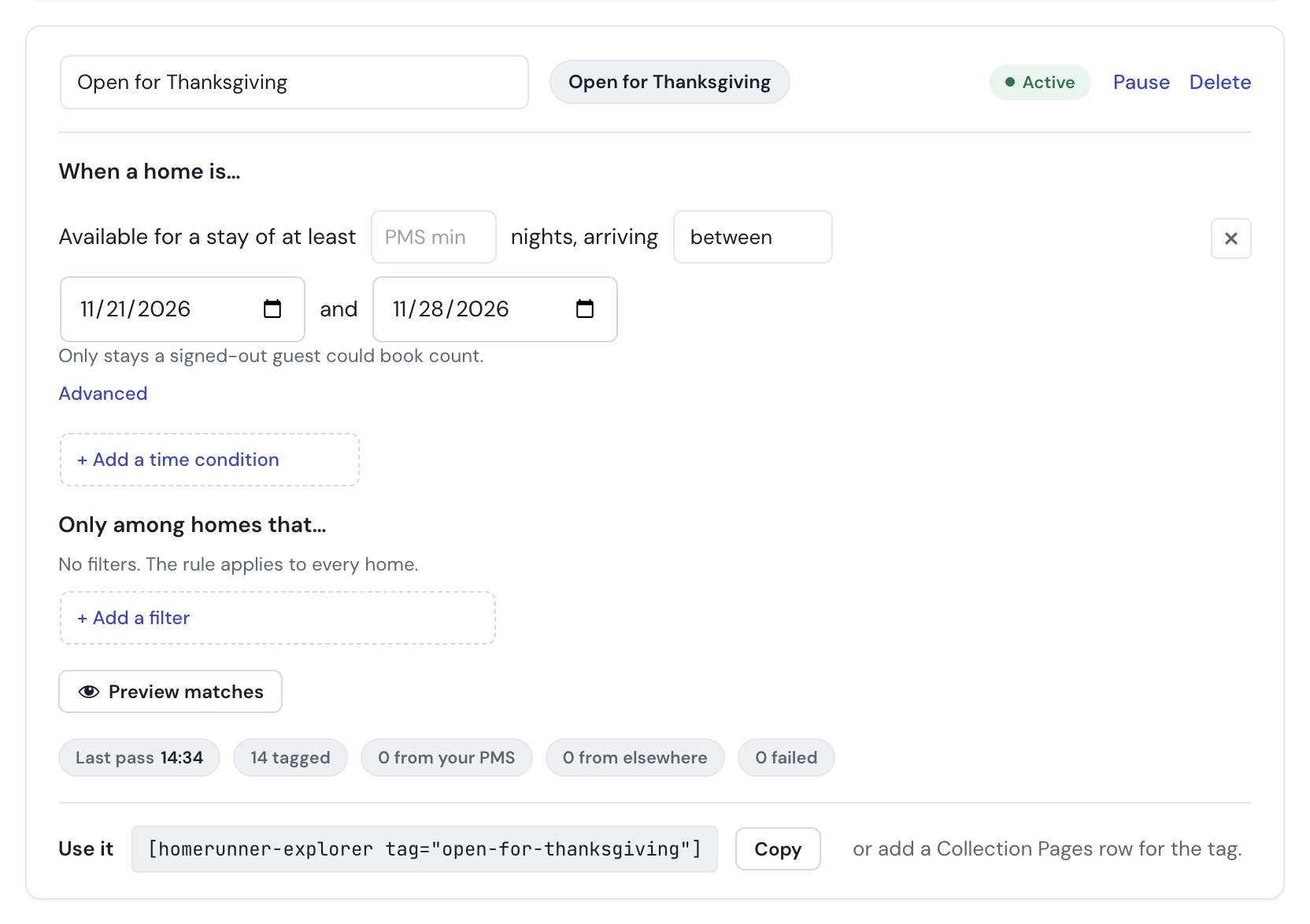
- Open for a date range. Homes open for a stay arriving between two dates: a holiday week, a festival, ski season.
- Monthly stays available. Homes open for at least 28 nights, arriving in the next 90 days.
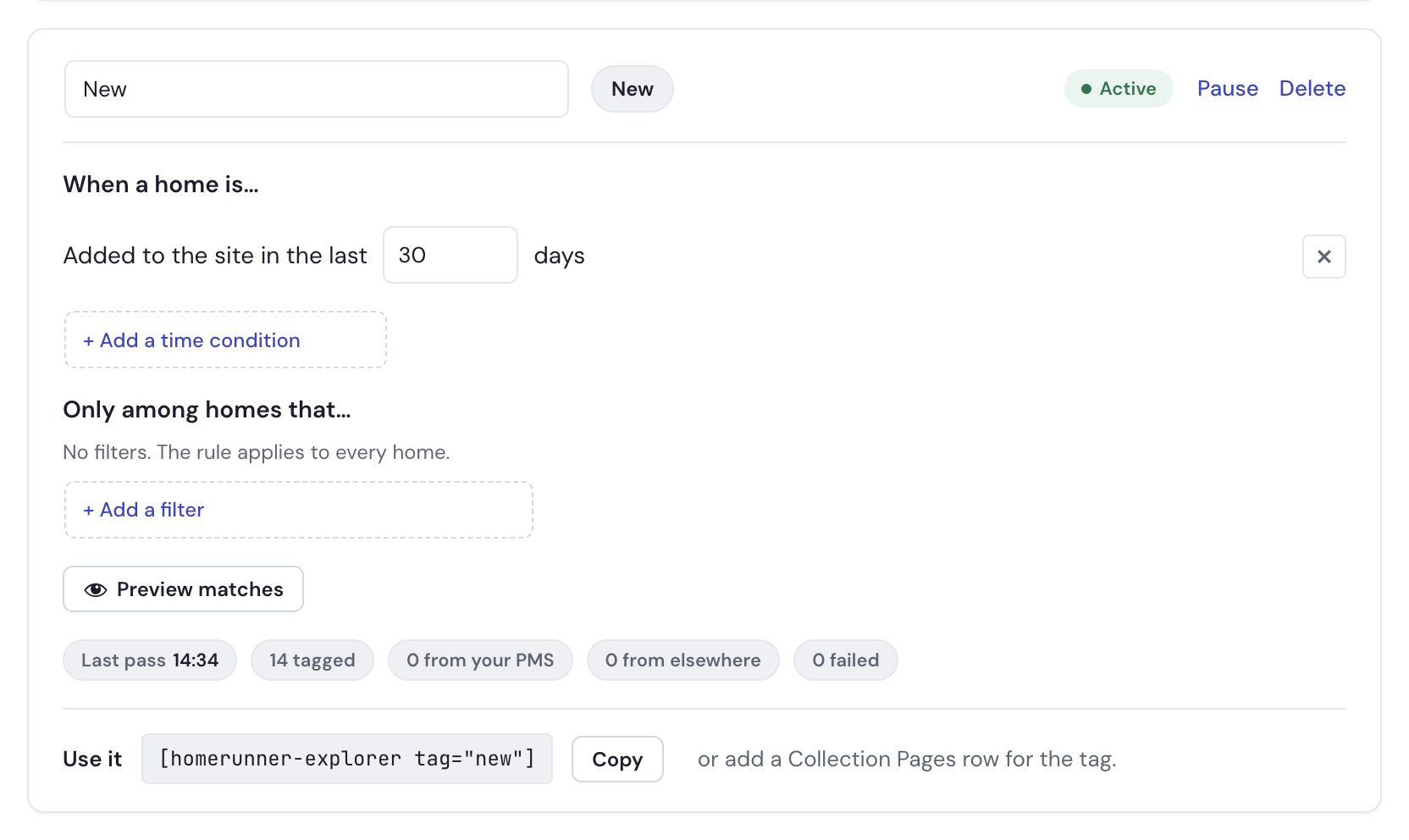
- New listings. Homes added to the site in the last 30 days.
- Start from scratch. Homes open for a stay arriving in the next 14 days, with every setting open to change.
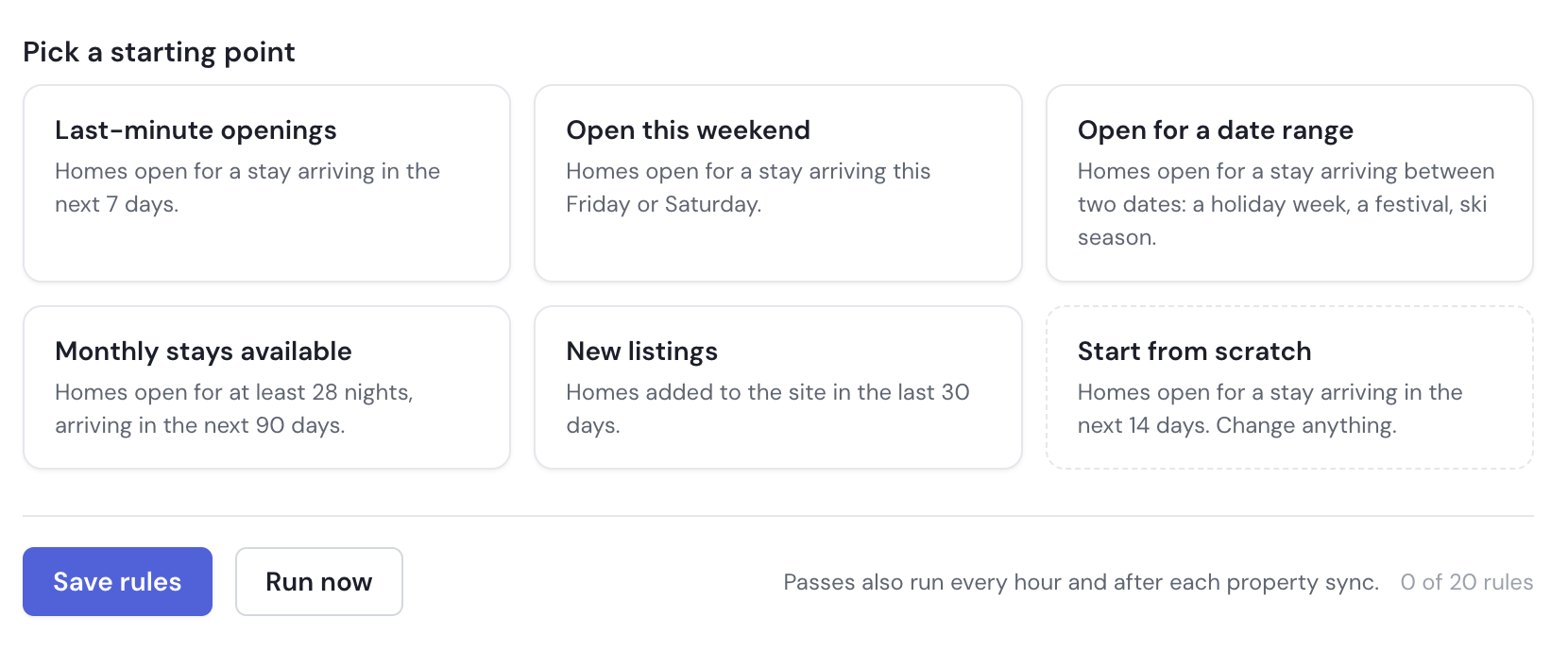
When rules already exist, Add rule opens the same choices under the list.
3. Shape the rule #
Each rule reads as a sentence with the numbers and choices inline.
- When a home is… holds the time-based part. An availability line reads “Available for a stay of at least [nights] nights, arriving [in the next N days | this weekend | between two dates]”. Leave the nights field empty to use the shortest stay your PMS allows. Under Advanced, “Follow arrival and departure day rules” is on by default; switch it off only if your calendar does not use arrival and departure days. A “New listings” line reads “Added to the site in the last [days] days”. A rule can carry one of each.
- Only among homes that… holds optional filters: a bedroom count (at least, exactly, or at most) and whether the home has, or does not have, a chosen group, amenity, type, city, location, or tag. Filters narrow a rule; they cannot be a rule on their own. For a fixed list such as three-bedroom beachfront homes, use the property explorer’s own filters or a Collection Pages row instead.
Only stays a signed-out guest could actually book count toward an availability line: your arrival and departure day rules, the PMS minimum stay, the public booking horizon, and any advance-notice window all apply.
4. Preview the matches #
Click Preview matches to see how many homes the rule as written would tag right now, with up to five of them by name. For an availability rule, each name shows the first date a guest could arrive. A preview saves nothing and tags nothing, so try a few variations before you commit.
5. Save and run #
Click Save rules. A pass starts a few seconds later, and passes keep running every hour and after each property sync. To run one right away, click Run now. After a pass, each rule shows its status strip: the time of the last pass, how many homes it tagged, how many of those your PMS also tagged, how many carry the tag from somewhere else, and how many writes failed.
If a save is refused, the panel keeps what you typed and names the rule and line to fix.
6. Use the tag on your site #
Under each saved rule, Use it shows a ready-made shortcode for the property explorer with a Copy button, for example:
[homerunner-explorer tag="open-soon"]Or add a row for the tag in Collection Pages to get a full landing page that stays current on its own.
Settings #
| Setting | What it controls |
|---|---|
| Tag name | The property tag the rule owns and the name guests see. It must not match an existing property tag. Renaming a rule later keeps the tag’s original link (slug), so pages that use it keep working. |
| Arriving in the next N days | How far ahead to look for an opening, 1 to 180 days. At run time the window never reaches past your site’s public booking horizon. Presets use 7, 90, or 14. |
| Arriving this weekend | An opening whose arrival is the coming Friday or Saturday. On a Friday that means today or tomorrow; on a Saturday, today. |
| Arriving between two dates | An opening whose arrival falls on or between the two dates. The end date cannot be in the past when you save. |
| Minimum nights | The shortest stay that counts, up to 60 nights. Empty means your PMS minimum. A number raises the minimum for this rule but never lowers it below what the PMS allows. |
| Follow arrival and departure day rules | Under Advanced, on by default. When on, an opening must start on an allowed arrival day and end on an allowed departure day. |
| Added to the site in the last N days | Homes published in the last 1 to 365 days. The New listings preset uses 30. |
| Filters | Bedrooms (at least, exactly, or at most a count) and whether the home has, or does not have, a chosen group, amenity, type, city, location, or tag. A rule needs a time-based line; filters only narrow it. |
| Pause and Resume | A paused rule stops matching, and the next pass removes its tag from every home it had tagged. Resume puts the tags back on the next pass. |
| Delete | Asks once, in place. The next pass removes the rule’s tag from every home it had tagged, then the tag itself is removed. A tag your PMS assigns under the same name stays in place. |
| Run now | Runs a pass right away instead of waiting for the hourly schedule or the next property sync. |
| Rules per site | Up to 20. |
Tips #
- Preview before you save. The preview runs the rule exactly the way a pass would, so a surprising count usually means a line is stricter or looser than you meant.
- Keep the two sources of a tag apart. If your PMS already publishes a tag with the name you chose, that tag’s page lists the rule’s homes and the PMS’s homes together. A different name for the rule keeps them separate.
- Availability counts signed-out guests. If your site shows members a longer booking window, a member may see openings the tag does not reflect yet.
- The module trusts the local calendar. If a calendar import fails, the tags go stale in the same way the calendar on your site does, and they catch up on the next successful sync.
- If you use Destination Filter, a new tag shows up in its filters after its next rebuild, which the module triggers on its own after a pass.
- If you cache pages, a tag page keeps its old list until the cached copy expires.
- Reading the status strip: a note under it saying writes “waited on another operation” means a pass and a property sync overlapped, and those homes are retried on their own. “Failed” writes point at a database problem; the next pass retries the same homes.
- Auto Tags is part of the HomeRunner Toolkit.