
Suggests companion rooms to guests when several of your properties belong to the same group, so friends or small groups can easily book adjacent stays together.
What it does #
When a guest lands on a single property page, Group Booking checks whether that property belongs to a property group alongside other listings. If it does, a friendly banner appears inviting the guest to book together.
The banner shows:
- A heading like “Travelling with friends? Book together at [Group Name]”
- The combined guest capacity across the group
- A card for each companion property, with photo, bedroom count, and guest count
- A direct link to each companion property page
When the guest arrived with dates already selected (for example from a search), each companion card also shows a live availability check for those dates, and the dates and party size carry over to the companion property’s page when the guest clicks through.
This is perfect for properties that sit side by side, share a building, or are part of a single estate, where a group of guests wants enough beds across multiple units.
How to turn it on #
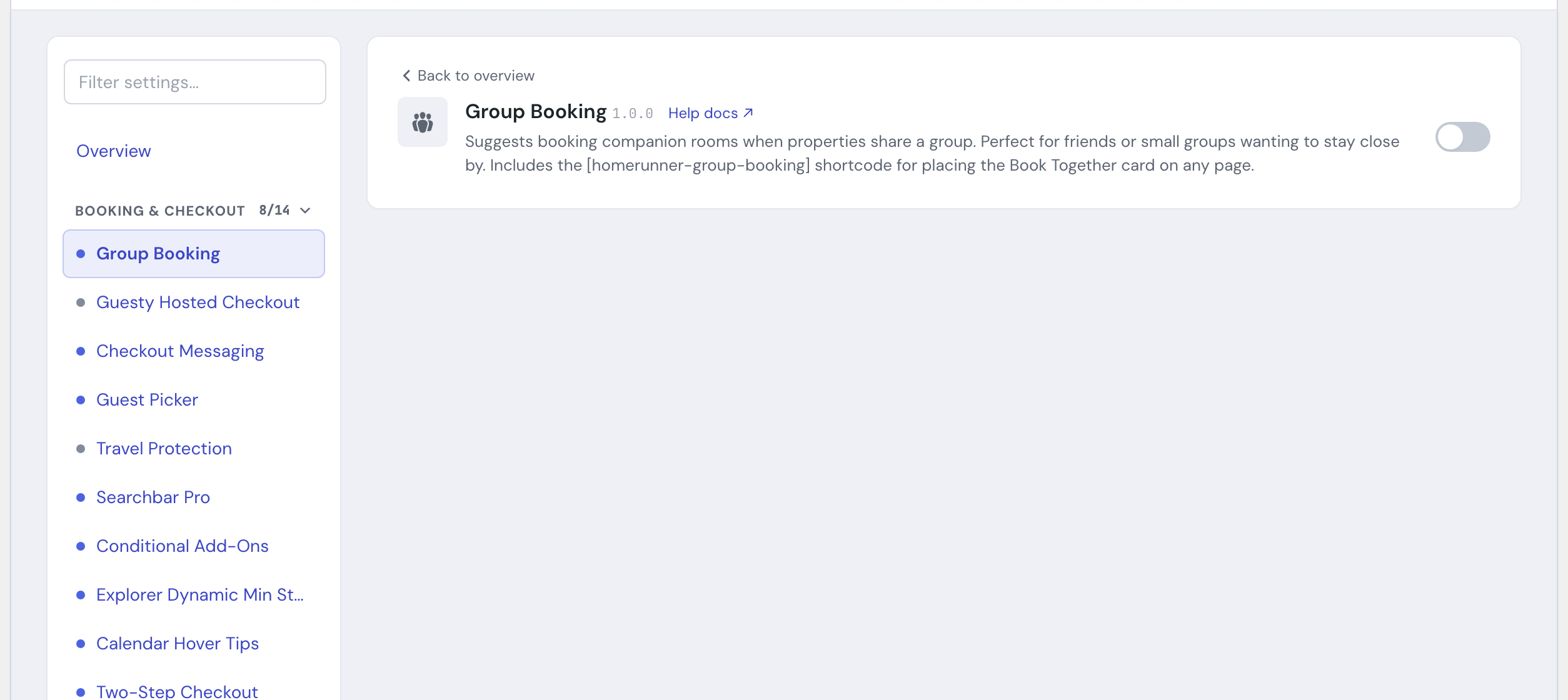
1. Enable the module #
In the HomeRunner Toolkit Hub, switch on Group Booking.
2. Group your properties #
The banner only appears when two or more properties share a property group. Assign each property that should travel together to the same group, then save.
3. Visit a grouped property page #
Open one of the grouped properties on the front end. If it has at least one companion in the same group, the banner renders automatically. Properties with no group, or a group of one, show nothing.
Place it yourself with a shortcode #
The automatic banner covers property pages, but you can also place the same “Book Together” card anywhere you build a page, a destination landing page, or a page-builder layout, with the [homerunner-group-booking] shortcode. Unlike the automatic banner, a shortcode placement is always visible and has no close button, since you chose exactly where it goes.
| Attribute | What it does |
|---|---|
group="lakeside-lodge" | Shows every published property in that property group (slug or ID). Use this on a destination or landing page that is not itself a property page. |
property="123" | Shows that property’s group companions, the same list the automatic banner would show. Leave both group and property off on a property page and Group Booking uses the current property automatically. |
title="Book with friends" | Replaces the default heading text. |
limit="4" | How many companion cards to show, from 1 to 20. Default 10. |
A group value that does not match a real property group renders nothing, so a typo never leaves a broken heading on the page.
Settings #
This module has no settings panel of its own. Its behavior is driven entirely by which properties you place in the same property group, and by each property’s existing photo, bedroom count, and maximum-guests values. Placement is controlled either automatically (the property-page banner) or manually (the [homerunner-group-booking] shortcode above).
Tips #
- The combined capacity number adds up the maximum guests across the group, including the property the guest is viewing. Keep your per-property guest counts accurate so the total is believable.
- Companion cards use each property’s featured image and bedroom count, so make sure those are filled in for the best-looking banner.
- Guests can dismiss the automatic banner with the close button if it is not relevant to them. Shortcode placements stay visible, since you put them there deliberately.
- Use the
groupattribute on a destination landing page (“Book the Lakeside Lodge homes together”) where there is no single property page to anchor the automatic banner. - Pair this with the on-site or Guesty Hosted Checkout flow so each companion booking completes smoothly.
See the full module list in the Toolkit overview.