
The inventory Explorer date picker shows each date’s real minimum-night requirement, so guests stop choosing dates that always fail at checkout.
What it does #
The inventory Explorer, the search view that spans all of your properties, has one date picker for your whole inventory. Normally that picker applies a single minimum-night value to every date of the year. But your real rules are not flat: weekends, peak weeks, and dynamic-pricing rules push the minimum up on some dates and not others, and every property is different. When the picker’s minimum does not match reality, a guest can pick dates that look bookable in the Explorer and then get turned away the moment they open a property. That is a dead end that costs you the booking.
Explorer Dynamic Min Stay fixes the mismatch. For every date, it looks across all of the properties that are available on that date and uses the lowest minimum-night value any of them requires, the easiest stay your inventory offers for that date. The Explorer date picker then enforces that real per-date minimum instead of one blanket number.
For example, if the only properties open on December 31 each require at least 3 nights, the Explorer will not let a guest select a 1-night New Year’s stay. On a quiet Tuesday in February where one property happily takes a single night, the picker allows one night.
What changes for your guests:
- The inventory Explorer date picker reflects the true lowest minimum for each date.
- Single-property booking components are not affected. Each property page keeps using its own calendar, so a property with its own loaded availability is never overridden.
- If a guest still manages to search fewer nights than a date requires and the search comes back empty, they see a clear explanation instead of a blank results page: “These dates require a minimum stay of {X} nights,” with a button to retry the same check-in against a longer stay that meets the requirement.
This affects the inventory Explorer only, and only fills in dates where your inventory genuinely has a higher minimum. On dates where no available property requires more than a single night, the feature has nothing to add and stays out of the way. The zero-results explanation is just as conservative: it only ever names a minimum-stay cause when that day’s aggregate is fully confirmed, so it never misattributes an empty search to the wrong reason.
How to turn it on #
1. Switch on the module #
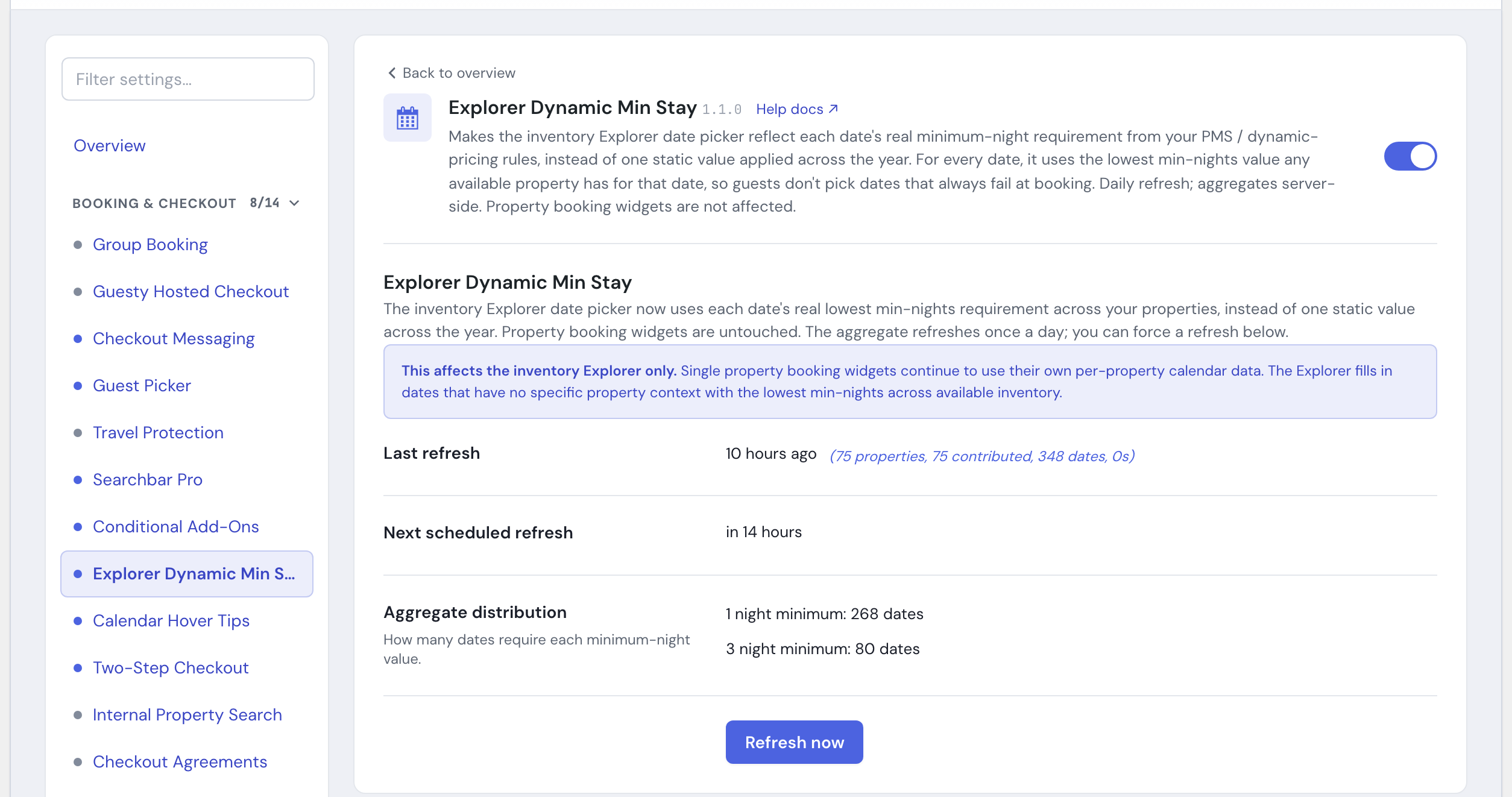
In the HomeRunner Toolkit Hub, under Booking & Checkout, switch on Explorer Dynamic Min Stay.
2. Build the first calculation (optional) #
Open the module’s settings panel and click Refresh now to calculate the per-date minimums immediately. If you skip this, the calculation runs on its own on the next daily refresh, and the Explorer starts using it from then on.
Once the per-date minimums exist, the Explorer date picker uses them automatically on every page. There is nothing to place or configure on your pages.
Settings #
The module refreshes itself once a day. The only control you set is whether it is on, plus an on-demand refresh. The rest of the panel is there so you can confirm the result.
| Setting | What it controls |
|---|---|
| Refresh now | Recalculates the per-date minimums right away, across every published property. Use it after a big calendar or minimum-night change instead of waiting for the daily refresh. |
| Last refresh | Read-only. When the calculation last ran, plus how many properties were scanned, how many contributed data, how many dates were covered, and how long it took. |
| Next scheduled refresh | Read-only. When the automatic daily refresh will next run. |
| Aggregate distribution | Read-only. A breakdown of how many dates require each minimum-night value, so you can sanity-check the result at a glance. |
Tips #
- If the Explorer still allows short stays on every date, your properties most likely do not have per-date minimum-night rules above one night in their calendar data. The feature can only raise a date’s minimum when your inventory actually requires it.
- After importing a property or changing your minimum-night rules, click Refresh now so the Explorer reflects the change before the next daily refresh.
- The zero-results explanation for a too-short search needs a completed, fully confirmed refresh to appear. Right after switching the module on, run Refresh now and wait for it to finish; until then (or right after a partial refresh) a genuinely empty search just shows your normal no-results message.
- This setting shapes the same inventory search as the rest of your Explorer tools. For the full picture, see the HomeRunner Toolkit Overview and Bookable Starting Prices.