
Show optional extras such as early check-in, late checkout and equipment as cards at checkout, so guests notice them and add them with one click.
What it does #
Extras like early check-in, late checkout, a grill rental or a welcome package are easy to miss when they sit in a compact list inside the booking widget. Guests skip them, and you lose revenue you could have earned from the stay.
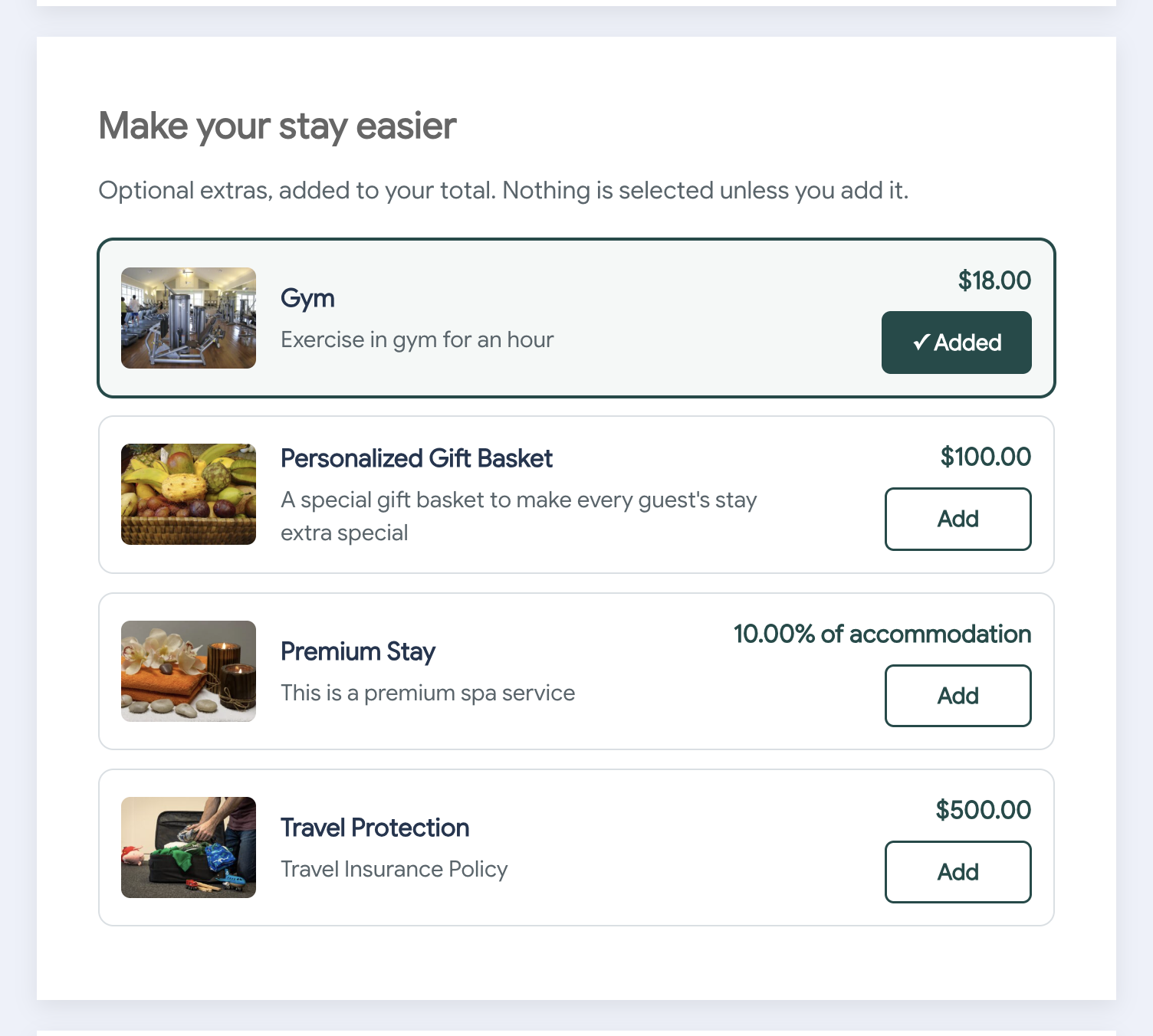
Add-On Showcase moves those extras into the checkout page, right after Guest Details. Each add-on becomes a card with an image, a name, a short description, a price and an Add button. Once a guest adds an extra, the button changes to Added.
Here is what your guests experience:
- Nothing is pre-selected. A guest only pays for an extra after choosing to add it.
- Your booking widget stays in charge of pricing and totals, so the total updates as soon as a card is added or removed.
- If your site has more cards than you want to show at once, a Show more control reveals the rest.
- If a guest already has an extra on their booking that you have since hidden, the card stays on the page marked Already on this booking, with a button to remove it. Nothing stays charged without a way to take it off.
The section sits alongside Travel Protection. Insurance and travel coverage always stay with Travel Protection, and you choose which section comes first.
Which add-ons become cards #
Only add-ons your connected PMS can add and remove through HomeRunner are shown as cards. Today that means Guesty. Add-ons from other sources keep the regular list in the booking widget, so nothing disappears from a guest’s view.
Quantities follow the same rule. Guesty add-ons are offered as a single Add/Added choice, because a quantity above one cannot be billed through Guesty yet.
How to turn it on #
This module is off by default. It needs HomeRunner 2.7 or newer and the standard on-site checkout.
Leave it off if your site uses Gravity Forms checkout, a custom checkout template or Guesty Hosted Checkout. The module does nothing on those setups.
1. Enable the module #
In the HomeRunner Toolkit Hub, switch on Add-On Showcase. If your HomeRunner is too old, the settings page asks you to update first and the booking widget stays unchanged.
2. Set the section text and order #
Open the Add-On Showcase settings. Edit the Section heading and Introduction to suit your brand, then choose whether extras appear before or after Travel Protection.
3. Decide what happens on property pages #
Choose whether to hide these add-ons in the booking widget on property pages, and whether to show a one-line teaser that tells guests extras are waiting at checkout.
4. Polish your cards (optional) #
Under Add-on overrides, click Add override to give an add-on a photo, a friendlier name, your own description, a category and a position. Save when you are done.
Settings #
| Setting | What it controls |
|---|---|
| Section heading | The title above the cards. Default: “Make your stay easier”. |
| Introduction | The line under the heading. Default: “Optional extras, added to your total. Nothing is selected unless you add it.” |
| Order after Guest Details | Whether extras appear before Travel Protection (default) or after it. |
| Cards shown before “Show more” | How many cards guests see before the Show more control appears. Default: 6. Enter 0 to show every card. The maximum is 50. |
| Hide these add-ons in the booking widget on property pages | On by default. The add-ons are offered at checkout instead of in the widget. Applies only to properties that use the on-site HomeRunner checkout. |
| Show a one-line teaser under the widget total | Off by default. Names the extras available at checkout, with no prices and no controls. The teaser lists up to three names, followed by a count of the rest. |
| Teaser text | The wording of the teaser. Default: “Extras available at checkout: {names}”. The {names} placeholder is replaced with the add-on names. |
| Categories, in display order | A comma-separated list of category headings, such as “Arrival & departure, Food & drink, Equipment”. Add-ons without a category are listed last, without a heading. You can have up to 12 categories. |
| PMS name or Central add-on ID | Which add-on an override applies to. |
| Match by | Exact name (recommended) or Central add-on ID. Name matching ignores capital letters. The same add-on often repeats with a different ID on every listing, so a name match covers all of them. |
| Display name | A friendlier name shown to guests instead of the PMS name. |
| Short description | Replaces the description that comes from your PMS. |
| Choose image / Remove image | The photo shown on the card. Pick one from your media library. |
| Category | Which category heading the card is grouped under. |
| Position | A number that orders cards within their category. Lower numbers come first. |
| Hide on this site | Keeps the add-on off your site without changing anything in your PMS. A guest who already has it on their booking can still remove it. |
You can create up to 60 overrides. If two overrides match the same add-on, only the first one applies, and the settings page warns you which matches are duplicated.
Tips #
- Start typing in an override’s match field to pick from add-on names seen in recent quotes on your site. This avoids typos in exact-name matching.
- To hide an extra on properties that do not qualify for it, such as a pet fee on homes that do not allow pets, use Conditional Add-Ons.
- With Two-Step Checkout, the cards appear in the second step, once the guest has completed Guest Details. Checkout-Only Add-Ons can stay on as well; it keeps add-ons off the property page widget, and Add-On Showcase takes over at checkout.
- Cards missing? Check that your PMS is Guesty, that the add-on is not insurance, and that your site uses the standard on-site checkout.
- The HomeRunner Toolkit is included with HomeRunner at no extra cost. See the HomeRunner Toolkit overview for every module.