
Conversion Tracking lets you point your property site at your own Google Analytics 4, Google Tag Manager, and Meta (Facebook) Pixel accounts, and quietly fixes the tracking problems that otherwise make your booking numbers untrustworthy. It is for owners and marketers who want clean, accurate funnel data they can act on.
What it does #
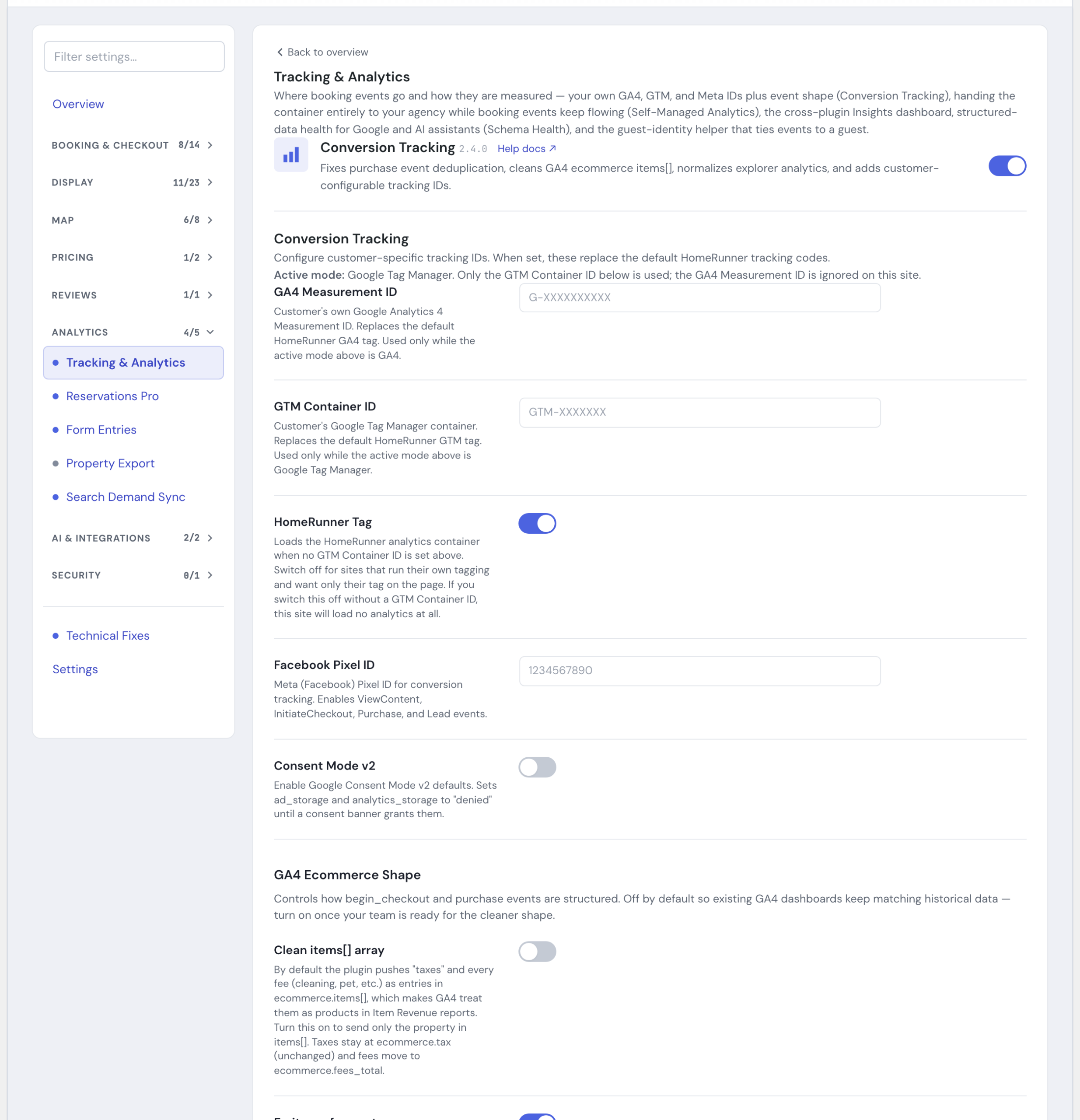
Out of the box, a HomeRunner site reports to HomeRunner’s default analytics tags. Conversion Tracking does two things on top of that:
- Routes tracking to your own accounts so the data lands where your marketing team already works.
- Repairs the accuracy of the events themselves so the numbers in GA4 and Meta match what actually happened on your site.
It covers the full booking funnel: someone viewing a property, selecting dates and getting a quote, opening checkout, and completing a reservation, plus form-based leads such as contact and inquiry submissions.
Setting your tracking IDs #
Open the module’s settings panel and fill in the IDs you want the site to use. Each one is optional. When you set it, it replaces the default HomeRunner tag; when you leave it blank, nothing changes.
- GA4 Measurement ID (looks like
G-XXXXXXXXXX) sends all ecommerce and funnel events to your own Google Analytics 4 property. - GTM Container ID (looks like
GTM-XXXXXXX) loads your own Google Tag Manager container, so your tag team can manage everything from there. - Facebook Pixel ID turns on Meta Pixel events: ViewContent, InitiateCheckout, Purchase, Lead, and Search (fired automatically when a guest runs a property search).
Your site runs in exactly one active tracking mode, GA4 or Google Tag Manager, and the settings panel tells you which one is active for your site. Only the ID field for the active mode is actually used; the other one is ignored even if you fill it in. This matters because it is easy to fill in the inactive field by mistake and assume it is doing something.
Click Save Tracking Settings when you are done.
Keeping analytics from going dark #
A HomeRunner Tag toggle controls whether HomeRunner’s own default analytics tag loads as a fallback. It is on by default, and it only loads when you have not set your own ID for the site’s active mode, so most sites never notice it. If you switch it off without also setting your own GA4 Measurement ID or GTM Container ID (whichever your site’s active mode uses), your site loses analytics entirely, and the settings panel warns you plainly if that happens.
Privacy and consent #
- Consent Mode v2 sets Google’s
ad_storageandanalytics_storageto denied by default, until your consent banner grants them. Turn this on if you operate a cookie-consent banner and need to honor it before any tracking fires.
Cleaner funnel and conversion events #
These fixes are what make your reports trustworthy. Several are on automatically; a few are opt-in so they do not disrupt dashboards you have already built.
Accurate purchase counting #
The module removes duplicate purchase events so a single completed booking is counted once, not several times, and it normalizes the events fired from the property explorer so search and browse activity reports consistently.
Purchase events fire when a reservation is confirmed. A request-to-book inquiry on its own is not counted as a purchase, and there is no setting on this screen to change that.
GA4 Ecommerce Shape #
By default, GA4 receives taxes and every fee (cleaning, pet, and so on) as line items inside the ecommerce items[] array, which makes GA4 treat them as products and inflates your Item Revenue reports.
- Clean items[] array sends only the property as an item. Taxes stay in the standard tax field and fees roll up into a separate fees total.
- Emit per-fee custom params additionally exposes each fee (for example
cleaning_fee,pet_fee) as its own value, so you can register them as custom dimensions in GA4.
This section is off by default so your existing GA4 dashboards keep matching historical data. Turn it on once your team is ready for the cleaner shape.
Extra funnel events #
Two of these are settings, both on by default; two more run automatically with no setting to flip.
- Fire add_to_cart on quote (setting, on by default) emits GA4
add_to_cart(and Meta AddToCart) the moment the booking component returns a successful quote, before checkout opens. This is how you measure drop-off between selecting dates and starting checkout. - Fire generate_lead on Gravity Forms submission (setting, on by default) emits GA4
generate_lead(and Meta Lead) whenever any Gravity Form is submitted successfully, including contact, inquiry, and concierge forms. The form ID is attached so you can break leads down by form in GA4. - Payment info entry (automatic) fires GA4
add_payment_infoand Meta AddPaymentInfo the moment a guest finishes entering their card details at checkout. No setting needed. - Property search (automatic) fires Meta Pixel Search whenever the property explorer runs a search, as long as you have set a Facebook Pixel ID above.
Hosted checkout (off-site payment) #
Some property management systems, OwnerRez among them, hand the guest off to their own payment page instead of using your site’s checkout. When that happens, your on-site checkout page never loads, so the checkout and purchase events described above never fire either. These two settings close that gap for properties configured that way, and both are inert on properties that use your site’s own checkout.
- Fire begin_checkout on hosted handoff (setting, on by default) sends GA4
begin_checkout(and Meta InitiateCheckout) with the quoted total the moment a guest clicks the checkout button on a hosted-checkout property, right before they leave for the PMS’s payment page. - Fire purchase on booking return redirect (setting, on by default) sends GA4
purchase(and Meta Purchase) when a guest lands back on your site from the PMS’s post-booking redirect. For OwnerRez, set Redirect After Booking URL under Property > Rules so guests return to your site with their booking ID attached. The event is deduplicated so revisiting that page never counts a second time, and it only fires for someone arriving from your booking provider’s own domain. Because the redirect does not carry the booking total, the event records a value of 0, accurate for counting completed bookings but not for revenue-based bidding.
This only applies to properties using a hosted, off-site checkout, currently OwnerRez integrations. Most sites use the on-site checkout and will never see these events fire.
See your results #
The module also feeds a funnel tracker that surfaces a summary component on your WordPress dashboard, so you can spot-check the funnel without opening GA4.
For the full list of Toolkit modules, see the Toolkit Overview. If guest math in the booking component looks off, that is handled automatically and described in Toolkit: Under the Hood.