
Every guest form submission gets saved to one Entries screen, with a delivery log showing whether it actually reached you, an alarm if it keeps failing, and a one-click resend if it did not.
What it does #
Guest form submissions, a checkout survey answer, a contact inquiry, sometimes fail to deliver. An email bounces, a connection times out, and the submission is gone unless you happened to be watching closely when it came in. Form Entries fixes that by saving every submission locally the moment it happens, before anything is emailed or forwarded anywhere.
Each saved entry shows:
- What the guest submitted, and when.
- Which property (if any) it relates to.
- A delivery log for every place the submission was supposed to go (an email inbox, a connected webhook, or a PMS reservation), each marked sent, pending, or failed.
- A resend button on any delivery that can be retried.
If a form’s notification emails fail repeatedly in a row, you don’t have to notice on your own. Once the failures cross a threshold you set (three in a row by default), Form Entries shows a dismissible notice at the top of your WordPress admin pointing straight at the affected entries. The notice clears itself the next time that form’s email goes out successfully.
Some forms can also send the guest an automatic copy of their own submission (a receipt), rendered from the saved entry. That option lives on the individual form’s own settings, not here. See the guest receipt setting on the Checkout Survey doc for an example.
If you build any page with an Elementor Pro form, a contact component dropped into a property template, for example, those submissions are picked up automatically too. Nothing to configure: Elementor’s own actions (its notification emails, webhooks, redirects) still run exactly as you set them up, and this is only a side-record alongside them.
If you run more than one HomeRunner plugin that captures guest forms, they share this same Entries screen and the same settings, so you have one place to check instead of several.
Form Entries ships switched on for new installs, since a drawn signature from Checkout Agreements and other guest submissions need somewhere to land from day one. If your site was already running the Toolkit before this changed, nothing was flipped for you: your existing setting stands, so switch it on yourself in the Hub if you have not already.
How to turn it on #
1. Switch on Form Entries #
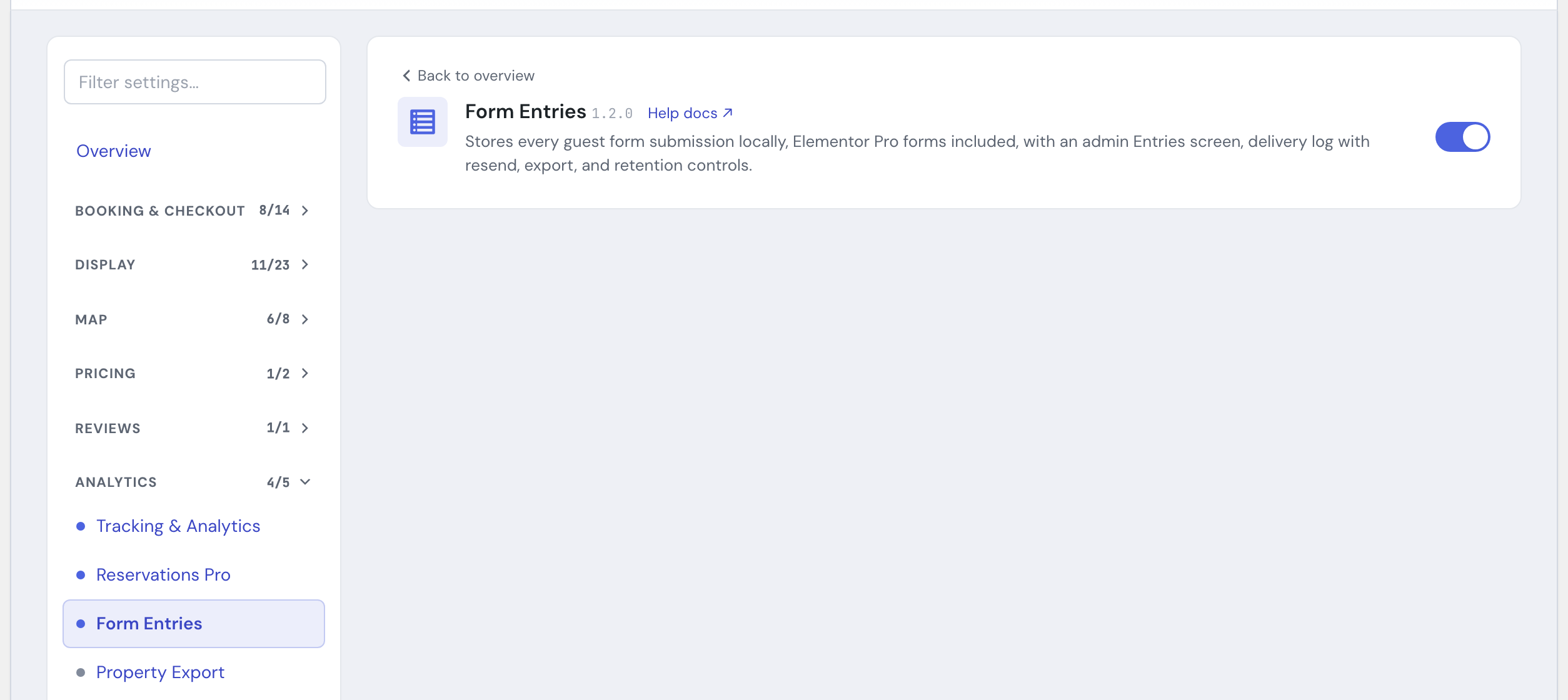
Go to HomeRunner Toolkit in your WordPress admin and switch on Form Entries (listed under Analytics). New installs have it on by default; if you are on an existing site and it is off, this is where you turn it on. Once it is on, an Entries screen appears in your admin menu, under HomeRunner if you run the main HomeRunner plugin, or under Settings if you do not.
2. Review the retention and privacy settings #
Open Entries → Settings and set how long entries should be kept and whether IP addresses are captured (see Settings below). Both have sensible defaults, so this step is optional, but worth a quick look if you have a specific privacy policy to match.
3. Adjust the failed-delivery alarm, if you want #
Also on Entries → Settings, set how many consecutive email failures should trigger the admin notice, or turn it off entirely. The default of three catches a broken inbox quickly without flagging the occasional one-off bounce.
Settings #
| Setting | What it controls |
|---|---|
| Retention (days) | How long entries are kept before a daily cleanup job permanently deletes them, delivery log included. Default 365 days. Set to 0 to keep entries forever. |
| Capture IP / user agent | Whether the guest’s IP address and browser information are stored with each entry. Default on. |
| Failed-delivery alarm | How many consecutive email failures for the same form trigger an admin notice. Default 3. Set to 0 to turn the alarm off. The notice clears automatically the next time that form’s email sends successfully. |
| Delete all entries on uninstall | Whether removing this plugin permanently drops all saved entries and delivery logs. Default off, so entries survive an uninstall like Gravity Forms entries do. Entries are shared between HomeRunner Toolkit and the Conversion Kit: if you run both, uninstalling one never deletes your entries while the other is still installed. |
Tips #
- Each entry’s delivery badge tells you what happened at a glance: sent, pending, or failed. Open the entry for the full delivery log, including the actual error message when something failed.
- A failed delivery can be resent straight from its delivery log, when the tool that submitted it supports resending that channel.
- Elementor Pro form submissions show up labeled with the form’s own name in the Leads dropdown. The delivery log covers the form’s built-in Email actions; other actions (webhooks, redirects, third-party integrations) still run through Elementor as usual and are not delivery-logged here. A form placed directly on a property page is attributed to that property automatically; one placed in a shared template is attributed using the page the guest actually submitted from, when that is available.
- Export to CSV or JSON from the Entries list, filtered by form or date range. Exports are capped at 10,000 rows per request; narrow your filters for larger sets.
- Entries hold guest personal data, so set retention and IP capture to match your privacy policy. Entries also respond automatically to WordPress’s built-in personal data export and erase tools, no extra setup needed.
- Checkout Survey answers are recorded here in addition to the reservation notes they have always appeared in, and can optionally email the guest a copy of their own answer.
- Checkout Agreements drawn signatures also land here, with an inline viewer and PNG download on the entry.
- Some modules, like Streamlined Checkout Consent, record through Form Entries and cannot function without it. If Form Entries won’t switch off, check the Hub for which module still depends on it and switch that one off first.
- See the full module list in the Toolkit overview.