
Set your brand’s accent color, dark color, and corner radius once in the Toolkit, and every module that draws a button, badge, or highlight picks them up. A module you switch on next month looks like your site the day it goes live.
What it does #
Several Toolkit modules draw something in a color: the Search button on the search bar, the Show all photos button on the gallery, the price badges on the map, the booking button on the reviews page, the line icons next to amenities. Each module has its own color settings, and until now a site that wanted everything in its brand colors typed the same hex into every panel.
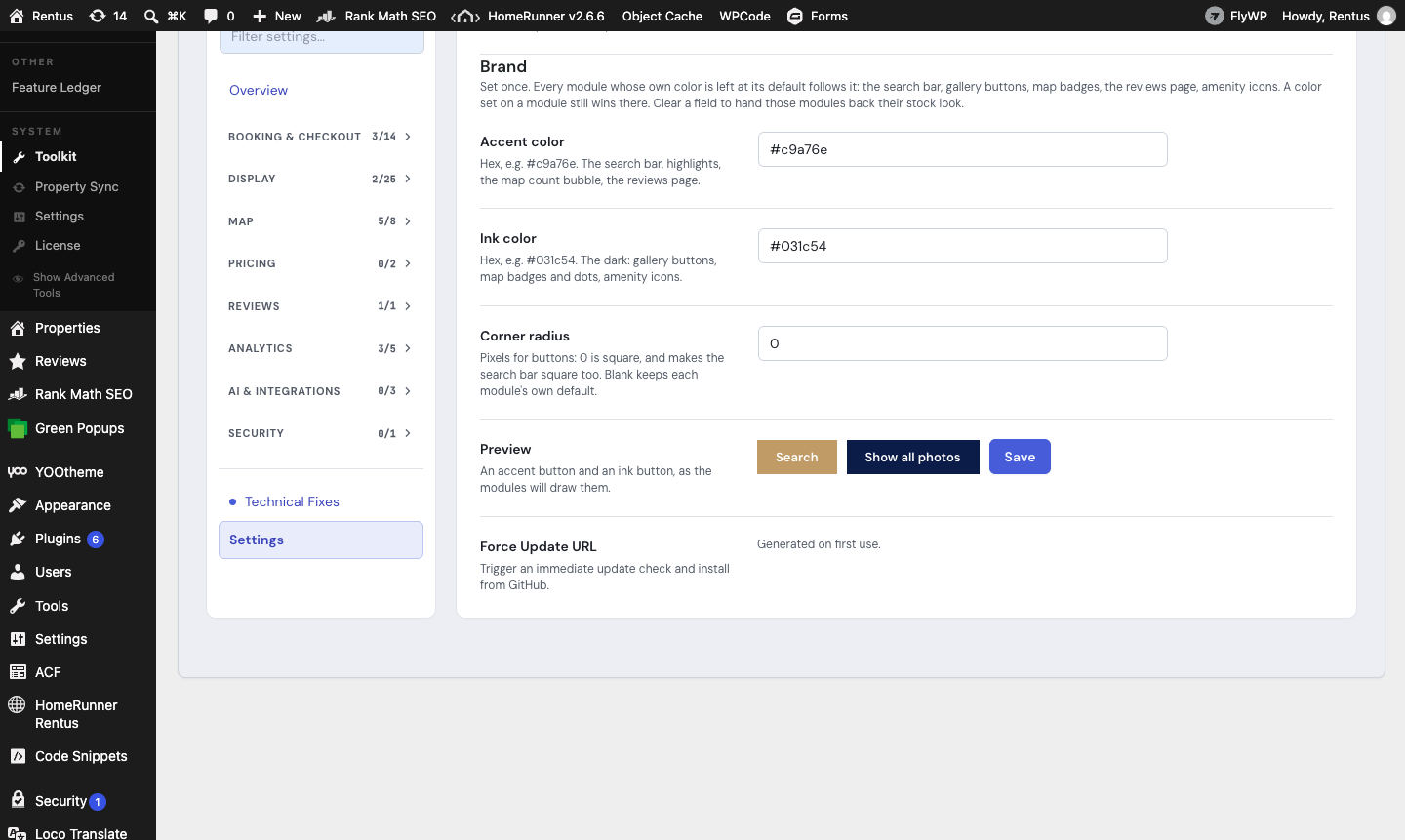
The Brand section on the Toolkit Settings tab holds three values for the whole site: an accent color, an ink (dark) color, and a corner radius. Every module whose own color is left at its default reads these instead. Nothing is copied into the modules: change the palette later and they all follow; clear it and they return to their stock look.
Which modules follow it #
| Module | What follows the palette |
|---|---|
| Searchbar Pro | The accent color (Search button, focus rings, price histogram, date picker). With a corner radius of 0 the bar goes square. |
| Keyword Search | The accent color of the guest search control, when neither it nor Searchbar Pro has one of its own. |
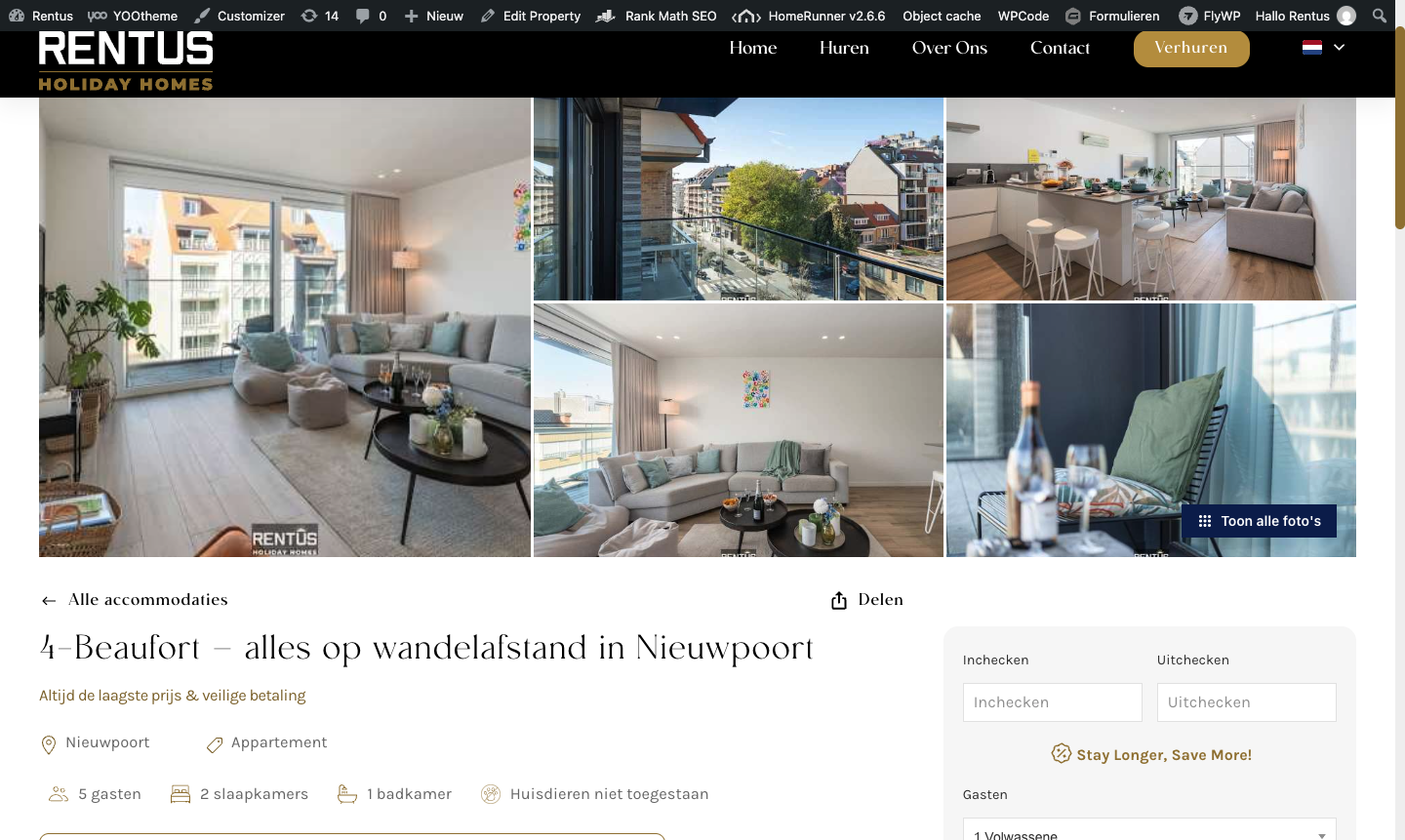
| Photo Gallery | The Show all photos and 3D Tour buttons: ink background with white text, and the corner radius. |
| Map Stacking | The price badge, center dot, and connector line take the ink; the count bubble takes the accent. |
| Reviews Page | The accent color of the booking button, bars, and highlights. |
| Amenity Icons | The icon color takes the ink. |
How it decides #
A module uses its own value wherever that value differs from the module’s default. Everything else follows the palette. So a site that already chose a teal gallery button keeps it, and a site that never touched the gallery colors gets the brand ink. The one case to know: Searchbar Pro saves its default red on every save, so a bar still showing the default red counts as “never chosen” and follows the brand accent. Pick any other accent in the Searchbar Pro panel and it keeps that.
Each module’s settings panel notes the fallback next to the field, so you can see from either side what the module will draw.
How to set it up #
1. Open the Settings tab #
In WordPress, open Toolkit and click Settings at the bottom of the module list. The Brand section sits under the GitHub token.
2. Enter your colors #
Type the accent as a hex color (for example #c9a76e) and the ink as a hex color (for example #031c54). The two swatches in the preview repaint as you type: the first is an accent button, the second an ink button. Leave a field blank to keep that value out of the palette.
3. Set the corner radius #
Enter a pixel value for buttons. 0 is square and also squares the search bar. Leave it blank to keep every module’s own default (8px on gallery buttons, the pill search bar).
4. Save and check a page #
Click Save. The fields re-read in lowercase with the radius clamped to 60. Open a property page and the explorer: the gallery button, the map badges, and any other module with default colors now carry the palette. If one surface did not change, that module has a color of its own; clear it in that module’s panel to let it follow.
Settings #
| Setting | What it controls |
|---|---|
| Accent color | A hex color for the search bar, highlights, the map count bubble, and the reviews page. Default: empty. |
| Ink color | A hex color for the dark surfaces: gallery buttons, map badges and dots, amenity icons. Default: empty. |
| Corner radius | Pixels for buttons, 0 to 60. 0 is square and makes the search bar square too. Blank keeps each module’s own default. Default: empty. |
Tips #
- Your theme usually already knows these colors: Elementor sites have them under Site Settings, Global Colors; YOOtheme sites under Style, Settings. Copy the primary into Accent and the darkest into Ink.
- The palette is for the Toolkit’s modules. Property cards and the search bar area as a whole are styled by HomeRunner Skin; the Styling Reference lists the CSS variables for fine-tuning.
- Clusters on the map keep their own color ramp; the palette does not recolor them.
- Nothing changes on a site until a palette is set. Updating the Toolkit alone leaves every module exactly as it was.