
Map Privacy shows each home as a shaded area instead of an exact pin, the way Airbnb does before booking, so your maps protect owner and guest privacy without hiding your properties from search.
What it does #
An exact pin on a property map tells anyone looking, including a competitor or a stranger, precisely where a home sits, down to the front door. Owners increasingly expect that not to be public before a guest has actually booked. The trouble is that turning a pin into something vaguer usually means giving up your map entirely, or manually blurring coordinates and losing the ability to search by area.
Map Privacy solves this by drawing a soft shaded area instead of a marker. Every property keeps a real, working pin behind the scenes. What guests see on the property page is a tinted area of the chosen radius that always contains the true location, with a small home badge at the center of the area (which is offset from the exact address), and the coordinates your site actually publishes (in the map itself, in your structured data, and in the properties map’s pin data) are shifted to match. The shift for a given property is always the same, computed from that property and your site, so the area does not jump around from one page load to the next.
- The property page map shows a soft shaded area with a home badge at its center, instead of a pin.
- The properties map (search results, explorer) keeps a pin, but it sits inside the same shaded area rather than on the exact address.
- Even if a guest zooms out far enough that the true radius would shrink to nearly nothing, the shaded area holds at a small halo around the badge and returns to its true size as they zoom back in, so it never disappears or looks like a precise point.
- Guests can still search or filter by dragging the map or picking a radius. A home whose shifted location falls near the edge of a search area is still included or excluded correctly.
- Structured data and other machine-readable location fields shift along with the map, so nothing an assistant or search engine reads gives away more than the map itself shows.
- You, and anyone with edit access to properties, always see the exact location everywhere it matters for your own work: the property edit screen, your property management system sync, and any export.
- Works with both Google Maps and OpenStreetMap.
For example, a property that actually sits at a specific street corner shows guests a shaded area that contains that corner but is not centered on it, instead of an exact pin. A guest can still tell the general neighborhood and judge distance to the beach or downtown, but not the exact building, until they book.
How to turn it on #
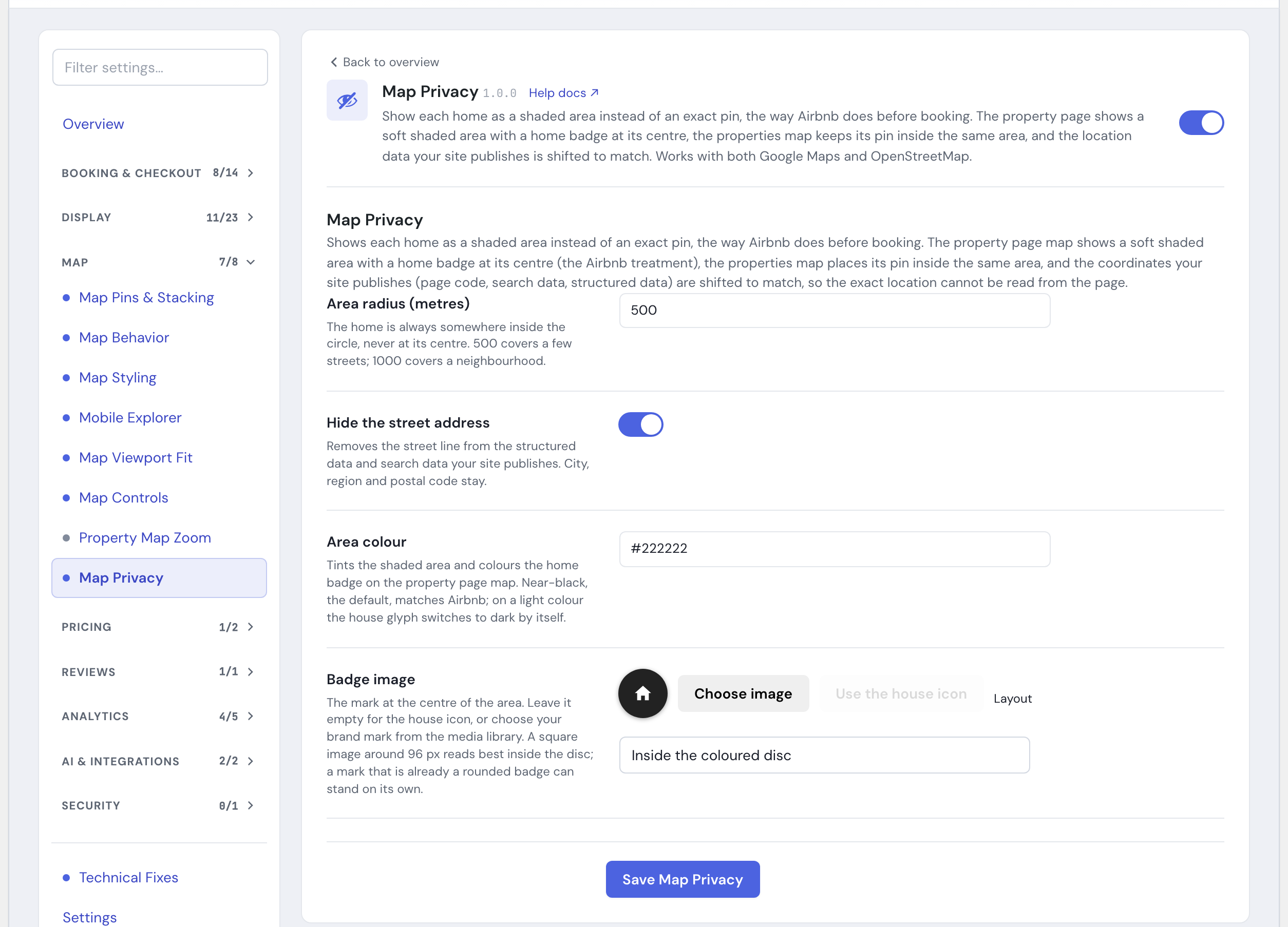
1. In the HomeRunner Toolkit Hub, switch on Map Privacy. #
2. Set your radius #
Open the Map Privacy settings in the Hub and choose how large an area to show, from 100 to 3,000 meters. The default is 500 meters. A bigger radius hides more precisely where a home sits; a smaller one gives guests a tighter sense of the area.
3. Decide whether to hide the street address #
Hiding the exact street address is on by default. With it on, your site publishes only city, state, zip, and country for a property’s public address, everywhere an address would otherwise appear. Turn it off if you would rather keep showing the full address and only blur the map itself.
4. Choose an area color #
Pick the color for the shaded area and the badge inside it, so it fits your site’s design. The default is near-black, matching Airbnb’s own look. Choose a lighter color and the house badge automatically switches to a dark mark so it still stands out.
5. Add a badge image (optional) #
By default the badge shows a simple house icon. Choose an image from your media library instead if you want your own brand mark at the center of the shaded area, then pick whether it sits inside the colored disc or stands on its own with no disc behind it.
Settings #
| Setting | What it controls |
|---|---|
| Radius | How large an area covers each property’s true location, in meters. 100 to 3,000. Default: 500. |
| Hide street address | When on, the exact street address is left out of every public location field; only city, state, zip, and country show. Default: on. |
| Area color | Tints the shaded area and colors the badge inside it. Default: near-black, matching Airbnb’s own look. On a light color, the badge automatically switches to a dark mark for contrast. |
| Badge image | Optional custom mark shown at the center of the shaded area, in place of the default house icon. Choose any image from your media library; a square image around 96px reads best. Default: none (house icon). |
| Badge layout | Whether the badge sits inside the colored disc or stands on its own with no disc behind it. Only takes effect once you’ve chosen a badge image. Default: inside the disc. |
Tips #
- A change to the radius or the street-address setting updates every property’s public location right away and clears the page caches Map Privacy can reach, so guests do not see a stale, unshifted map after you save.
- The area color and badge image are cosmetic only. Changing them does not affect how much location detail is hidden, so feel free to match them to your brand without worrying about privacy.
- If you use Mapbox tiles for your maps (set up in Property Map Display‘s Map Styling section), turning on Apply to HomeRunner Property Maps there carries through to the shaded area here too, on both Google Maps and OpenStreetMap sites.
- Map Privacy pairs naturally with Map All Pins and Map Controls: all three shape what guests see on your maps, and Map Privacy’s shift applies underneath whatever pin styling or clustering those modules add.
- If a property’s map location looks unusually far from the visible shaded area, double-check that the property actually has valid coordinates synced. A property with no usable location is left out of map search entirely, with or without Map Privacy on.