
Table of Contents
What it does #
Card tags put a home’s best features right on its property card. In place of the property type line (“House”, “Condo”), each card shows up to three short tags drawn from the tags your PMS already sends: “Private Pool”, “Hot Tub”, “Oceanside”. Guests see what makes each home special while they scan the grid, before they open a single listing.
You pick which tags qualify, give each one the short label guests read, and set the order. A home shows the first few it carries. Homes with none of them keep their property type, so nothing on the grid goes blank.
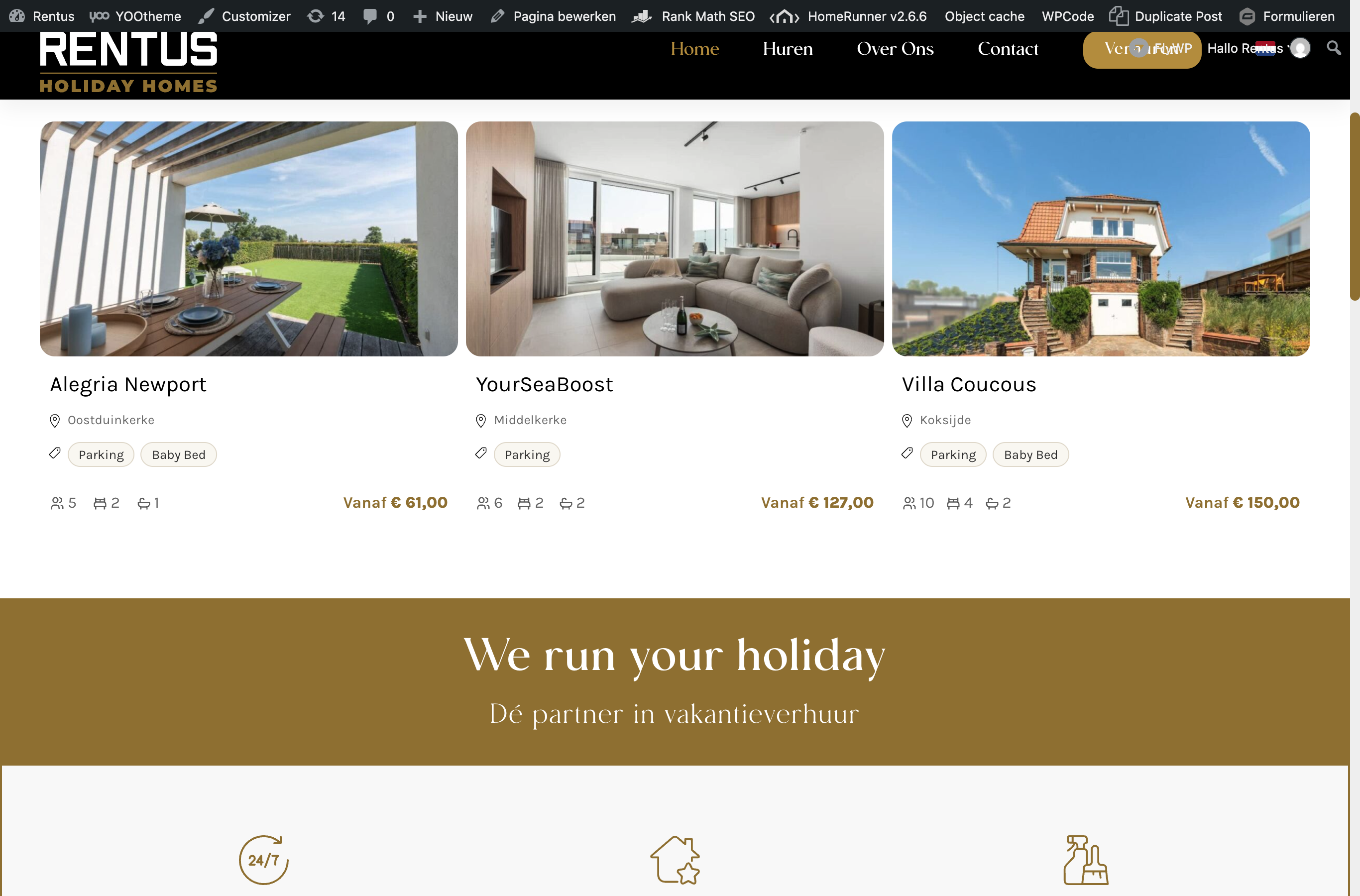
Card tags is part of Label Designer. Badges on the photo and tags under the location are two separate placements: you can run either one, or both.
How to turn it on #
- In your WordPress admin, open HomeRunner Toolkit and enable Label Designer if it is not on already.
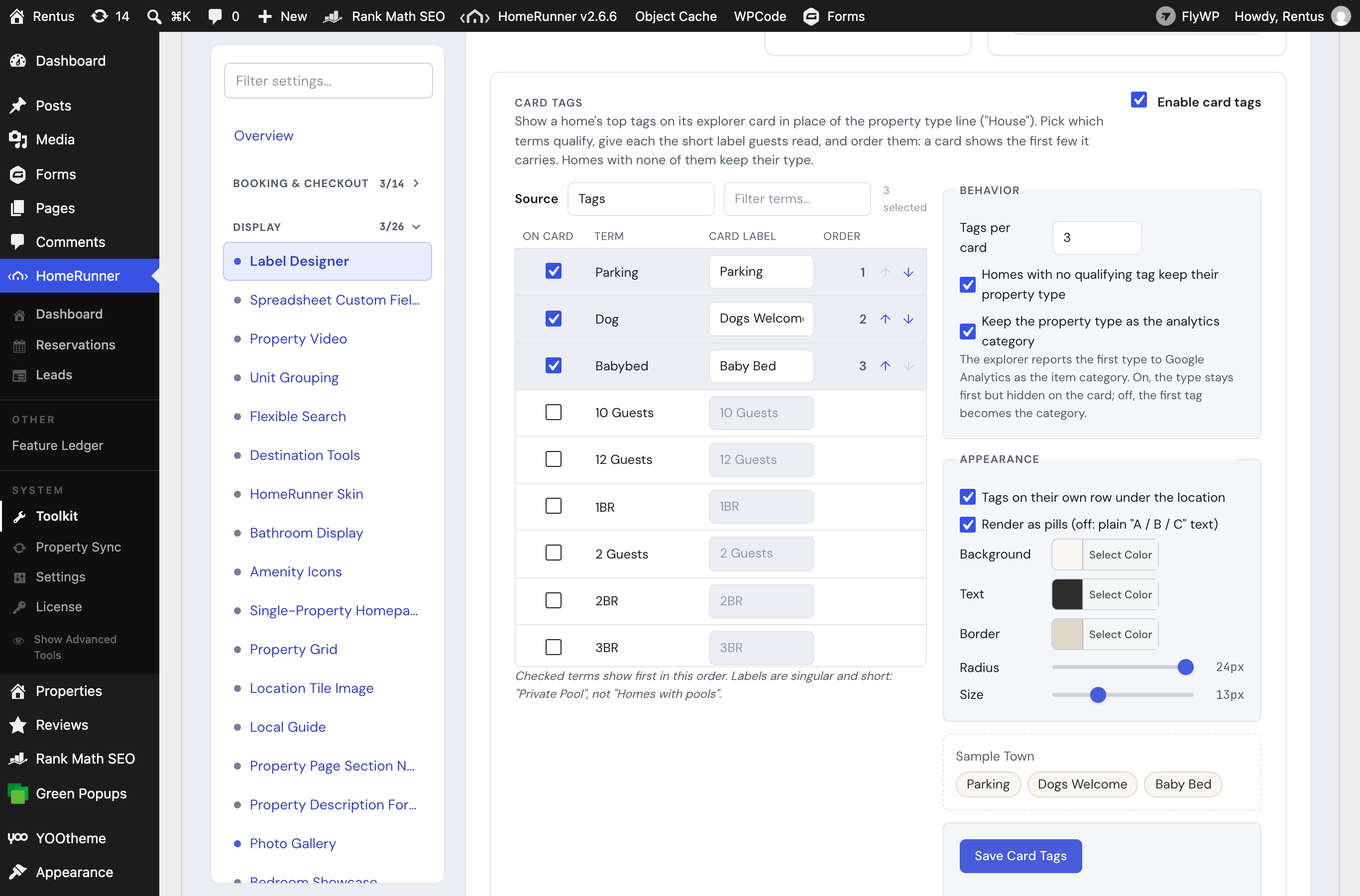
- Open the Label Designer tab and scroll to the Card tags section at the bottom.
- Tick Enable card tags.
- Under Source, keep Tags (your PMS tags) or pick another group such as Amenities.
- Tick On card for each term that should qualify, type its Card label, and use the arrows to set the order. The first terms in the list win when a home carries more than the cap.
- Click Save Card Tags, then open your property listing page to see the result.
Settings #
| Setting | What it controls |
|---|---|
| Enable card tags | Turns the feature on. Off by default; your cards are untouched until you enable it. |
| Source | Which group the tags come from. Tags (from your PMS) is the default. Amenities, Discover Tags and Flags are also available. |
| On card / Card label / Order | Which terms qualify, the short label guests read for each (singular and short: “Private Pool”, not “Homes with pools”), and the priority order. |
| Tags per card | The most tags one card shows. Three is the default and fits most card widths. |
| Homes with no qualifying tag keep their property type | On by default. Off, those cards show nothing in that line. |
| Keep the property type as the analytics category | On by default. Your explorer reports each card’s first type to Google Analytics as the item category. With this on, the property type stays that category while the card shows the tags. Off, the first tag becomes the category. |
| Tags on their own row under the location | On by default: the town stays on its own line and the tags sit beneath it. Off, the tags share the line with the location, the way the property type did. |
| Render as pills | On by default. Off, the tags show as plain text separated by slashes. |
| Background, Text, Border, Radius, Size | The look of the pills. The preview on the right updates as you change them. |
Where the tags appear #
- On every property card in your Explorer grid.
- In the card that opens when a guest clicks a map pin, so the list and the map match.
- Anywhere else that reads the card’s type line, such as server-rendered widgets and AI feeds, which receive the same labels as plain text.
Tips #
- Put the features guests book for first: a private pool or a hot tub beats “Family-Friendly” when a home has both.
- Leave out anything a card already shows another way. If a paw icon marks pet-friendly homes, a “Pet-Friendly” tag repeats it.
- Tags come from your PMS. To tag more homes, add the tag in your PMS and let the next sync bring it over; the label you set here applies to every home that carries it.
- If your site uses page caching, clear it after saving to see the new tags right away.
Related #
- Label Designer for badges on the card photo
- HomeRunner Skin for styling the cards themselves
- Styling Reference for the tag classes your theme can style
- Toolkit overview