
Replaces the plain Locations dropdown in your Explorer search bar with a tabbed “Find Your Destination” popup, so guests can browse by island, region, city, or resort instead of scanning one long list.
What it does #
A flat list of every location gets unwieldy once you have more than a handful of destinations, and guests often think in groups (“the islands,” “which resort”) rather than a single alphabetical list. Destination Filter takes over the Locations control in your Explorer search bar and replaces it with a tabbed popup: guests pick a tab (for example Island, City, or Resort), then browse or search within that group.
The destination tree is built from the property tags and location terms you already use in your PMS, so there is nothing to map by hand. Tag your properties consistently and the groupings appear automatically.
A single search box above the tabs lets guests type once and see matches across homes, islands, cities, and resorts at the same time, grouped under headings in the order you set. For example, if Resorts is ranked above Homes in Search across, a guest typing “kona bal” sees the resort Kona Bali Kai listed first instead of buried under dozens of individual condos inside it, and typing the resort’s full name and tapping Apply without picking a suggestion checks in that resort automatically instead of matching unrelated homes.
- Guests open a tabbed popup instead of one long dropdown
- Islands can expand to show their sub-regions nested underneath
- City and resort tabs can be searched by typing a label
- A single search box above the tabs matches homes, islands, cities, and resorts at once, grouped under headings in the order you set
- A footer shows “N filters applied” with Apply and Clear All buttons
- Selecting a destination filters Explorer results exactly the way the old Locations dropdown did
- If a guest types a destination but taps Apply without picking a suggestion, Destination Filter checks in the closest match for them; if nothing matches, Apply searches by that text as a property name instead
How to turn it on #
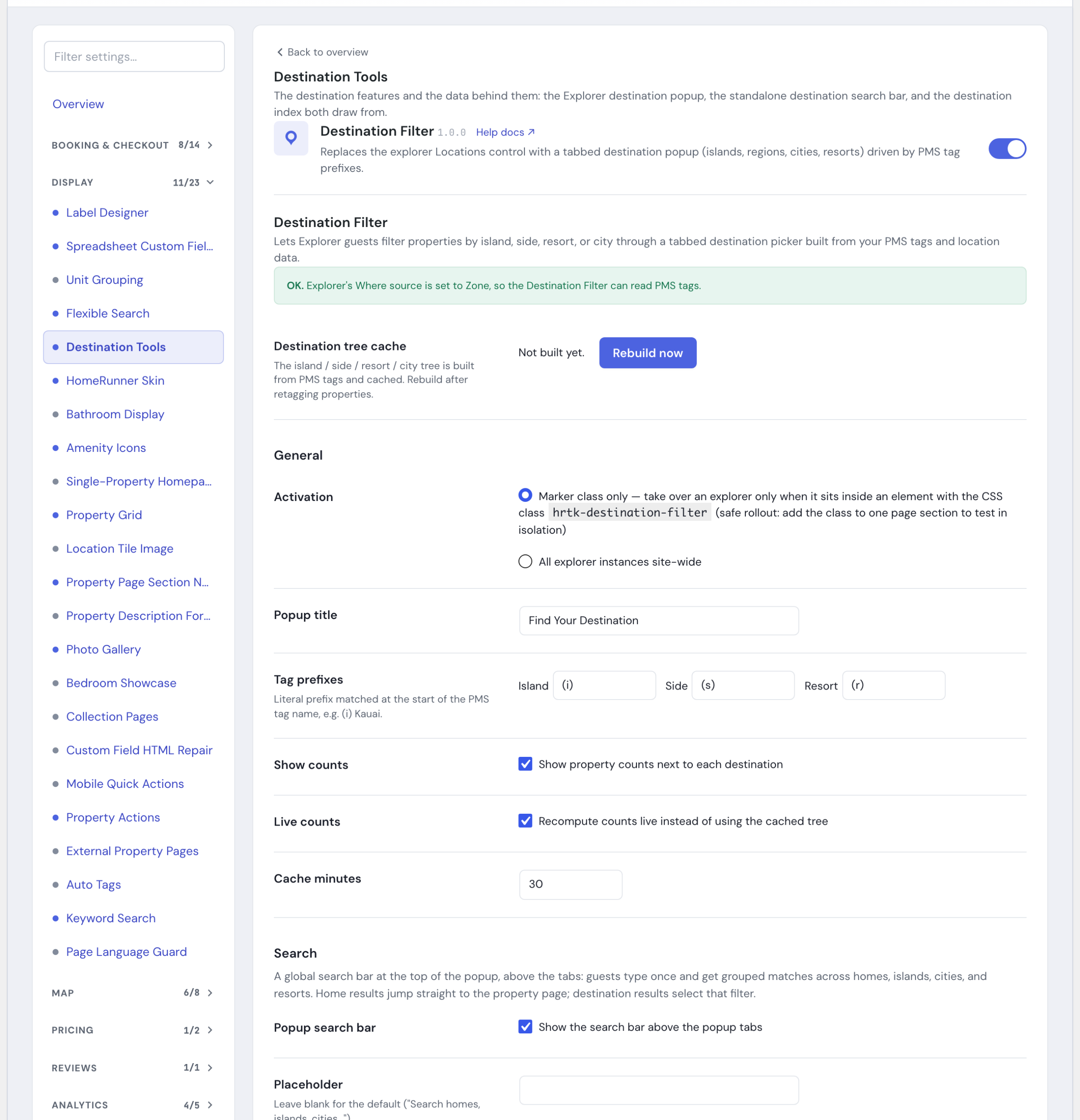
1. Switch it on in the Toolkit Hub #
In your WordPress admin, go to the HomeRunner Toolkit hub and switch on Destination Filter.
2. Set Explorer’s location source to Zone #
Destination Filter needs your Explorer search bar’s “Where” source set to Zone. Open Destination Filter in the Toolkit admin and check the source status shown there; it links you to the right setting if it is not already set to Zone.
3. Tag your properties #
Destination Filter reads two sources, all standard PMS tagging:
- Island / side / resort tags: property tags starting with a configurable prefix, by default
(i)for island (e.g. “(i) Kauai”),(s)for island side (e.g. “(s) East Kauai”), and(r)for resort (e.g. “(r) Poipu Kai”). Which island a side or resort belongs to is worked out automatically from which properties share those tags, so there is no manual island-to-region mapping to maintain. - Cities: your existing location terms, no special tagging needed.
A property with no matching tags simply will not appear under that tab. An admin-only “Data hygiene” table on the Destination Filter settings page flags common tagging problems (an empty label after the prefix, a side tagged under more than one island) so you can catch them before guests do.
Resort tags that carry no prefix can still count as resorts. On the settings page, under Tag prefixes, the “Resort tags without a prefix” box takes one tag name per line, written exactly as the tag reads in your PMS (capitalization does not matter). Those tags appear under the resort tab and in the Resorts group of the type-ahead without any renaming. Available from Toolkit 3.328.0.
4. Configure the tabs #
The Destination Filter settings page has a card-based tabs editor, up to 6 tabs. Each tab has a source, which decides what feeds it:
- Tag prefix: your island, side, or resort tags. Choose which level (island, side, or resort) this tab shows, and, for an island-level tab, whether to nest side tags underneath it.
- Location: your existing location terms. This is what the default City tab uses.
- City: a separate city field on your properties, also read straight from your existing tagging with no prefix needed.
For each tab you also set whether it is searchable (adds a label search box), whether it groups by island (nests entries under the island they belong to), and whether it is collapsible and starts open (accordion-style panels).
Reorder tabs with the move-up and move-down buttons on each card. Use Rebuild now after retagging properties to refresh the cached destination tree immediately rather than waiting for it to expire.
5. Turn on the combined search bar #
Popup search bar adds a single search box above the tabs, so guests can type instead of tab-hopping. It is on by default; switch it off in Destination Filter’s settings if you would rather guests only use the tabs.
6. Order the search groups #
Search across controls which groups (Homes, Islands & sides, Cities, Resorts) feed the combined search box, and now also their order. Use the up and down buttons next to each group, the same style of buttons used to reorder tabs above, to rank the kind of match you want guests to see first. That order sets both the heading order in the results and which group’s match Destination Filter treats as the best guess when nobody picks one (see the next step). Existing sites keep their current groups and order until you change them.
7. Apply catches text guests type but don’t pick #
There is nothing to switch on for this. Once the combined search bar is on, tapping Apply without clicking a suggestion no longer leaves the typed text behind: Destination Filter checks in the closest matching island, side, city, or resort as if the guest had clicked it, never a home, since Apply means “show results,” not “open a listing.” If nothing matches a destination, Apply instead filters the Explorer results already on the page by that text as a property name, so a guest who almost gets a home’s name right and taps Apply still lands on a filtered page instead of an empty one.
Settings #
All of these live on the Destination Filter settings page in the Toolkit Hub, except Tag prefixes, which is used during property tagging.
| Setting | What it controls |
|---|---|
| Activation scope | “Marker class only” (default): only Explorer instances wrapped in a specific class are affected, useful for rolling this out to one page first. “All explorer instances site-wide” applies it everywhere. |
| Popup title | The heading shown at the top of the popup. Default “Find Your Destination.” |
| Tag prefixes | The island/side/resort tag prefixes Destination Filter looks for. Defaults to (i), (s), (r). |
| Show counts | Shows the number of properties next to each destination. On by default. |
| Live counts | Recomputes those counts on every request instead of using the cached tree. Off keeps the popup faster; on keeps counts always current. On by default. |
| Cache minutes | How long the destination tree is cached before rebuilding. Default 30 minutes. Use Rebuild now for an immediate refresh. |
| Tabs | Up to 6 tabs, each with its own source, label, grouping, search, and accordion behavior (see Configure the tabs above). |
| Popup search bar | Shows the grouped search box above the popup tabs. On by default. |
| Placeholder | The search box’s hint text. Leave blank for the default, “Search homes, islands, cities…” |
| Search across | Which groups the search box covers, and in what order: Homes (property names), Islands & sides, Cities, Resorts. All four are on by default, and existing sites keep their current order. Use the up and down buttons next to each group to reorder them; the order sets both the heading order in results and which group’s match Apply treats as the best guess for text a guest typed but didn’t pick. |
| Results per group | How many matches to show under each heading before collapsing behind “+N more.” Default 5. |
| Minimum characters | How many characters a guest must type before results appear. Default 2. |
| Picking a destination | “Adds it to the selection” (default): the popup jumps to the picked destination so the guest can keep stacking filters, then tap Apply. “Applies it immediately”: picking a destination applies it and closes the popup right away. |
| Search results page | The page destination picks from the standalone shortcode send guests to (that page should contain your Explorer search). Used by the standalone shortcode described below; home picks always go straight to the property page regardless of this setting. |
Shortcode attributes #
The same search component is also available as a standalone shortcode, [homerunner_destination_search], for placements outside the popup, such as a homepage hero, a destination landing page, or a 404 page. See Destination Search for the full write-up; these attributes override the settings above for a single placement.
| Attribute | What it does |
|---|---|
placeholder="Search our islands…" | Overrides the input’s hint text. Defaults to the Placeholder setting above. |
groups="islands,cities" | Limits which groups this instance searches, comma-separated from homes, islands, cities, resorts. Defaults to the Search across setting above. |
results_url="/vacation-rentals/" | Where a destination pick sends the guest, carrying the pick as a filter. Without a results URL (here or in Settings), the standalone search only offers homes, since there is nowhere to send a destination pick. Home picks always go straight to the property page regardless. |
max_per_group="8" | How many results to show per group before collapsing behind “+N more.” |
min_chars="2" | How many characters a guest must type before results appear. |
show_counts="0" | Hides the property-count badges next to each result. |
autofocus="1" | Focuses the search field as soon as the page loads. |
class="my-search" | Adds a custom CSS class to the search container for your own styling. |
Tips #
- If a tab looks empty to guests, check that the underlying properties are tagged with the matching prefix, then use Rebuild now rather than waiting for the cache to expire.
- Keep prefixes consistent across your PMS. A tag with the right prefix but an inconsistent label (extra spaces, different capitalization) is the most common reason a property lands in the wrong group.
- Pair Destination Filter with the Destination Index if you also want a browsable, SEO-friendly destination directory outside the search bar.
- Set a Search results page before placing the standalone
[homerunner_destination_search]shortcode anywhere off the popup, so destination picks have somewhere to land. - If your site leans on one or two groups more than others (mostly named properties, say), narrow Search across or a shortcode’s
groupsattribute so guests are not shown empty-feeling headings. - If you want a specific group’s matches to show first, for example ranking your Resorts ahead of individual Homes, move it to the top of Search across rather than relying on guests to scroll past the other headings; that same order also decides what Apply picks for typed text nobody clicked.
- For a single destination search field outside the popup, a homepage hero or a landing page, use Destination Search instead; it reads the same property tagging and, when Destination Filter is on, shares this same Search across order.