
Add your own extra details to properties (pool type, property manager, anything you like) using a simple Google Sheet, even when your PMS has no place to store them.
What it does #
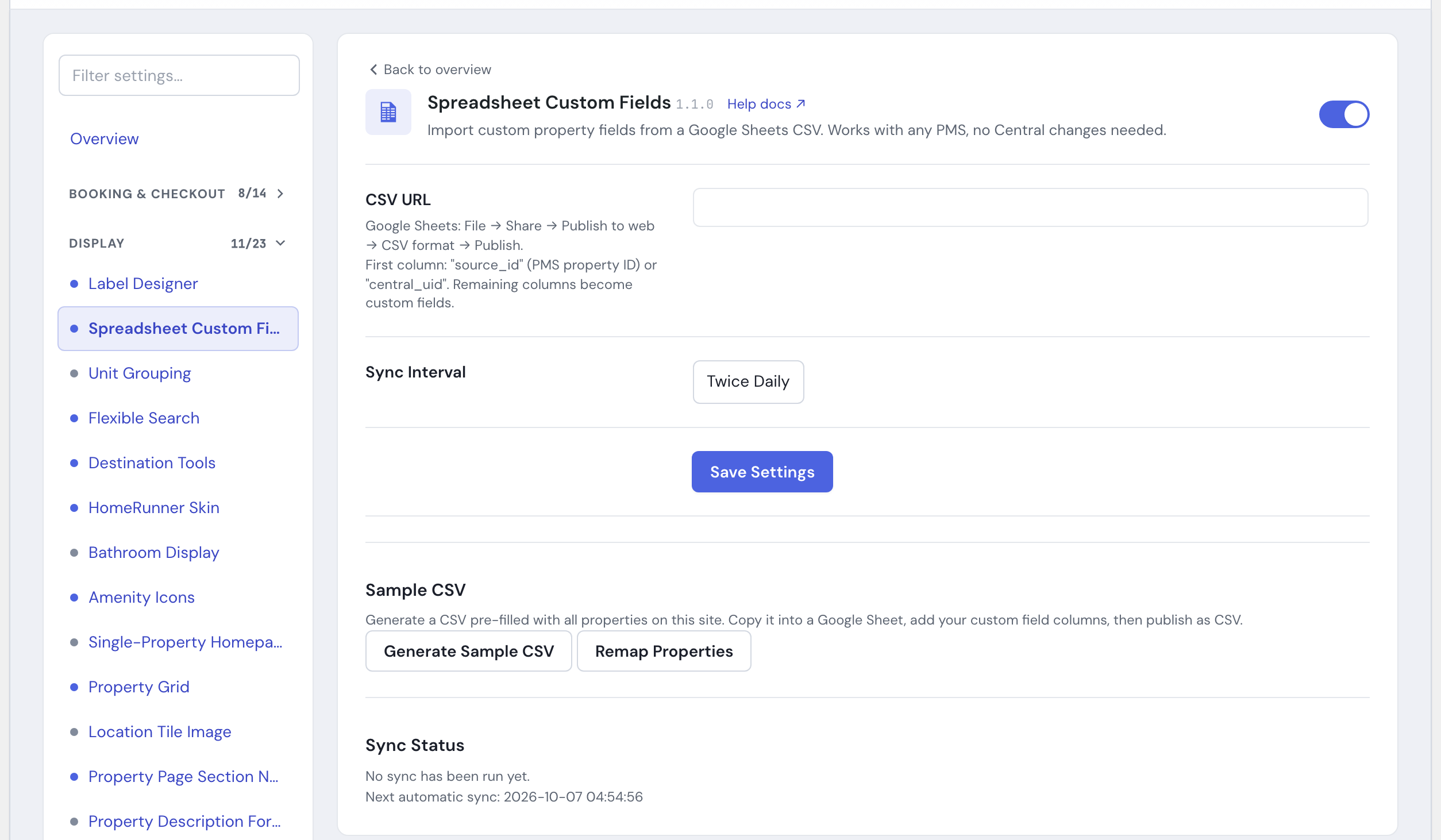
Sometimes you need data on a property that your PMS just does not have a field for, or your PMS (Hospitable, for example) does not support custom fields at all. Spreadsheet Custom Fields lets you keep that data in a Google Sheet and have your website read it in automatically.
You pick the field names (for example pool_type, property_manager, view), fill in the values per property, and the module syncs them to your site on a schedule. Once synced, the values behave just like any other property field: they show up as dynamic content in YOOtheme Pro, Elementor, and any other page builder that reads property fields, and they can feed certain HomeRunner settings such as meta title, meta description, and the Explorer subtitle.
No PMS support and no Central changes are required. The data lives in your sheet and flows to your site.
How to set up the data source #
1. Enable the module #
In the HomeRunner Toolkit Hub, switch on Spreadsheet Custom Fields.
2. Generate the starter sheet #
Click Generate Sample CSV. This produces a spreadsheet already filled with every property on your site, each identified by its unique ID, plus sample columns.
3. Build your sheet #
Paste that data into a Google Sheet. Rename the sample columns to your real field names (for example pool_type, property_manager) and fill in the values for each property.
4. Publish the sheet as CSV #
In Google Sheets, go to File, then Share, then Publish to web, and publish as CSV. Copy the published URL.
5. Connect it #
Paste the published CSV URL into the module settings, choose a sync interval, and click Save Settings. Once the URL is saved, a Sync Now button appears; click it and your values are live on the site.
Sync settings #
| Setting | What it controls |
|---|---|
| CSV URL | The published Google Sheet (CSV) the module reads from. |
| Sync interval | How often the sheet is pulled automatically: hourly, twice daily, or daily. Twice daily is the default. |
| Sync Now | Pulls the sheet immediately, without waiting for the schedule. Appears once a CSV URL is saved. |
| Remap Properties | Rebuilds the property rows in the CSV box when new properties arrive from Central. Paste your sheet’s current contents into the box first so your existing values carry over; then copy the result back into your Google Sheet. |
The sheet re-syncs on your chosen schedule. Removing a property’s row (or clearing its cells) clears that property’s custom field data on the next sync, so a blank cell is a way to erase a value, not a way to keep the old one.
Using the values #
Once synced, the fields appear automatically in your page builder’s dynamic-content picker, the same way PMS-synced fields do. There is also a shortcode for placing a value directly in content on property pages (elsewhere it shows the default):
[hrtk_custom_field name="pool_type" default="N/A"]
Tips #
- After adding a batch of new properties via Central, paste your sheet’s current CSV into the module’s box, click Remap Properties, and copy the refreshed list (existing values intact, new properties added) back into your Google Sheet. Then fill in the new rows.
- Keep field names short, lowercase, and consistent (for example
pet_policy, notPet Policy!). They become the keys your page builder reads. - These values can also feed source-mapping dropdowns (meta title, meta description, subtitle, and similar), which is handy for SEO text you want to manage in a spreadsheet rather than per page.
- If you are looking to attach visual badges rather than text fields, see Label Designer. For the broader picture of supporting modules, see Under the Hood (Automatic Optimizations).