
Collapse identical listings into a single search result, so a property with many interchangeable units shows one clean card while each booking still lands on a real, specific unit.
What it does #
If you manage a resort with twenty near-identical cabins, or hotel-style inventory where many units are the same, your search results fill up with twenty almost-identical cards. That buries your variety and makes the page harder to shop.
Unit Grouping groups those interchangeable units and shows a single representative card for the group. The card stays visually stable, using one unit’s title and photo, so the results page reads cleanly. When a guest clicks through, Unit Grouping routes them to a randomly chosen available unit from the group, so the reservation still binds to a specific physical unit and your calendars stay correct.
This module was called Clustering until recently. The name changed because it has nothing to do with the map. It shapes your search results, and it now sits under Display in the Hub rather than Map. If what you want is overlapping pins on the map fanning apart so a guest can reach each one, that is Map Stacking, covered in Toolkit: Property Map Display.
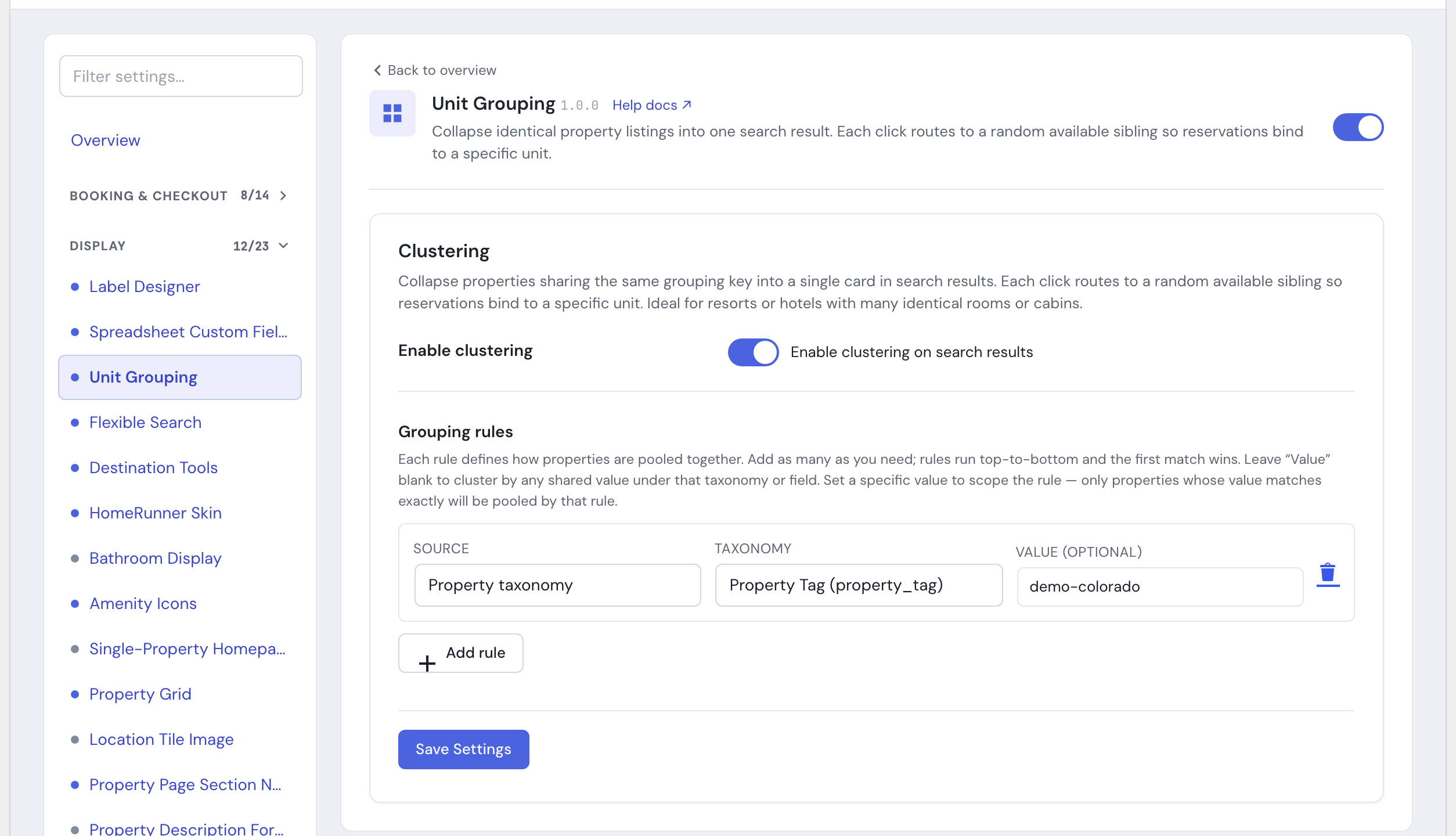
You decide what counts as “the same” with one or more grouping rules:
- Group by a property taxonomy (tags, amenities, or any other taxonomy you have set up on your properties, such as a unit-type or location field), or by a custom field value.
- Choose the tag or field that identifies a group, for example a “unit type” field.
- Optionally narrow a rule to a single value, so it only groups properties whose value matches exactly.
If more than one rule could match the same property, rules are checked in the order they are listed and the first match wins, so put your more specific rules above broader ones.
How to turn it on #
1. Enable the module #
In the HomeRunner Toolkit Hub, switch on Unit Grouping. You will find it under Display.
2. Add a grouping rule #
Open the Unit Grouping settings and add a rule. Pick the source (a property taxonomy or a custom field), enter the tag or field that defines a group, and leave the value blank to group by any shared value, or enter a specific value to scope the rule to just those properties. Add more rules if different parts of your inventory group on different fields.
Settings #
| Setting | What it controls |
|---|---|
| Enabled | Turns Unit Grouping on or off. It is off by default, so nothing changes until you enable it and add a rule. |
| Rule: Source | Where the grouping value comes from: a property taxonomy (any taxonomy registered on your properties, not just tags) or a custom field. |
| Rule: Key | The specific tag or custom field that identifies a group, for example a “unit type” field. |
| Rule: Value (optional) | Leave blank to group by any shared value under that tag or field. Enter a value to group only the properties that match it exactly. |
Tips #
- If listings are not collapsing, confirm the rule’s key matches a real tag or custom field on your properties, and that the units you expect to group actually share the same value.
- Because each click resolves to a random available unit in the group, Unit Grouping is best for genuinely interchangeable inventory. Use a specific value on a rule when you want to group only part of your catalog.
- When you add more than one rule, list your most specific ones first: the first matching rule wins, so a broad catch-all rule placed above a narrower one can grab properties before the narrower rule gets a chance.
- Unit Grouping shapes what guests see in search results, so it pairs naturally with Flexible Search and the Property Map Display.
- The HomeRunner Toolkit is included with HomeRunner at no extra cost, so this module is available on every plan.