
A hardened replacement for the HomeRunner Reservations admin table that remembers your “per page” choice, exports a working CSV, and stays stable even with very large property catalogs.
What it does #
Reservations Pro is an in-place upgrade to the Reservations table in your WordPress admin. It uses the same reservation data as before (nothing new is fetched or stored), but fixes the rough edges:
- Persistent per-page setting: your Screen Options “number of items per page” choice is remembered between visits instead of resetting.
- Working CSV export: download every reservation that matches your search and filters as a CSV file.
- Built for large catalogs: the table is built to handle very large property catalogs without failing partway through, so big accounts can browse reservations reliably.
Because it reads the same reservation source as the standard table, there is no new login, no extra sync, and no new data to manage. It is purely a better screen for the data you already have.
The Reservations screen has two tabs: a Chart tab, which uses the HomeRunner plugin’s reservations chart, and a Table tab, the improved list described above. The improvements above apply to the Table tab. Reservations Pro replaces the original Reservations page under the HomeRunner menu, and old bookmarks to the original page open the new one.
How to turn it on #
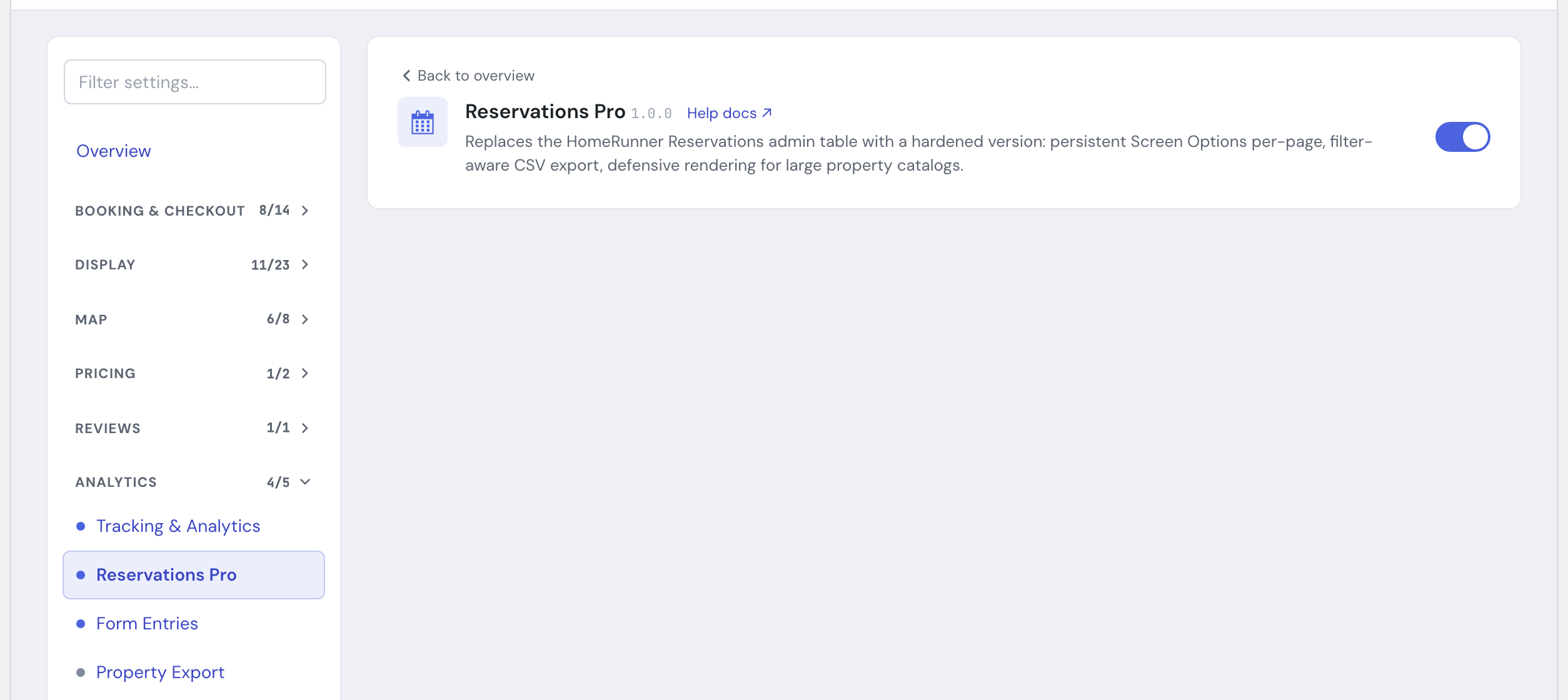
1. Enable the module #
Reservations Pro is already on for new HomeRunner Toolkit installs. If it is off on your site, open the HomeRunner Toolkit Hub and switch on Reservations Pro.
2. Open the Reservations screen #
Once enabled, the improved table is available at HomeRunner > Reservations in your admin. The screen opens on the Chart tab first, so click the Table tab to reach filters, Screen Options, and Export CSV.
Settings #
There is no separate settings panel. The controls live on the Reservations screen’s Table tab.
| Setting | What it controls |
|---|---|
| Screen Options (top-right of the screen) | Set how many reservations show per page, from 1 to 500 (values above 500 are lowered to 500). The default is 50. Your choice is saved. Available on the Table tab. |
| Filters | Search the list, then filter by Property, Type (Inquiry, Request, Booking), or Status (Inquiry, Request, Booked, Confirmed, Closed) and click Filter. On catalogs above 2,000 properties, the Property filter becomes a Property ID box. Click a column heading to sort; the list starts with the newest reservations. Available on the Table tab. |
| Export CSV | Download every reservation that matches your search and filters, not only the current page, up to 50,000 rows. Available on the Table tab. |
Tips #
- Set your per-page count once in Screen Options; Reservations Pro will remember it so you do not have to reset it on every visit.
- Apply your filters first, then export. The CSV respects whatever search and filters are active, and it includes every matching reservation, not just the page you are on.
- This is the right tool for large accounts where the standard table struggled to load. If you manage a big catalog, make sure it is on.
See the full module list in the Toolkit overview.