
Hide booking-component add-ons on properties where they do not belong, so guests only see the fees and extras that fit the home they are booking.
What it does #
By default, your booking component offers the same add-ons on every listing. That becomes a problem when an add-on only makes sense for some properties. The clearest example is a Pet Fee: if it shows up on a home that does not allow pets, guests get confused and your team fields avoidable questions.
Conditional Add-Ons lets you write simple rules that hide an add-on unless the property qualifies. A rule matches an add-on by name, then shows it only when the property carries at least one of the amenities, flags, or tags you choose. The same rules apply on the checkout page, including the cards from Add-On Showcase.
Here is how a rule reads in practice:
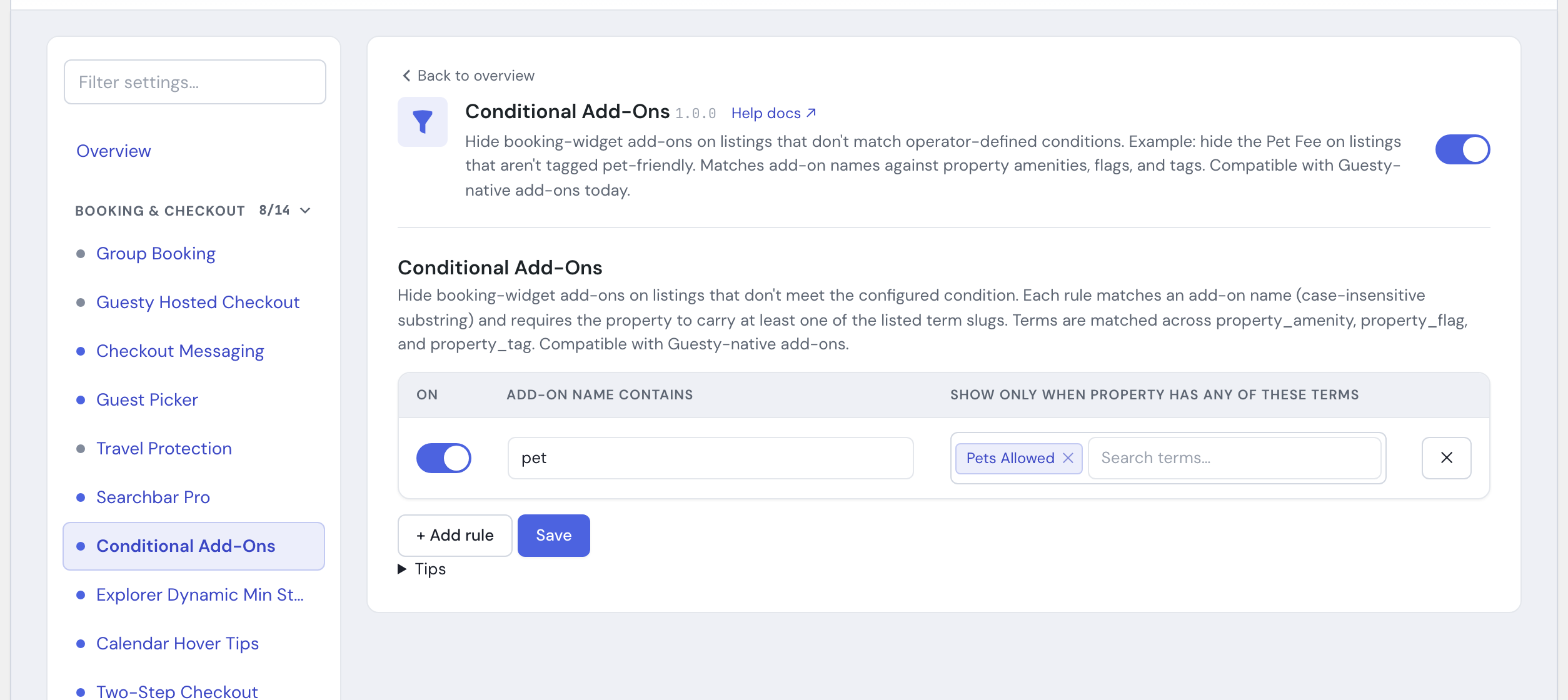
- Match any add-on whose name contains pet.
- Show it only on properties tagged Pets Allowed.
- On every other property, the Pet Fee is dropped from the booking component automatically.
Name matching is case-insensitive and matches on part of the name, so a single pet rule covers “Pet Fee”, “Pet Cleaning”, and “Additional Pet” at once.
The module starts with no rules, so turning it on changes nothing until you add one. Every rule is yours to create, edit, or turn off.
How to turn it on #
1. Enable the module #
In the HomeRunner Toolkit Hub, switch on Conditional Add-Ons.
2. Add your rules #
Open the Conditional Add-Ons settings and click Add rule for each add-on you want to control. Give the rule the text to match in the add-on name, then choose the qualifying terms: start typing in the Show only when property has any of these terms box and pick the amenities, flags, or tags you want from the list. The rule saves each term for you, so you do not need to look up its slug.
3. Save #
Save, and every booking component on the site applies the rules right away.
Settings #
Each rule has the following fields.
| Setting | What it controls |
|---|---|
| On | Whether the rule is active. Turn a rule off to stop applying it without deleting it. |
| Add-on name contains | The text to look for in an add-on’s name. Matching is case-insensitive and matches any part of the name, so pet catches “Pet Fee” and “Additional Pet”. |
| Show only when property has any of these terms | The amenities, flags, or tags that qualify a property to show the add-on. Search by name and pick from the list, and the rule saves the matching term for you. A property needs only one of the listed terms to qualify; if it has none, the add-on is hidden. If the term you need is not in the list yet, type it and choose Use custom slug. Any slugs you entered by hand in an earlier version keep working. |
If an add-on’s name does not match any rule, it is always shown. A rule only ever hides an add-on, never adds one. When several rules are active, an add-on is hidden if any one of them applies.
Tips #
- If an add-on is still showing where you do not want it, confirm the property actually carries one of the terms listed in the rule.
- Pair this with the Guest Picker so your pet controls and pet-related add-ons stay consistent across the booking experience.
- Conditional Add-Ons works with Guesty-native booking-component add-ons today. Support for other connectors’ add-ons grows as those surfaces mature.
- The HomeRunner Toolkit is included with HomeRunner at no extra cost, so this module is available on every plan. See the HomeRunner Toolkit overview for the full module list.