
Controls the order rate plans appear in your booking component and which one is selected by default, renames rate plans to your own wording, adds a short explainer guests hover or tap to read, and can hide a rate plan once a guest applies a coupon code, so you can put your preferred rate in front of guests first, explain it in plain terms, and keep a promo code from stacking on top of a plan’s own discount.
What it does #
When a property offers more than one rate plan, the booking component normally lists them in whatever order and wording your PMS returns, for example a raw internal name like “Semi-Moderate” with no explanation. And a plan that already carries its own discount, like a non-refundable rate, stays on the list even after a guest enters a promo code. Rate Plan Control gives you four independent ways to take charge of that:
- Order. Promote a specific rate plan to the top of the list, where it is also auto-selected by default.
- Rename. Show guests a friendlier name than the one your PMS sends, for example “Non-Refundable (Save 10%)” instead of a raw PMS label.
- Explain. Attach a short explainer that appears in a tooltip behind a small info icon next to the rate plan name (hover on desktop, tap on mobile), so guests understand what they are choosing without you fielding the same question over and over.
- Hide when a coupon is applied. Take a rate plan off the list as soon as the guest’s quote carries a coupon code, so the promo never stacks on top of that plan’s own discount, and show the guest a short note explaining why the plan disappeared.
Reordering, renaming, and hiding all happen on the quote before it reaches the component, so guests see your preferred list from the very first render with no flicker. Renames apply everywhere the rate plan name shows: the booking component, the checkout quote, and a YOOtheme quote source if your theme uses one. The explainer icon and the coupon note are part of the booking component’s rate plan list.
Here is what a guest experiences when a coupon hides a plan. Say your override renames the PMS plan “NonRef” to “Non-Refundable (Save 10%)” and has Hide when a coupon is applied ticked, and the property also offers a “Flexible” plan:
- Before a coupon, both plans are listed as usual.
- Once the guest applies a coupon code, “Non-Refundable (Save 10%)” drops off the list. If the guest had already selected it, the component switches them to the first plan still listed and updates the price.
- A short note appears directly under the rate plan list: “Promo codes apply to the Flexible rate. The Non-Refundable (Save 10%) discount cannot be combined with a promo code.”
- If every rate plan on a property would be hidden, none is hidden, so the guest always has something to book and the coupon still applies.
The note uses the names guests see, so a plan you renamed shows up in the note under its Display Name. When two or more plans are hidden, one note lists them all. The default wording says “rate” when one plan remains and “rates” when several do.
How to turn it on #
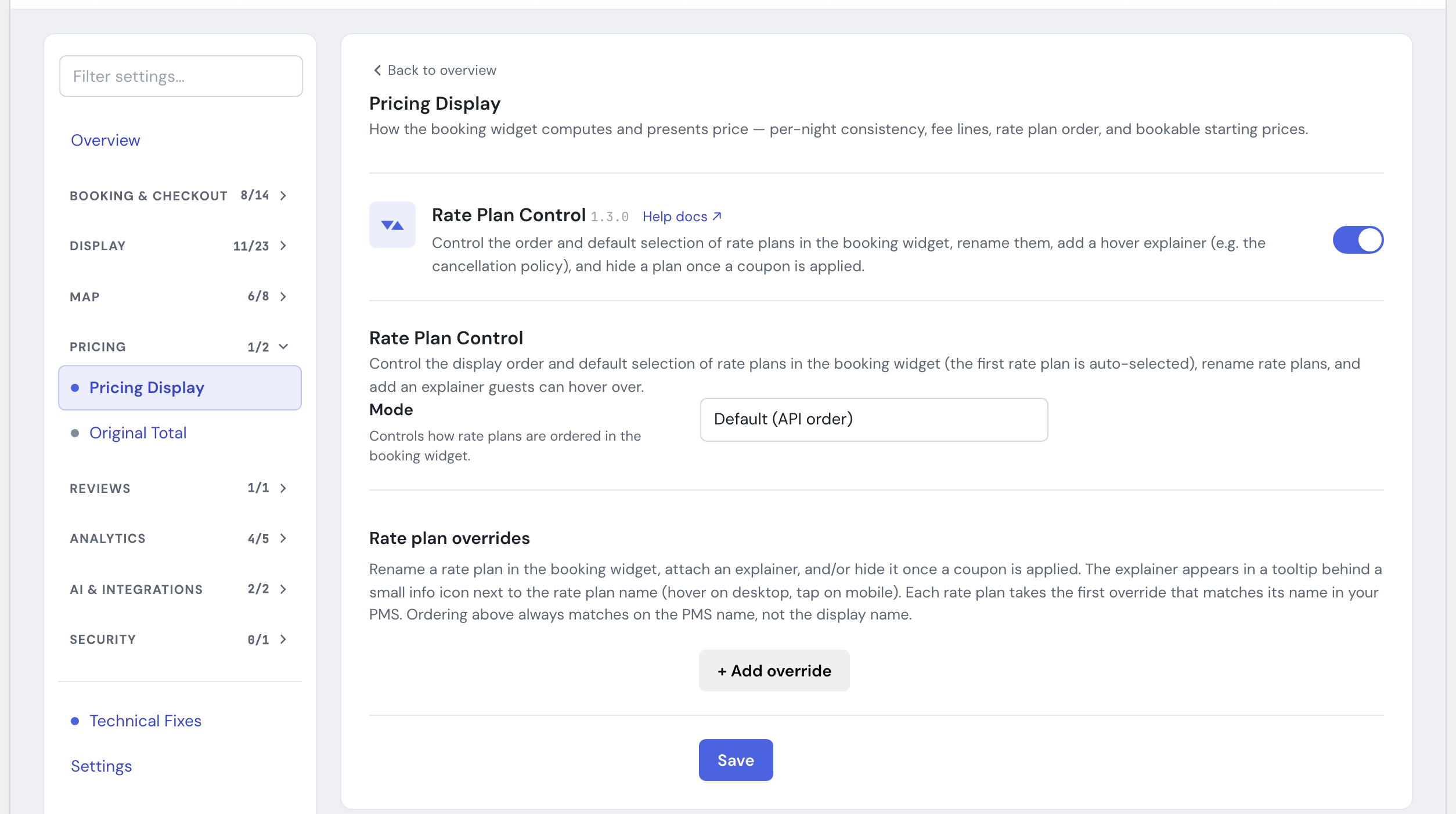
1. Enable the module #
In the HomeRunner Toolkit Hub, switch on Rate Plan Control.
2. Choose a display order #
Open the Rate Plan Control settings panel and pick a Mode (see Settings below) to control which rate plan is listed, and auto-selected, first.
3. Rename rate plans and add explainers (optional) #
Under Rate plan overrides, click + Add override for each rate plan you want to relabel or explain. Enter the text that identifies the rate plan as your PMS names it, then optionally a friendlier Display Name and an Explainer. Leave Display Name blank to keep the PMS name while still adding an explainer, or leave Explainer blank to rename with no info icon.
4. Hide a rate plan once a coupon is applied (optional) #
On the override row for the plan that already carries its own discount, tick Hide when a coupon is applied under Coupons. Under Note when hidden, leave Show a note to the guest ticked so guests learn why the plan disappeared. Leave the text box empty to use the default wording, or type your own and put {hidden} and {remaining} where the plan names should go.
5. Save #
Click Save. Your order, renames, explainers, and coupon rules take effect on the booking component right away.
Settings #
| Setting | What it controls |
|---|---|
| Mode | How rate plans are ordered. Default (API order) leaves them in the order your PMS returns. Promote a rate plan to first position moves a chosen rate plan to the front of the list and auto-selects it. Default: Default (API order). |
| Rate Plan Name (shown when Mode is set to promote) | The text to match against a rate plan’s title, for example non-refundable. Matching is case-insensitive and always compares against your PMS’s name; a Display Name you set below is ignored here. |
| Match Type (shown when Mode is set to promote) | How your Rate Plan Name text is matched. Contains matches when the title contains your text anywhere (recommended for most cases). Starts with matches only when the title begins with your text. Exact match matches only when the title is identical to your text. Default: Contains. |
| Rate plan overrides | A list of rename, explainer, and coupon rules. Add one row per rate plan you want to relabel, explain, or hide (up to 20). Each rate plan takes the first override whose Rate Plan Name (PMS) text matches it. |
| Rate Plan Name (PMS) (per override) | Text to find in the rate plan name as your PMS sends it. Case-insensitive. Required for the override to apply. |
| Match Type (per override) | Contains, Starts with, or Exact match, same behavior as the ordering Match Type above, set independently per override. Default: Contains. |
| Display Name (per override) | What guests see instead of the PMS name. Leave empty to keep the PMS name while still showing an explainer. |
| Explainer (per override) | Plain text shown in a tooltip behind an info icon next to the rate plan. Leave empty for no icon. |
| Coupons: Hide when a coupon is applied (per override) | When ticked, this rate plan is removed from the list on any quote that carries a coupon code, so a promo never stacks on top of the plan’s own discount. If every plan on a property would be hidden, none is. Default: off. |
| Note when hidden: Show a note to the guest (per override) | When ticked, a one-line note appears under the rate plans whenever a coupon hid this plan. Only matters on rows that also hide the plan. Default: on. |
| Note when hidden: text (per override) | Your own wording for that note. {hidden} is replaced with the hidden plan’s name and {remaining} with the names of the plans still offered. Leave empty for the default wording: “Promo codes apply to the {remaining} rate. The {hidden} discount cannot be combined with a promo code.” Default: empty. |
The first rate plan in the list is always the one auto-selected for the guest, so promoting a plan also makes it the default choice.
Tips #
- Use Contains unless your rate plan names are very similar to each other. It is the most forgiving option.
- The promote text and each override’s Rate Plan Name only need to be a recognizable fragment of the rate plan name, not the whole title.
- A bare search like refundable will not accidentally match a non-refundable plan. Rate Plan Control treats those as different rate plans even under Contains matching, for both the ordering match and overrides.
- If your match text does not match any rate plan on a given property, that property simply keeps its default order and PMS wording, so a typo will not break the component.
- Ordering always matches on the PMS name, even for a rate plan you have renamed. If you promote a plan by name and also rename it, use the original PMS wording in the Rate Plan Name field for ordering.
- You do not need an explainer to rename a rate plan, and you do not need a rename to add an explainer. Set only what you need per override.
- One override row can do all three jobs at once: rename Non-Refundable, explain its cancellation terms, and hide it when a coupon is applied. Coupon hiding matches on the PMS name like everything else on the row.
- If the coupon note does not show, check that Show a note to the guest is ticked on the row that hides the plan, and that the row’s Rate Plan Name (PMS) really matches the plan. When several hidden rows exist, the first one with the note switched on decides the wording.
- Pair coupon hiding with Inline Price Breakdown so a guest who was moved to a different rate plan sees the itemized price update right there in the component.
- Conditional Add-Ons does the same kind of tidying for the add-ons list, hiding add-ons that do not fit a property, for example a pet fee on a listing that is not pet-friendly.
- Pair this with Bookable Starting Prices so the rate you promote also shows a price guests can actually book.
See the full module list in the Toolkit overview.