Table of Contents
Step 1: New PMS Connection #
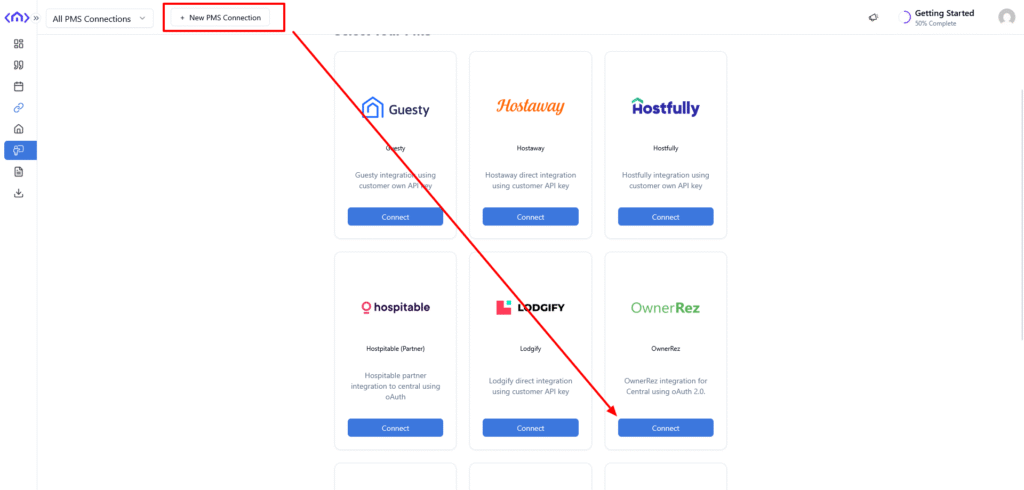
Click on New PMS Connection and choose OwnerRez.
Step 2: Configure Connection #
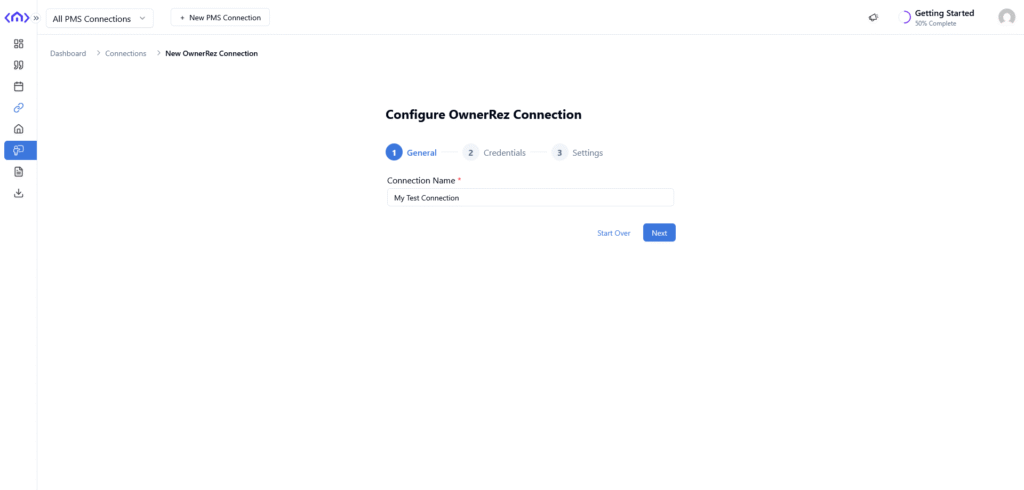
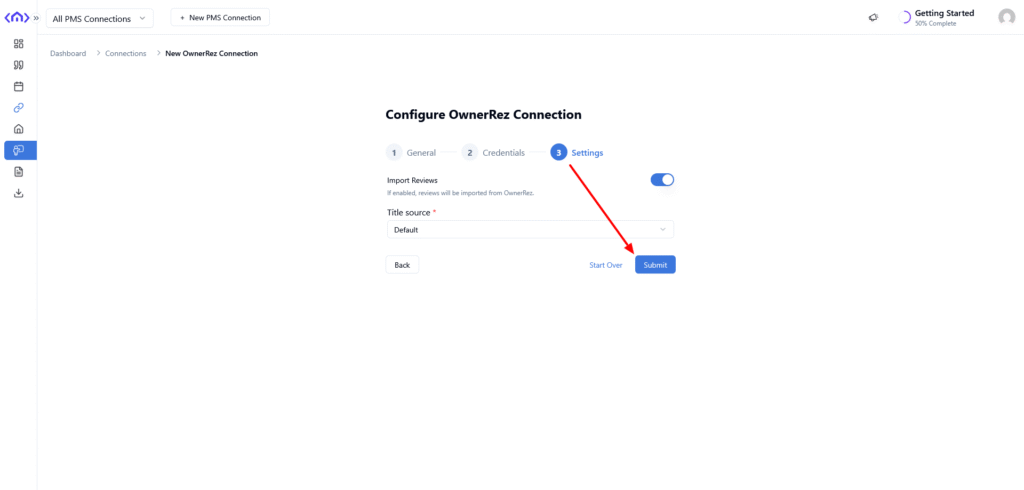
Add connection information, such as Connection Name and click Submit on the last step.
Step 3: Authorize #
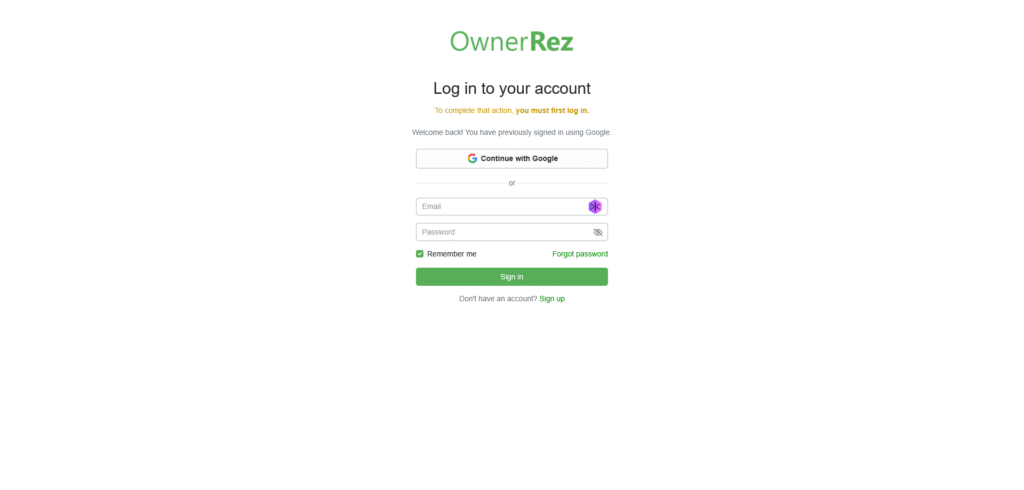
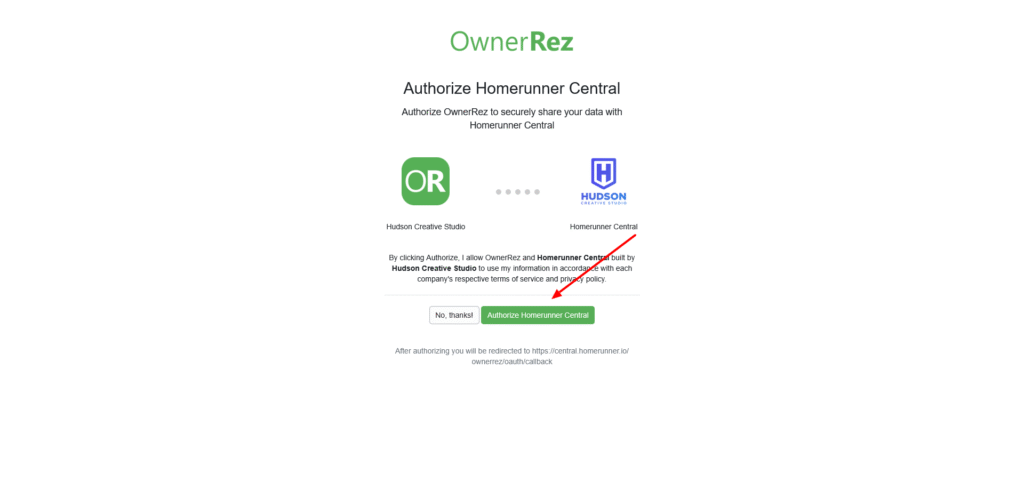
You will be redirected to the OwnerRez site for authorization. Log in to your OwnerRez account and connect Hudson Creative Studio to your access.
Step 4: Enable WordPress Feature on OwnerRez #
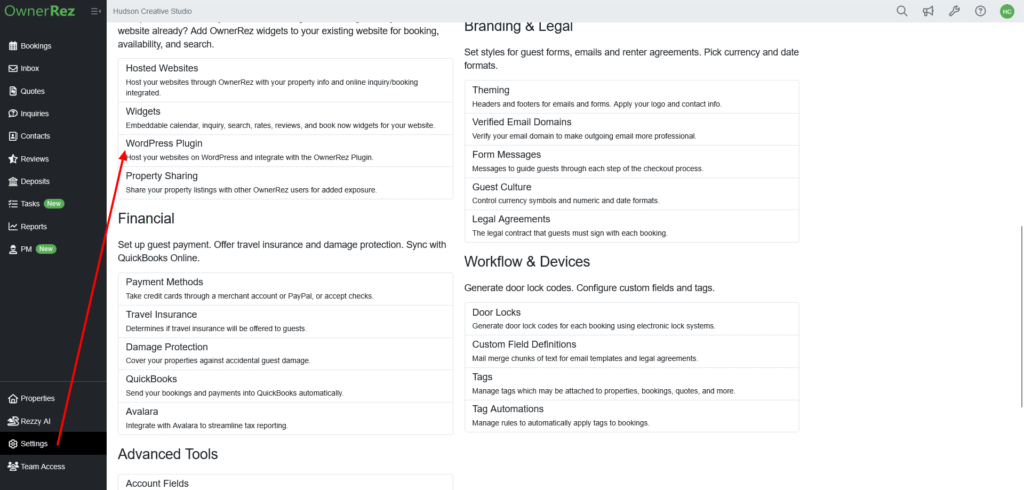
Go to OwnerRez > Settings > WordPress Plugin settings and enable the WordPress Plugin + Integrated Websites feature.
Step 5: Add Your Booking Component ID #
HomeRunner pulls live pricing quotes through an OwnerRez Booking/Inquiry component, so your connection needs a component ID. Without it, property pages on your website will show a “Missing component ID configuration” error when a guest requests a quote.
- In OwnerRez, go to Settings > Components and create a Booking/Inquiry component, or open one you already use. You can jump there directly at app.ownerrez.com/settings/widgets.
- Open the component’s Embed Code and copy the number shown after
data-widgetId. It looks like a plain number, for example799234101. - In the HomeRunner Dashboard, open Connections, select your OwnerRez connection, and click Configure. Paste the number into the Component Id field and save.
Step 6: Run Sync #
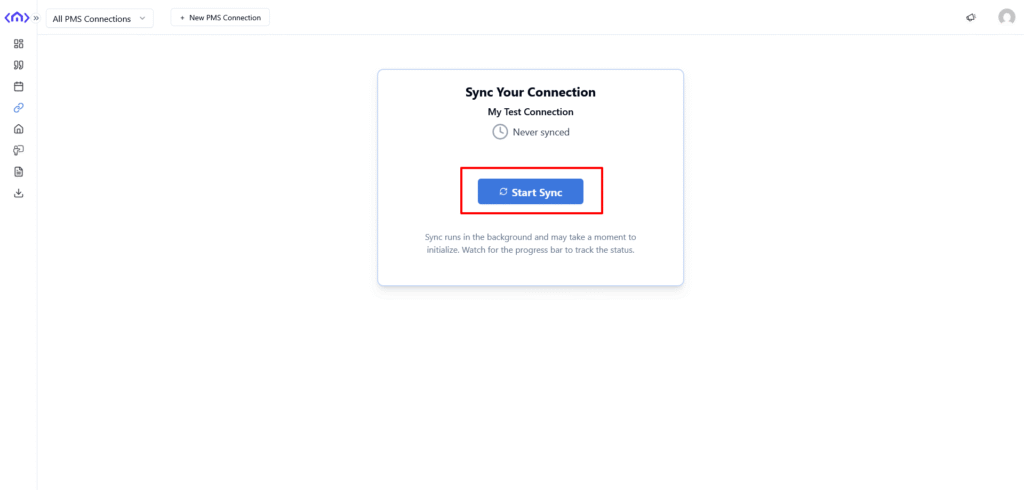
Run a sync to bring property data from OwnerRez to our system.