

How to Claim Your Vacation Rental Business in ChatGPT
Vacation rental operators can now claim their business listing in ChatGPT. OpenAI opened the program, called Businesses in ChatGPT, in beta on November 10, 2026. It’s free and separate from the paid ChatGPT Business plan. Everything happens in Business Hub:
Your company may be listed already
We looked up a few HomeRunner customers in Business Hub this week. One company had nine listings, a mix of company, market and single-property entries. Another had no company listing at all, but two of its homes were listed as businesses.
If you manage homes in several markets, expect to find more than one listing under your name. You claim each one separately. According to OpenAI’s help article, the main brand doesn’t cover its locations.
What claiming gets you
Once OpenAI approves your identity check, you can edit what the profile says: website, description, category, logo, cover photo. The profile also shows a blue verified check.
You also get an Insights page. It reports the past 28 days: how often ChatGPT mentioned your business, how many people clicked through to your website, and the topics those answers covered. OpenAI doesn’t share the conversations themselves. A blank number can mean the activity is below OpenAI’s reporting threshold. It doesn’t have to mean zero.
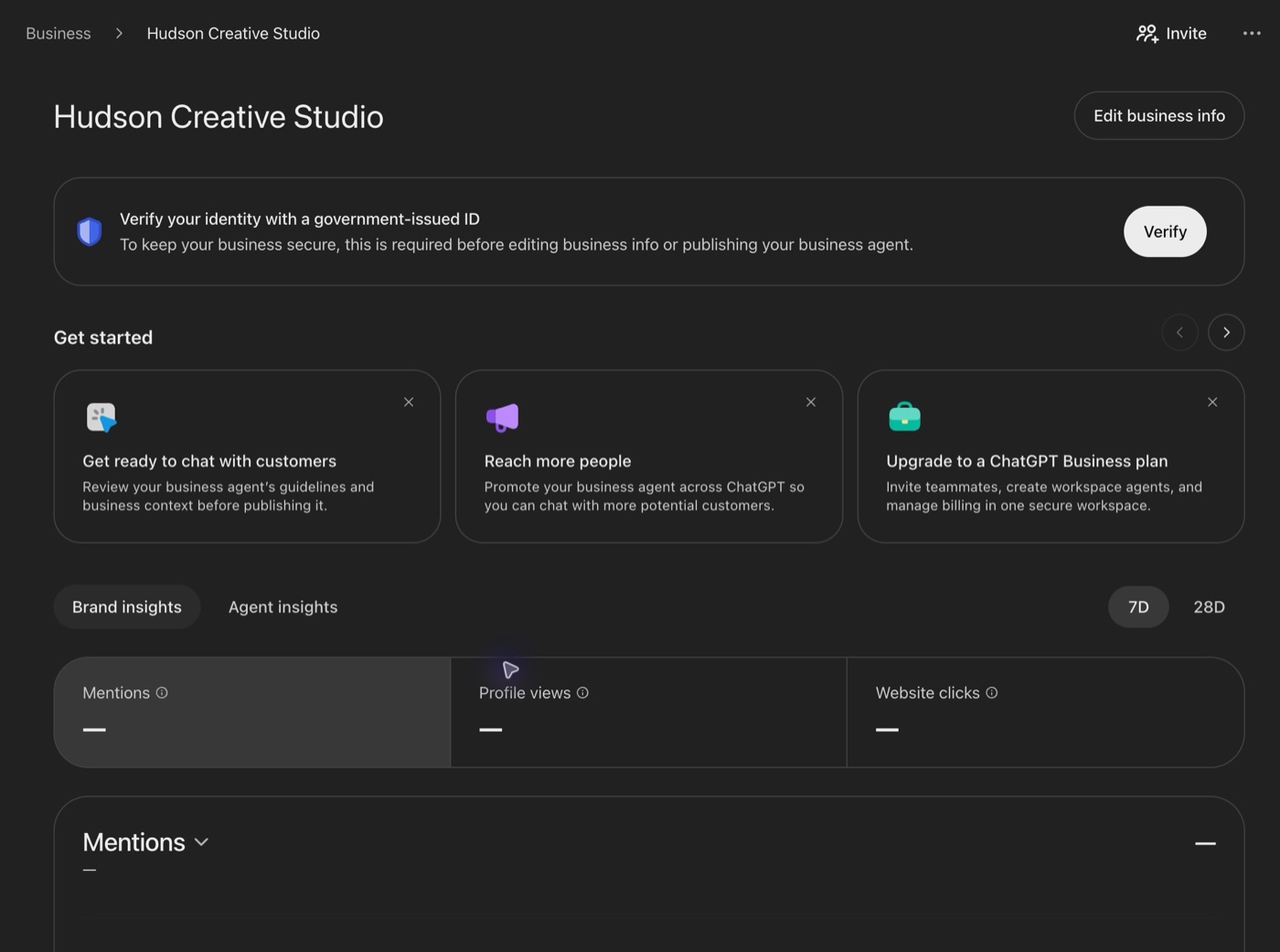
How a mention is counted depends on the listing type. For an online business, it counts only when ChatGPT references your website. For a local business, it counts when ChatGPT shows a result for that location.
A claimed listing doesn’t guarantee more visibility
OpenAI doesn’t promise that a claimed listing gets recommended more often. Its help article puts it this way: “It doesn’t guarantee increased visibility or give you direct control over ChatGPT’s independent recommendations.” The same article adds that ChatGPT “may also use other sources when answering questions about your business.”
So why would OpenAI bother verifying owners? No guarantee is different from no effect. The launch post says the details you add help people explore a business “using the most accurate and up-to-date details.” We can’t tell you a claimed listing will bring bookings. We’d still rather ChatGPT work from details the owner wrote than guess.
Anyone promising ChatGPT rankings from this program is promising more than OpenAI does.
The other two tabs: Agent builder and Products
Agent builder sets up a Business Agent, a chat assistant that people can open from your profile. It answers questions from information you give it. It can’t take a booking. OpenAI says the agent explains products and policies and links to your website, where the customer finishes. Agents are limited to eligible ecommerce and online service businesses in the US for now, and OpenAI reviews the business category before an agent can publish. We don’t know yet whether vacation rental companies qualify.
Products takes a product file with one row per item. The required fields include a title, description, link, image, price and availability. It’s built for retail. A rental home has a different price every night and the format has one price per item, so we don’t see a clean fit for rental listings yet.
You don’t need the paid ChatGPT Business plan or an ads account for any of this. Both get offered along the way.
How to claim, step by step
- Sign in to ChatGPT and open Business Hub from the sidebar. Search for your business by name and pick the listing that shows your website.
- Confirm the ChatGPT account that will manage the listing.
- Verify your connection to the business. Depending on the listing, OpenAI offers a code by text or call to the business phone, a code to the business email, or a DNS record on your website’s domain. We used the DNS record for both of ours. It’s a TXT record, and whoever manages your domain can add it in a couple of minutes.
- Complete the identity check. OpenAI uses a company called Persona for it. The owner or an authorized representative needs a government ID and business details. Our form asked for the legal business name, the DBA and an EIN.
- Wait for OpenAI’s decision by email.
What to watch for
The identity check is the slow step. Two people on OpenAI’s community forum reported checks that failed with no reason given, and one of them couldn’t restart the check. We haven’t cleared it for our own businesses yet.
If your business has no listing and you create one, do the setup in one sitting. Our creation session expired after the tab sat idle for about an hour, and we had to start over with a new DNS value. A new profile also publishes automatically once the identity check is approved, and OpenAI says its support team can’t unpublish it afterward. Check every field before you start the ID step.
We also don’t know yet whether OpenAI approves vacation rental companies as readily as online stores. The claim button appeared for every operator we checked. We haven’t seen an approval come back yet.
Where we are
We’re taking Hudson Creative Studio and HomeRunner through the process first, so we know each step before a customer asks.