
Overview #
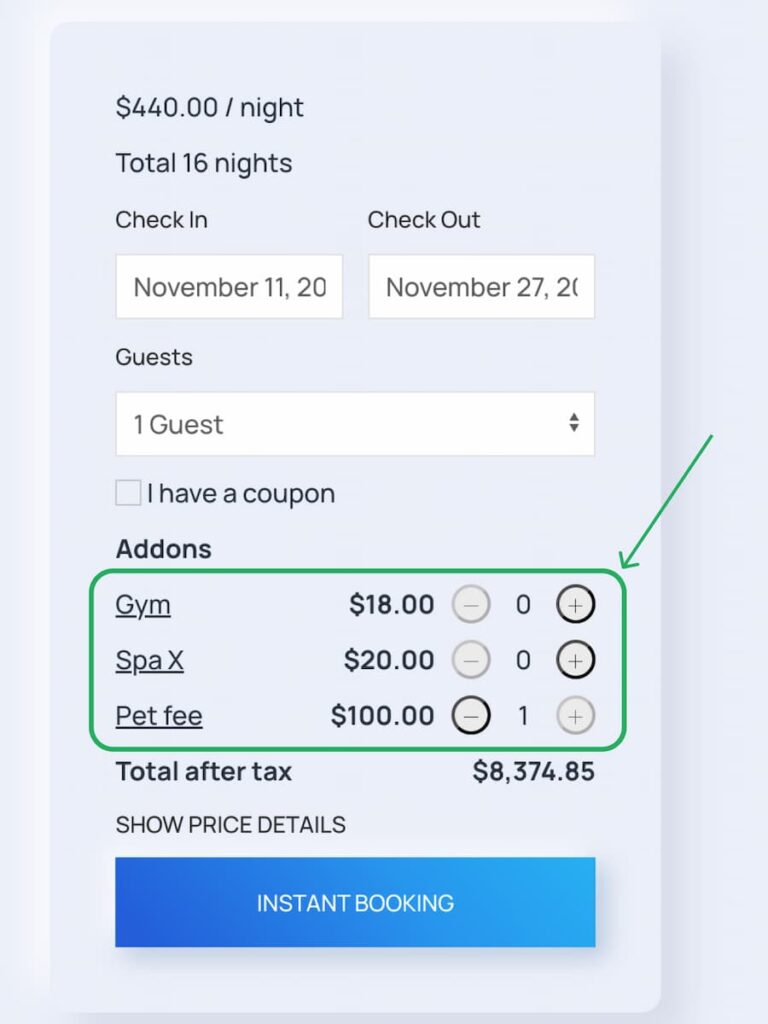
The Add-ons/Upsells feature allows you to offer optional services to guests during the booking process. This guide walks through the complete setup process.
Step 1: Enable the Feature #
Contact Guesty support and request that they enable the Upsells feature for your account. This must be done before you can configure any add-ons.
Step 2: Access Additional Fees Settings #
- Log into your Guesty account
- Navigate to Financials → Financial Settings
- Click on Additional Fees
https://app.guesty.com/financial/settings/additional-fees/additional-fees
Step 3: Create Your Add-on Fees #
- Click Add Fee to create a new fee
- Fill in the fee details:
- Fee Name: The name that will display to guests
- Description: Details about the add-on (this description will be shown to guests)
- Image (optional): Upload an image for the add-on
- Set your pricing
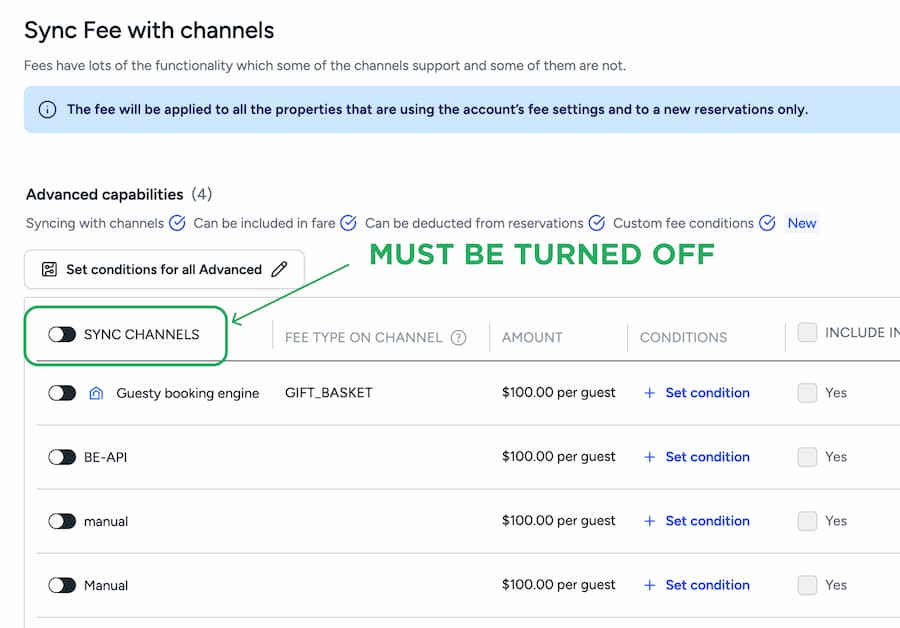
- Turn ‘Sync Channels’ to OFF*
- Save the fee
Note: Any type of fee can become an upsell. There are no restrictions on fee types.
- Sync Fees to Channels → Must be OFF
- Sync Fees to Specific Sources → Must be EMPTY
It is critically important to make sure the ‘Sync Channels’ option is turned off. If these settings are wrong, your upsells will become mandatory fees instead of optional add-ons.
Step 4: Enable as Upsell #
After creating the fee:
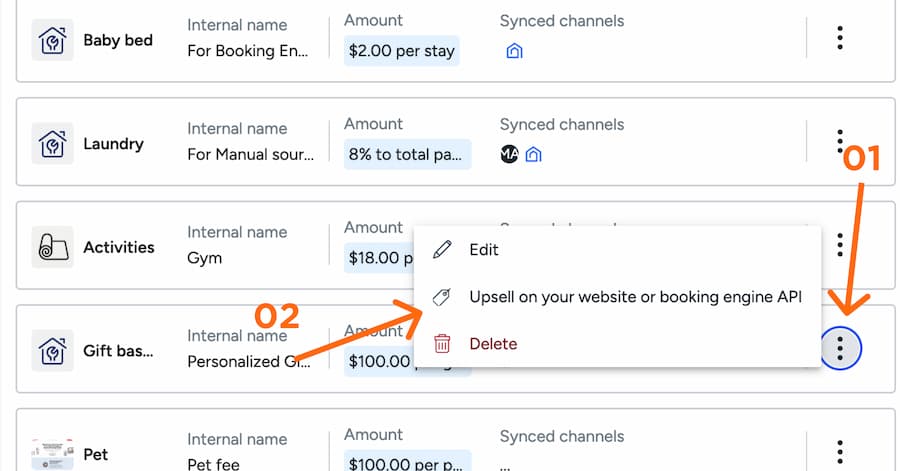
- Find the fee in your list of Additional Fees
- Click the three dots (…) next to the fee
- Select Enable upsell for booking engine
Step 5: System Sync #
After you’ve configured your upsells correctly:
- The system will automatically sync during the next scheduled sync
- There is no webhook trigger, it happens on the regular sync cycle
- Once synced, your upsells will be imported and available
Step 6: Get the feature enabled in HomeRunner #
Now here’s one more important step: once you’ve got everything set up in Guesty, reach out to us and let us know you’re ready to go live with add-ons.
We’ll enable the add-ons feature on your HomeRunner booking engine. We handle this activation to make sure everything is configured correctly and working smoothly before it goes live to your guests.
Once we flip that switch, your add-ons will automatically display during the booking process on your website.
Property Assignment #
Good news: Upsells are automatically added to all properties in your account by default. You don’t need to manually assign them to individual properties.
If needed in the future, HomeRunner customers will have the ability to manually remove upsells from specific properties on a property-by-property basis.
Important Notes #
- The description field is what guests will see, so make it clear and compelling
- Images are uploaded but currently not displayed (this may change)
- Do not sync fees to channels or sources, or they will become mandatory instead of optional
- Once configured, upsells work automatically across all properties
Troubleshooting #
Upsells appear as mandatory fees
- Check that “Sync fees to channels” is OFF
- Verify “Sync fees to specific sources” is empty
Upsells not appearing
- Confirm the Upsells feature is enabled by Guesty
- Verify you clicked “Enable upsell for booking engine” for each fee
- Wait for the next system sync to complete or reach out to us to perform a manual sync
What’s Next #
Future enhancements will include:
- Conditional logic for auto-adding upsells based on guest selections (like pet fees)
- Tag-based triggering systems
- Property-specific upsell controls
- Enhanced UI/UX improvements