
In HomeRunner, you can create targeted landing pages that automatically filter your inventory based on specific criteria—such as amenities, location, tags, or property types. This is excellent for SEO and for creating curated collections like “Pet-Friendly Cabins” or “Homes with Pickleball Courts.”
This guide covers finding your filter slugs, setting up the shortcode, and adding the new page to your site’s navigation.
📹 Video Walkthrough #
Watch this quick overview to see the end-to-end process of identifying filter slugs, setting up the shortcode, and adding the new page to your site’s navigation in YOOtheme.
Step 1: Identify Your Filter Slug #
Before creating the page, you need the unique identifier (slug) for the criteria you want to filter by.
- Navigate to the WordPress Dashboard.
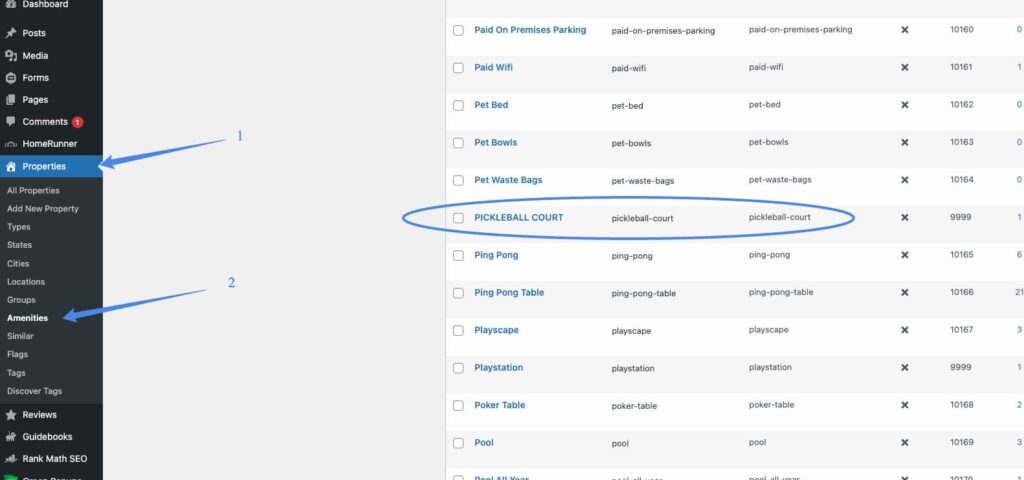
- Go to Properties > Taxonomies (or look under Amenities, Tags, etc., depending on what you are filtering).
- Find the specific attribute you want to target (e.g., “Pickleball Court”).
- Copy the Slug exactly as it appears (e.g.,
pickleball-court).
Step 2: Create the Page #
- Go to Pages > Add New.
- Title: Enter a public-facing title (e.g., Cabins with a Pickleball Court).
- URL Slug: Check the Permalink settings. If the auto-generated slug is too long, edit it to be clean and SEO-friendly (e.g.,
pickleball-cabins). - Publish the page to save the slug.
- Edit the newly created page.
Step 3: Apply Layout & Shortcode #
To maintain design consistency, we recommend loading an existing template rather than starting from scratch.
- Load Template: In YOOtheme, go to Library > My Layouts and load the “Single Category Landing Page” template.
- Update Heading: Change the page title text to match your new category.
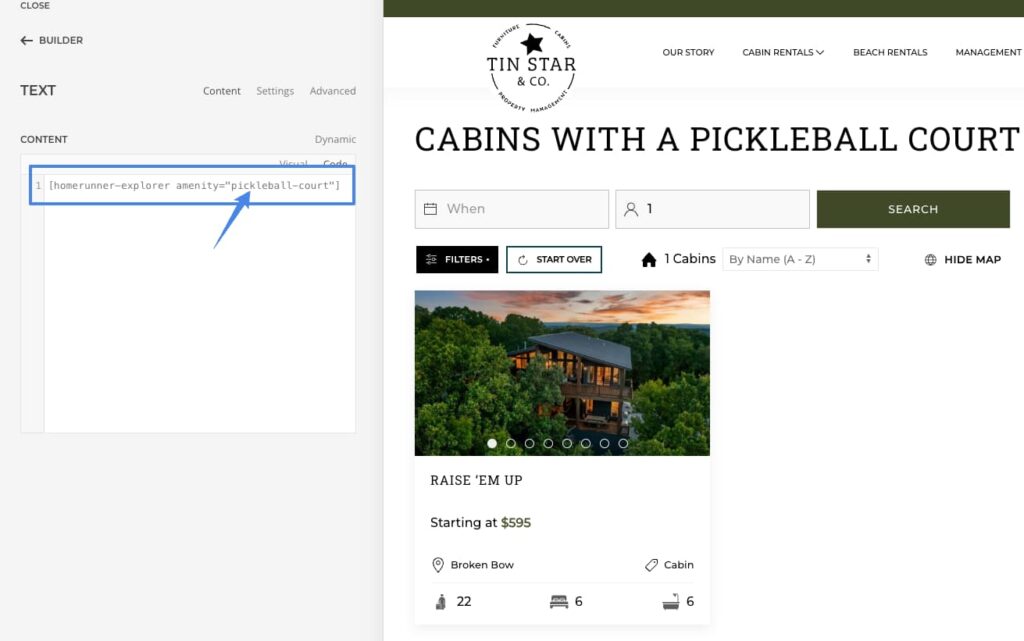
- Configure the Shortcode: Locate the HomeRunner Explorer element (or text element containing the shortcode). Replace the existing parameter with your new slug from Step 1.
Example Shortcode Configuration:
[homerunner_explorer amenity="pickleball-court"]
💡 Key Concepts: Filtering Logic #
- Amenities & Tags: You can filter by
amenity,tag,group, orlocation. - Multiple Criteria (AND Logic): If you list multiple items separated by a comma (e.g.,
amenity="pickleball-court, hot-tub"), the system uses AND logic. This means a property must have ALL listed amenities to appear. - Exact Match vs. Minimums:
bedrooms="2": Returns properties with 2 or more bedrooms.bedrooms_eq="2": Returns properties with exactly 2 bedrooms.