Table of Contents
Step 1: Getting Your Site ID #
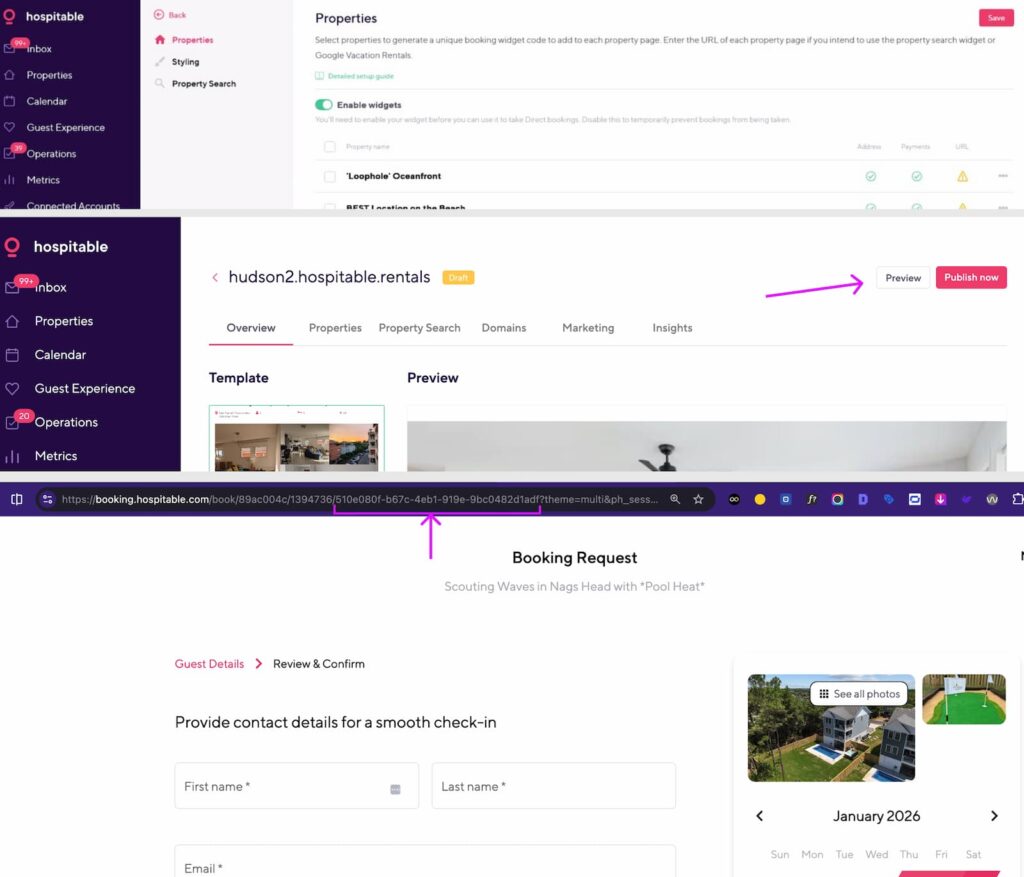
Next, you’ll need to find the specific Site ID for the direct booking site you wish to connect.
- Go to https://my.hospitable.com/direct.
- Select the site you want to connect from your list.
- If there is no custom site present, you will need to create one, then enable Widgets
- Click the “Preview” button.
- Select the dates follow the booking process until you get to the checkout page
- Look at the URL in your browser’s address bar. The Site ID is the code found at the end of the URL.
- Example: If the URL is
https://booking.hospitable.com/book/89ac004c/139473/01e2c1e8-f568-4632-a1c9-424ebd30257f, your Site ID is01e2c1e8-f568-4632-a1c9-424ebd30257f.
- Example: If the URL is
- Copy this ID.
Step 2: New PMS Connection #
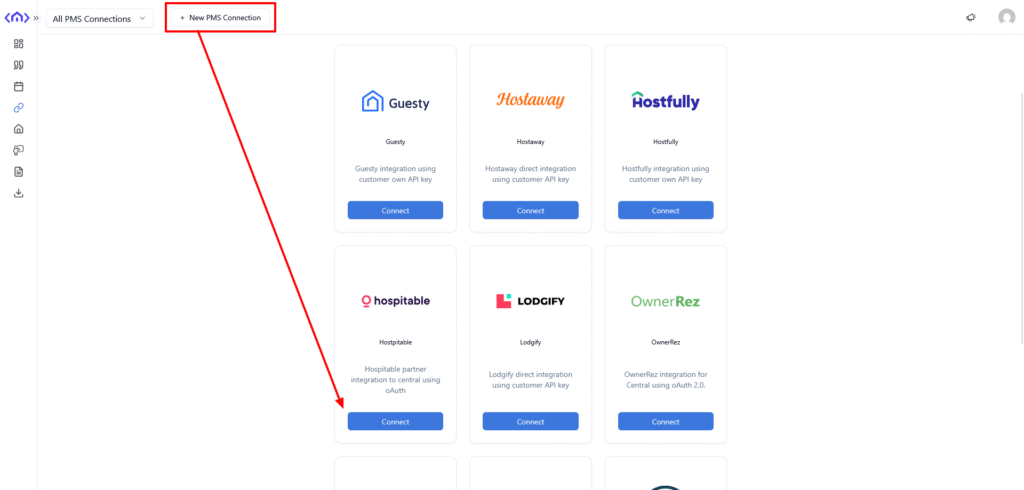
Click on New PMS Connection and chose OwnerRez.
Step 3: Configure Connection #
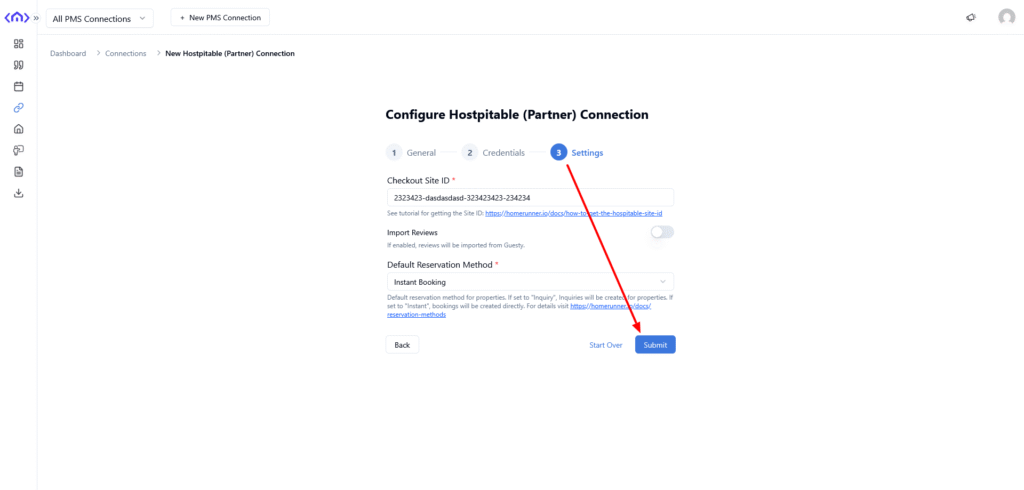
Add connection information, such as Connection Name and click Submit on the last step.
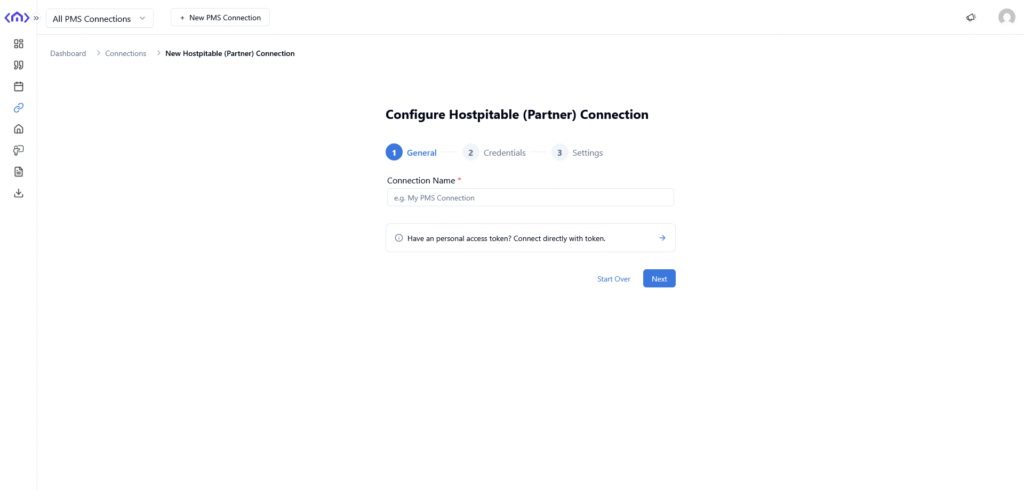
Enter the previously copied id to “Checkout Site ID”
Step 4: Authorize #
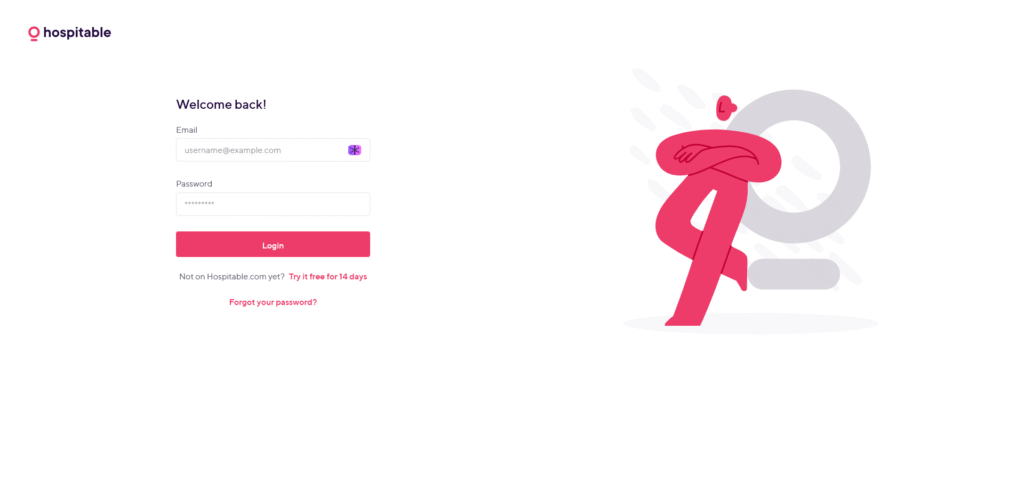
You will be redirected to Hospitable site for Authorization. Login to your account and connect Hudson Creative Studio to your access.
Step 5: Run Sync #
Run a sync to bring property data from OwnerRez to our system.