
Most text strings within the HomeRunner platform are prepared as .POT files, allowing them to be easily customized or translated. This guide outlines how to modify these strings (e.g., changing search bar placeholders like “Anywhere” to “Destination”) using the free Loco Translate plugin.
Prerequisites #
- An active installation of HomeRunner.
- Admin access to your WordPress dashboard.
Step 1: Install Loco Translate #
To begin, you must install the plugin that manages text strings.
- Navigate to Plugins > Add New in your WordPress dashboard.
- Search for Loco Translate.
- Click Install Now and then Activate.
Step 2: Initialize the Language File #
Once activated, you need to create a configuration file for HomeRunner.
- Go to Loco Translate > Plugins in the sidebar.
- Select HomeRunner from the list of plugins.
- Click New Language.
- Choose a Language: Select the primary language of your website (e.g., English, French, German).
- Choose a Location: Select System (usually shown as
languages/plugins/homelocal-en_US.po).
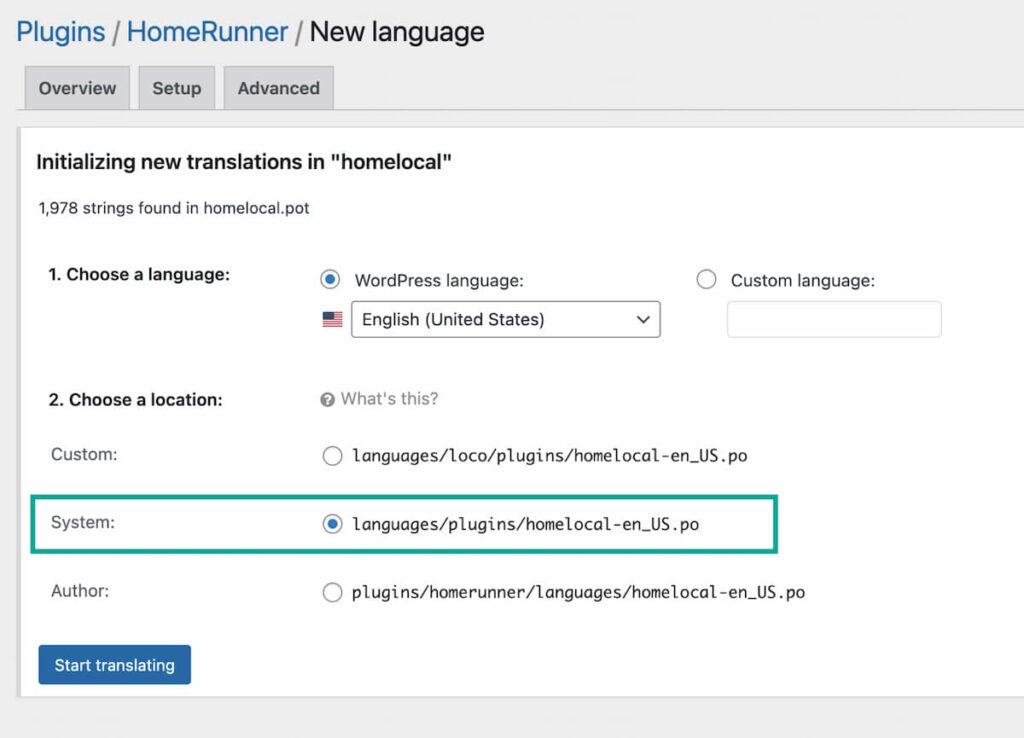
Important: Always choose the System location option. Do not store files within the plugin folder or the Loco folder. Storing them in “System” ensures your custom text is future-proof and will not be overwritten when the plugin is updated.
- Click Start Translating.
Step 3: Edit Text Strings #
You will now see a list of all available text strings within HomeRunner.
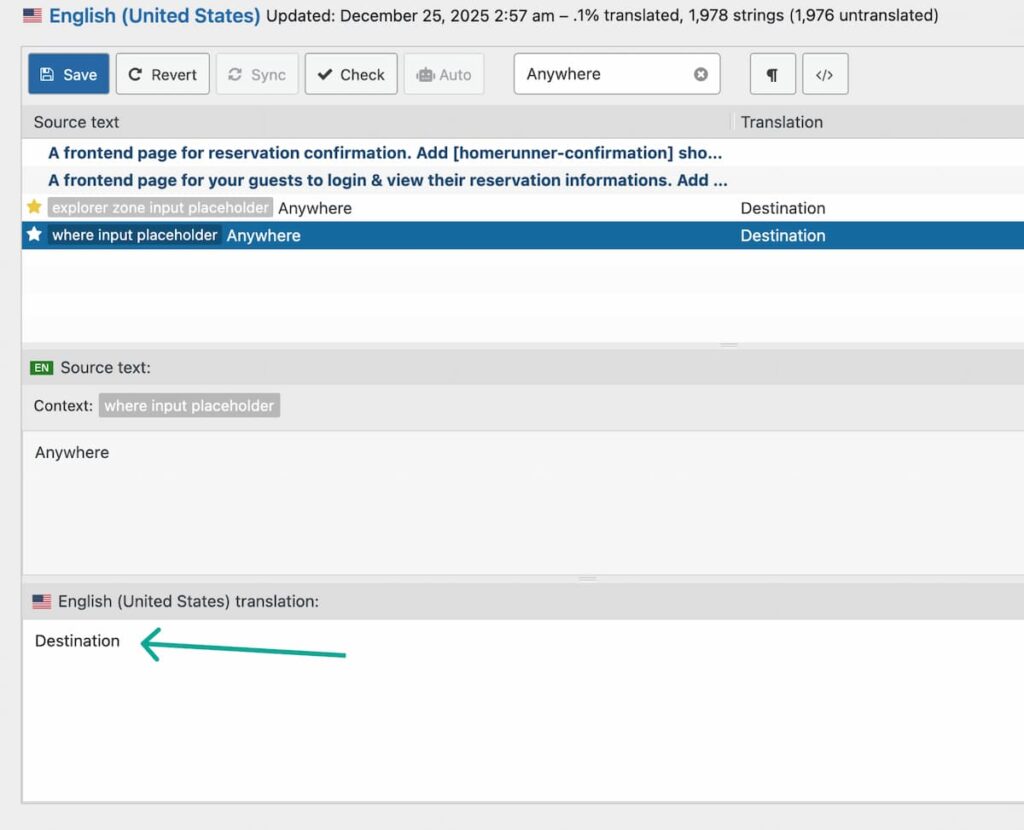
- Search: Use the Filter translations bar at the top to find the text you want to change (e.g., type “Anywhere”).
- Select: Click the specific string you wish to modify.
- Note: Be careful to select the correct string ID (e.g., “Explorer Zone Input Placeholder” vs. “Where Input Placeholder”). If you are unsure, you may need to update both.
- Edit: In the bottom pane, enter your desired text (e.g., change “Anywhere” to “Destination”).
- Save: Click the Save button in the toolbar.
Troubleshooting & Tips #
If your changes do not appear on your website immediately, try the following steps:
- Sync the File: Click the Sync button in the Loco Translate toolbar to ensure the file is up to date, then click Save again.
- Clear Cache: If you use caching plugins or server-side caching, clear your cache and refresh your browser (using
Shift + Refreshfor a hard refresh).