

Build Filters Guests Actually Use: Pools, Ocean Views, Groups, and Budgets (With Real Examples)
When it comes to vacation rental bookings in 2025, filters aren’t a nice-to-have—they’re the decision engine of your direct booking site. As property managers and web agencies who live and breathe the booking journey, we’ve seen firsthand how the right filters (not just more filters) instantly help guests find “their” vacation home. In most cases, guests care about a handful of core criteria: is there a pool, can my whole group stay together, do I get a view, and can we stick to our budget? Let’s go deep into designing filters for pools, ocean views, groups, and budgets—with real-world strategies from a team that regularly implements these across large portfolios with tight PMS integrations.
Why Strong Filters Drive Bookings (and Trust)
It’s easy to underestimate filters. But consider that over 80% of U.S. vacation rental revenue now comes from online bookings, with guests trained by OTAs to expect lightning-fast search, clear options, and instant elimination of properties that don’t fit their needs. If your booking site makes this hard, people bounce—no matter how great your properties are.
- Families and groups don’t want to open 10 listings just to count beds or check for a pool.
- Amenities like pools and ocean views are non-negotiable for many travelers. When a filter is missing, trust erodes fast.
- Price sensitivity is stronger than ever, especially during peak travel periods.
Instead of overwhelming guests with 20 filters, we focus on the categories guests truly use. Then, we leverage PMS data and booking analytics to refine which filters are visible and what collections are promoted on the site.
The Four Filter Types Guests Actually Use
- Capacity: Beds, bedrooms, bathrooms, and group size
- Amenities: Pools, hot tubs, outdoor features
- Location/View: Oceanfront, ocean view, walkable zones
- Budget: Clear, transparent price ranges
Let’s break down each one—here’s how we build them for real, busy vacation rental brands using WordPress + PMS integrations (like Hostfully, Guesty Pro, Lodgify, and more) with HomeRunner.
1. Filters for Groups: Beds, Bedrooms, and Guest Count
For group bookings, the easiest way to lose a guest is by forcing them to cross-reference bed counts manually. The most-used filters in this category are:
- Total guests (headcount)
- Bedrooms (exact number, or ranges like 3+ or 5+)
- Bathrooms (essential for groups)
- Pet-friendly toggle
With our approach, we map these fields straight from PMS data—”max guests”, “bedrooms”, “bathrooms”. Guests land, set group size, and instantly see only the listings big enough to handle them. For family travelers, you can create pre-built collections like:
- “Family-Friendly Homes (3+ bedrooms)”
- “Retreats for 10+”
- “Pet-Friendly with Fenced Yards”
All of this is accomplished in minutes via front-end configuration—no rebuilding, no custom code—because we’re leveraging the rich property data you’re already maintaining in your PMS.
2. Filters for Amenities: Pools, Hot Tubs, and Outdoor Spaces
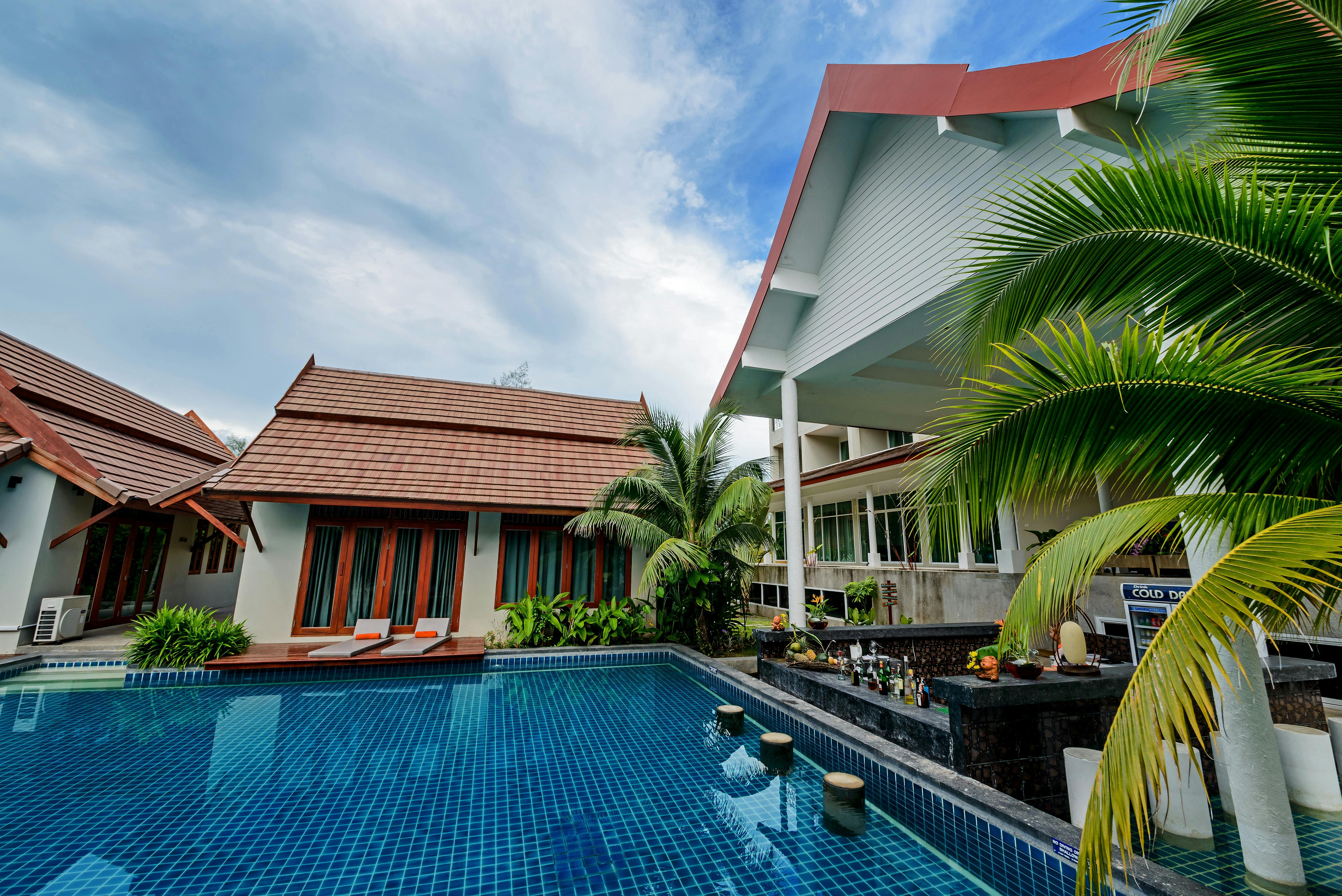
“Pool” is rarely just a checkbox—guests want to define the experience: private vs shared pool, hot tub, fire pit. We leverage tags and amenities fields in your PMS to expose the exact amenities that matter.
- Pool: Simple toggle or advanced (private/shared)
- Hot Tub
- Outdoor kitchen, fire pit, grill
- EV Charger (essential for drive-to markets)
By standardizing amenity tags in your PMS—then mapping them to on-site filters—we ensure every pool home is easy to find. You can even create pre-set collections such as:
- “Pool Homes for Families” (Pool + Bedrooms ≥ 3)
- “Luxury Oceanfront With Private Pool” (Waterfront + Private Pool + Price ≥ $X)
- “Romantic Getaways With Hot Tubs”
3. Filters for Views & Locations: Ocean, Beach, Walkability
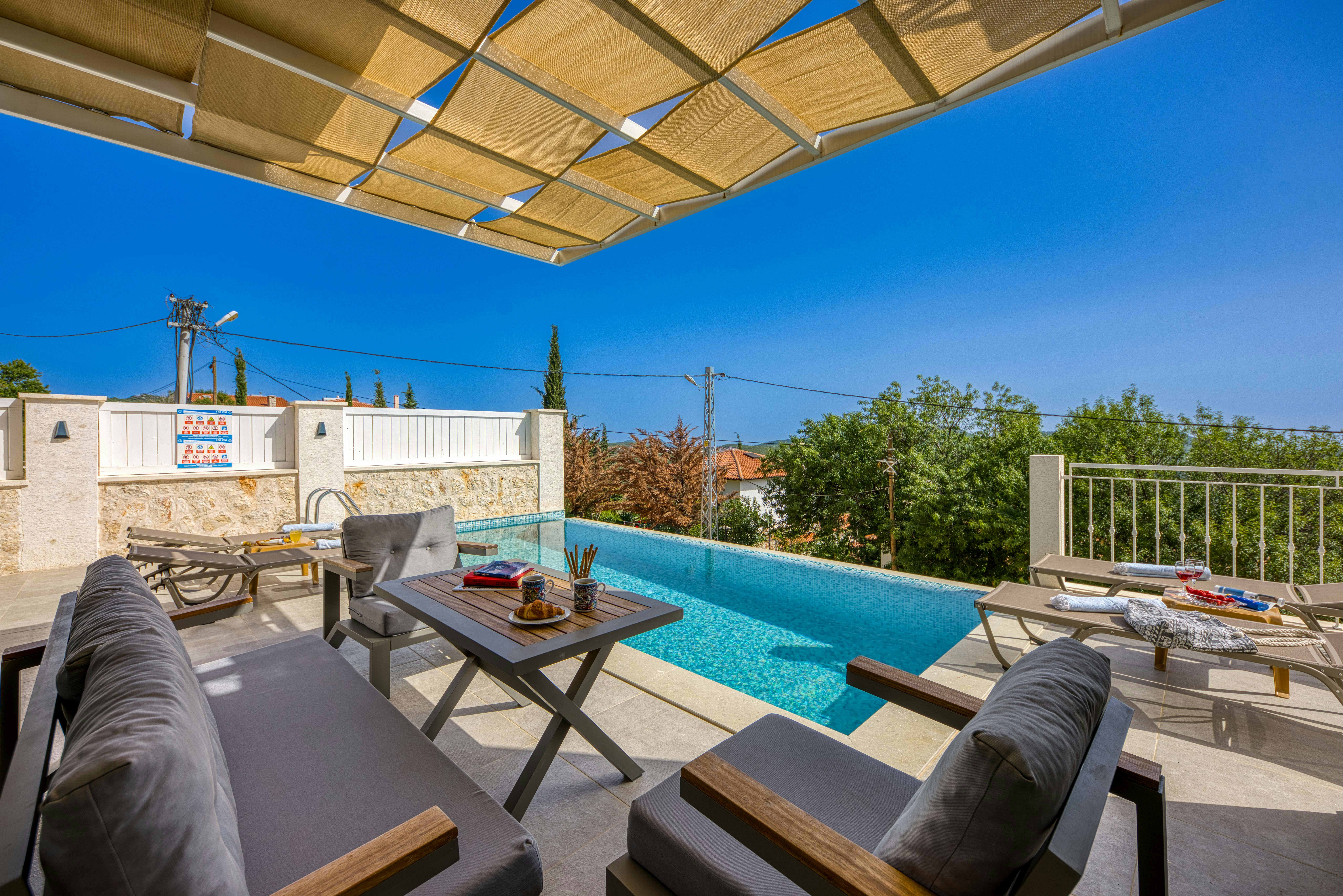
For coastal or scenic destinations, location granularity is everything. Instead of just filtering for city or region, we enable more opinionated tags, including:
- Oceanfront (direct access to beach or water)
- Ocean View (primary photo must show the view)
- Walk to Beach (applies a distance tag, e.g., within 10 minutes walk)
- Neighborhood Collections (East Beach, Downtown, Historic District)
Using PMS tags or Homerunner collections, you can assign micro-locations that make sense in your context, so guests can immediately filter to only the most relevant zones. Honesty here matters—if the view is only from a shared space, make sure the tag is accurate.
4. Filters for Budget: Make Pricing Transparent
No one enjoys mystery pricing. After guests filter by date and group size, price quickly becomes the main lever, especially for longer stays. The most effective pricing filters include:
- Price range sliders (nightly, or total stay after date selection)
- Quick preset buttons (e.g., “Under $250/night,” “$250–$400/night”)
- Real-time display of “from price” per property on results
- Switch to showing full stay cost when dates are locked
With the right setup, you can create dynamic budget-driven collections:
- “Pool Homes Under $400/Night”
- “Group Stays Under $100/Person/Night”
- “Best Value Near the Beach”
How We Decide Which Filters to Show (and Hide)
Just because your PMS can sync 25 attributes, doesn’t mean you should display all of them. Here’s our proven three-step approach:
- Audit guest behaviors—see which filters are already getting clicks in your analytics dashboard and PMS.
- Simplify the defaults—”Where,” “Dates,” “Guests,” “Price Range,” “Bedrooms,” “Pool,” and “Ocean View” usually cover 80% of what you need.
- Promote opinionated collections—instead of crowding the interface, link to pre-filtered landing pages for popular journeys (family stays with pools, group retreats, etc.).
For example, with a mid-sized beach rental company, we might show: “Where + Dates + Guests” as the primary options, then let bedrooms, bathrooms, pools, and ocean view live in an expandable drawer for power users.
Real Filter Setups for Different Operators
Operator With 10 Coastal Homes (Starter Plan)
- Default filters: Where (Beach Town), Dates, Guests
- Advanced: Bedrooms, Bathrooms, Pool, Waterfront, Pet Friendly, Price
- Collections to promote: Oceanfront Homes, Family Pool Homes, Pet Friendly
Setup time? Usually under an hour from PMS connection to live, clickable filters—no site rebuild, just configuration.
Regional Manager With 150 Properties (Pro Plan)
- Main search bar: Where (supports cities and neighborhoods), Dates, Guests
- Always visible filters: Bedrooms, Bathrooms, Price Range, Pool, Ocean View, Pet Friendly
- Advanced options in drawer: Hot Tub, Fire Pit, EV Charger, Walk to Beach, Work Desk
- Strategic collections: “Oceanfront & Ocean View”, “Group Stays 10+”, “Under $300/Night”
With advanced collection management, you can even split a single PMS inventory into several branded microsites, each with their own custom filter defaults.
UX Details That Make Filters Work
- Keep the search path linear—don’t force guests to configure every filter at once. Let them start broad, then narrow as needed.
- Active filters should be obvious—show them as chips that can be easily removed with one click.
- Guard against dead ends—display “number of properties found” live, and suggest removing filters if no matches are available.
All of these are patterns we’ve built directly into HomeRunner’s UI, optimized for both desktop and mobile. If you want more design guidance, check our post 9 UX Fixes That Lift Conversion.
Using Data to Continuously Refine Filters
Filters are never “set-and-forget.” We use a mix of PMS reports and our business intelligence dashboard to keep iterating. Metrics to track:
- Filter usage rate (do guests actually use advanced options, or are some wasted space?)
- Conversion rates by filter combo (e.g., “Pool + Ocean View + 3 Bedrooms”).
- Occupancy and ADR by amenity or location (does “pool” really yield a revenue premium?)
Real-time data can inform decisions to simplify, promote new filter combos, or launch themed collections that actually convert. For more on analytics, see our guide How to Leverage Real-Time Analytics for Revenue Growth.
Step-by-Step Checklist: Launch Filters Guests Actually Use
Week 1: Audit Your Inventory
- Pull a list of amenities, bed and bath counts, and locations from your PMS.
- Identify which attributes meaningfully differentiate your homes (e.g., Pools, Waterfront, 4+ Bedrooms)
Week 2: Configure Your Booking Engine
- Connect your PMS to your booking platform
- Set your default filters: Where, Dates, Guests
- Add visible options for Price, Bedrooms, Pool, Ocean View, Pet Friendly
- Move less-used filters to an expandable “All Filters” drawer
Week 3: Curate Property Collections
- “Pool Homes Under $400/Night”
- “Oceanfront Villas for 8+”
- “Pet Friendly Near the Beach”
Week 4: Track and Refine
- Review analytics on filter usage and conversion
- Promote the most successful collections more aggressively
- Remove or demote filters that get minimal engagement
Final Thoughts: Filters as a Booking Engine Superpower
We’ve learned that guests don’t want a hundred ways to search—they want the confidence to find what matters with the least effort. Whether it’s that private pool, ocean view, easy group accommodation, or a price that makes sense for their budget, dial in your filters, sync your data reliably, and keep iterating.
If you’re ready to take control of your booking experience, ship high-converting filters now, and avoid rebuilding your website, learn more about our approach at HomeRunner. And for those looking to go deeper, check out our internal guide on custom property collections—a perfect next step to turn your filter strategy into real revenue growth.